
You open CurseForge on Linux, hit the game list… and Hytale is nowhere to be found.
No scan result.
No install option.
Just confusion.
Before you start reinstalling things or blaming Linux, here’s the good news: this isn’t your fault, and your setup isn’t broken.
What you’re running into is a limitation of the CurseForge Linux desktop app itself. Even though Hytale mods exist on the CurseForge website and the game is officially supported there, the Linux version of the app doesn’t currently list or detect Hytale as a playable game. Because of that, Hytale simply won’t appear in the game selection menu, no matter how many times you refresh, rescan, or reinstall the app.
This can feel misleading, especially if you’re coming from Windows or macOS where more games are supported. But the important thing to understand is that nothing is wrong with your system, your Linux distro, or your Hytale installation. It’s just an app-side limitation — and once you know that, you can stop troubleshooting the wrong things and focus on the actual workaround instead.
The Quick Answer (So You Don’t Waste Time)
The CurseForge Linux desktop app does not currently support Hytale.
That’s it.
That single limitation explains everything you’re seeing.
This is why Hytale doesn’t appear anywhere in the CurseForge app on Linux — no game entry, no scan result, no option to manually add it — even though Hytale mods clearly exist on the CurseForge website and can be downloaded just fine.
The important thing to understand is that this is not a bug, not a corrupted install, not a permissions issue, and not something you caused by using Linux. You’re also not missing a hidden toggle or advanced setting inside CurseForge. The Linux version of the app simply hasn’t implemented Hytale support yet.
Because of that, reinstalling CurseForge, reinstalling Hytale, refreshing the game list, or changing directories will never make Hytale appear. Once you know this, you can stop wasting time troubleshooting and move straight to the correct workaround instead.
Why This Happens
Even though Hytale is officially partnered with CurseForge, the Linux version of the CurseForge desktop app is still very limited in terms of game support. Right now, it only recognizes a small handful of titles, which is where the confusion starts for Linux players.
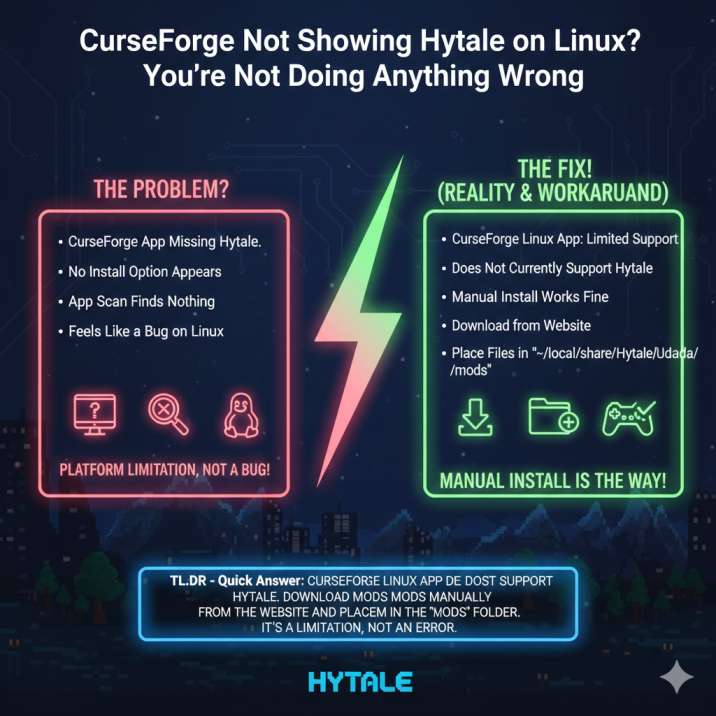
As things currently stand:
- Minecraft: Java Edition → supported
- World of Warcraft → supported
- Hytale → not supported on the Linux app
Because of this limitation, Hytale will never appear in the CurseForge Linux app’s game list, no matter how many times you refresh the library, rescan your drives, or reinstall CurseForge entirely. The app simply isn’t designed to detect or manage Hytale on Linux yet.
That’s why the issue feels so stubborn. You can do everything “right” and still get nowhere, because this isn’t something you can fix locally. Until CurseForge expands Linux support, Hytale will remain invisible inside the app by design.
Read also: Tomatoes Not Growing in Hytale? You’re Not Alone
Can You Fix This Inside CurseForge?
Short answer: Nope.
There’s no hidden switch you missed and no clever workaround inside the app. Specifically, there’s:
- No toggle to enable Hytale
- No manual “add game” option
- No secret config file or launch argument that forces detection
If you’re on Linux, the CurseForge desktop app simply won’t detect Hytale yet, regardless of how it’s installed or where it’s located. You can reinstall CurseForge, reinstall Hytale, clear caches, or rescan drives all you want — the result will always be the same.
That’s why this issue trips up so many players. It feels like something should work, but the limitation is built into the Linux version of the app itself. Until CurseForge officially adds Hytale support on Linux, there’s nothing you can change inside CurseForge to fix it.
The Actual Solution: Install Hytale Mods Manually (It Works)
Here’s the part that actually matters: you can still use Hytale mods on Linux without any problems at all. You just can’t rely on the CurseForge desktop app to install them for you.
Instead, you’ll need to install mods manually — and thankfully, it’s straightforward.
What to do:
- Download the mod you want directly from the CurseForge website
- Navigate to your Hytale data folder on Linux:
~/.local/share/Hytale/UserData/ - Inside that directory, create a new folder named:
mods - Drop the downloaded mod files into the
modsfolder - Launch Hytale and enable the mods from the in-game menu
That’s it. Once the files are in the correct folder, mods load normally and work just like they should. No launcher tricks, no extra tools, and no special permissions required — just manual placement until full Linux support arrives.
Read also: Is Hytale Always Online? Why Singleplayer Still Needs Internet
Quick FAQ (Because Everyone Asks)
Is CurseForge broken on Linux?
No. The Linux version of CurseForge isn’t broken — it just has limited game support compared to Windows and macOS.
Is this a Hytale bug?
Nope. Hytale itself works fine on Linux. The issue is entirely on the CurseForge app side.
Will reinstalling CurseForge fix this?
No. Reinstalling, refreshing, or rescanning won’t make Hytale appear in the Linux app.
Can I still mod Hytale on Linux?
Yes. You can install Hytale mods manually, and they work normally once placed in the correct folder.
Bottom Line
If CurseForge doesn’t show Hytale on Linux, nothing is wrong with your system. Your install is fine, your files are fine, and your distro isn’t the problem. The issue is simply that the CurseForge Linux desktop app doesn’t support Hytale yet.
Until that changes, the correct move is straightforward:
👉 Download Hytale mods from the CurseForge website and install them manually.
It’s not the smooth, one-click experience the app promises, and yeah, it’s a bit annoying. But now you know exactly why it happens, what doesn’t fix it, and how to move forward without wasting hours troubleshooting something that isn’t broken.