
The release of NHL 26 has brought exciting improvements to the Be A Pro career mode, including deeper storylines, personality-driven choices, and a reworked team leadership system.
For the first time, EA Sports introduced a dynamic captaincy mechanic that allows players to earn the “C” or “A” badges through performance, leadership ratings, and team interactions.
This feature was designed to make progression more realistic—rewarding consistent on-ice excellence and locker-room influence.
Introduction: NHL 26 Be A Pro Captaincy Bug
However, soon after launch, many players began reporting a frustrating issue now known as the “Be A Pro Captaincy Bug.” This glitch causes players to suddenly gain or lose their captaincy mid-season, often without explanation.
Some users find themselves demoted from captain to assistant, while others inexplicably lose all leadership designations even after meeting every in-game requirement. In certain cases, the captaincy transfers to random teammates or vanishes entirely after a trade or patch update.
This bug matters because captaincy is more than cosmetic—it influences player morale, dialogue options, and legacy milestones within Be A Pro.
Losing the captain “C” unexpectedly disrupts immersion and progression, especially for users striving to lead their team to the Stanley Cup.
The purpose of this guide is to analyze the NHL 26 captaincy glitch, explain its possible causes, summarize community reports, and provide step-by-step fixes and preventive tips.
Whether you’ve lost your captaincy after an update or noticed leadership resets between games, this comprehensive guide will help you understand, troubleshoot, and minimize the issue’s impact on your Be A Pro journey.
What Is the Be A Pro Captaincy Bug in NHL 26?
The Be A Pro Captaincy Bug in NHL 26 is a gameplay glitch that causes players to suddenly gain or lose their captaincy status without any clear reason. In EA Sports’ latest Be A Pro mode, players can earn the “C” or “A” badges based on performance, leadership traits, and team chemistry.
However, due to this bug, even top-performing skaters have reported random demotions or missing captaincy icons mid-season.
Some users notice the glitch after patch updates, team trades, or simulation skips, while others experience it right after loading a saved career.
The issue not only removes the visible captain’s “C” but can also affect dialogue options, teammate interactions, and morale bonuses, breaking the realism that Be A Pro mode aims to deliver.
What Causes the NHL 26 Be A Pro Captaincy Bug?
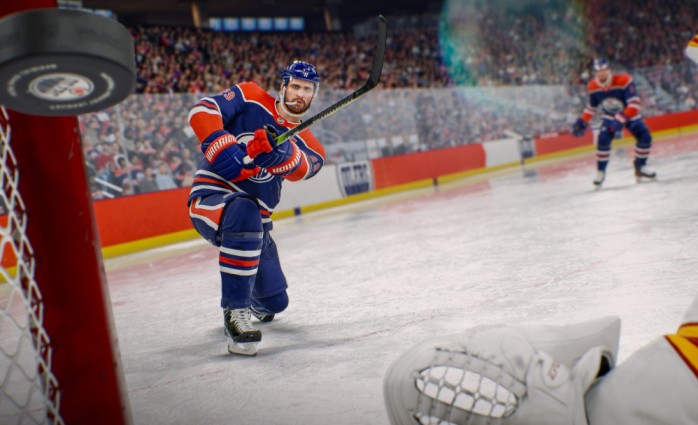
The Be A Pro Captaincy Bug in NHL 26 happens when your player suddenly loses or gains the captain’s “C” or “A” badge for no logical reason. This frustrating issue is tied to how EA’s new leadership and progression systems work in NHL 26. Below is a breakdown of the most common causes, explained in simple terms.
???? 1. Save File Conflicts After Game Updates
When EA releases patches or roster updates, your Be A Pro save file may not sync correctly with the new game data.
- The game tries to recalculate leadership roles using new logic.
- This can cause your captaincy status to reset or disappear.
- Players who load older saves after an update are most affected.
???? Tip: Always back up your Be A Pro save before installing a patch or update.
???? 2. Team Trades or Roster Changes
If you’re traded mid-season or your team’s lineup changes, the AI may automatically assign a new captain.
- The system sometimes chooses another player with higher morale or overall rating.
- Even top-performing players can lose their “C” after a trade or roster shuffle.
???? Tip: Avoid forcing trades or editing lineups during active seasons.
⚙️ 3. Morale and Leadership System Errors
NHL 26 uses a new morale-driven leadership algorithm.
- It tracks performance, locker room reputation, and dialogue choices.
- Sometimes, a small dip in morale or story progression bug triggers false leadership demotions.
- The game might think your player “underperformed” even if stats say otherwise.
☁️ 4. EA App Cloud Save Desync
Players who switch between online and offline modes or use multiple devices often face cloud conflicts.
- The EA App might sync outdated data.
- This leads to the captain badge disappearing or reverting to an earlier state.
???? Tip: Keep cloud saves disabled if you play primarily offline.
???? 5. Custom Rosters and Mods Interference
If you use custom rosters, edited ratings, or gameplay mods, the leadership system can get confused.
- Modified sliders or attributes can break captaincy assignments.
- This is especially common on PC versions with custom edits.
???? Summary
In simple terms, the NHL 26 Be A Pro Captaincy Bug is caused by:
- Save file mismatches after updates
- AI leadership logic errors
- Cloud or trade data conflicts
- Custom content interference
Until EA releases an official fix, the best workaround is to save manually, disable auto-updates, and back up your files regularly.
Step-by-step fixes — NHL 26 Be A Pro Captaincy Bug
Below are practical, ordered fixes and workarounds you can try if your Be A Pro player suddenly loses or gains the captain “C/A” mid-season. I’ll start with the fastest, least-destructive steps and move toward deeper fixes — do them in order until the problem is resolved.
Quick note: this captaincy issue is widely reported by the community, especially after patches and roster updates.
Quick troubleshooting (do these first)
- Manual save → Exit → Reload
- Create a fresh manual save, fully quit the game and the EA App, then relaunch and load that save.
- Why: simple reload often forces the leadership state to re-apply if it was a temporary UI/desync.
- Restart your console/PC and EA App
- Close EA App completely (Task Manager on PC), restart your system, launch EA App as Administrator and open NHL 26.
- Why: clears background processes and temporary sessions that sometimes wipe leadership flags.
- Check Team/Club Roster screens
- Open Team Management / Club Roster and inspect captain/alternate assignments — sometimes the visual “C” is missing but the game still recognises your captain status, or you can reassign if the UI allows it.
- Why: keeps you from assuming the worst — sometimes it’s only a visual glitch.
Safe, non-destructive fixes
- Make regular manual backups of your Be A Pro save
- Copy your active save(s) to a separate folder or external drive before trying riskier fixes. If something goes wrong, restore the backup.
- (If you’re unsure where saves live for your platform, check EA Help / NHL 26 support.) EA Help
- Disable cloud/avoid cloud sync while troubleshooting
- Players report cloud desyncs can overwrite local leadership metadata. If you play primarily on one device, try launching EA App in Offline mode while testing. Community notes there isn’t a simple “disable cloud” toggle in the new EA App — offline mode or firewall rules are common workarounds. EA Forums
- Avoid auto-updates mid-season
- If a patch downloads mid-season, leadership recalculation can trigger odd resets. Turn off auto update or delay applying patches until you’ve backed up saves.
- Do a full ‘Repair’ of the game via EA App
- EA App → Library → NHL 26 → Manage → Repair. This verifies and restores corrupted files without a full reinstall. EA recommends this for file issues. EA Help
- Clear EA App cache
- Use EA App recovery/clear-cache option (Top-left menu → Help → App Recovery) or follow EA Help steps for clearing the app cache, then restart. This can remove stale metadata that affects profile/state syncing. EA Help
In-game & save-related workarounds
- Make a ‘safe’ new save and try continuing from it
- Create a brand-new Be A Pro save and reach NHL; if the captaincy system behaves normally in the fresh save, your original save is likely corrupted.
- Load an earlier save
- If the captain was present earlier, load an older save (pre-bug) and export/record the exact time and steps that lead to the captain change — this helps troubleshooting and support tickets.
- Don’t simulate multiple games at once
- Many players report changes after simming large blocks of games; sim fewer games and play or auto-save after each game to reduce chances of leadership re-eval glitches.
- Avoid heavy roster edits during the season
- Trades, forced line edits or roster imports mid-season can provoke the AI to reassign leadership. If you must make large roster changes, back up first.
Deeper, technical fixes
- Temporarily disable mods / custom rosters (PC)
- If you run custom rosters or sliders, move those files out of the game folder and test. Mods that alter attributes or leadership logic can conflict with the new Be A Pro system.
- Reinstall (only if Repair fails)
- Backup saves → uninstall NHL 26 → restart PC/console → reinstall. This removes corrupted client files that Repair didn’t fix.
- Check permissions & run EA App as Administrator
- Ensure the EA App and game folders have full read/write permissions (Windows Security → Properties → Security). Running as Admin helps the launcher write metadata and saves correctly. EA Help
- Free up disk space
- Low disk space can cause incomplete writes to save files. Free up >10 GB if possible and retry.
- Test on a different device/account (if possible)
- If you have access to another console/PC and your account, load your save there. If the captain persists on a different device, the issue may be device-specific.
Community-proven targeted steps
- Force a leadership recalculation (workaround)
- Some players trigger a recalculation by:
- Playing a full match, then quitting to main menu and reloading the save.
- Performing a single safe roster change (e.g., swap two lines), save, quit, reload.
- This forces the game to recalc morale/leadership; occasionally it returns the “C”.
- Some players trigger a recalculation by:
- If the game allows manual assignment, reassign the C/A
- Check Team Management menus — some modes permit assigning captains/alternates. If available, reassign and save. (Availability varies by mode/platform.)
When to gather evidence & contact EA Support
- Collect clear evidence for EA
- If none of the above works, file a bug report. EA asks for: platform, exact time/date, steps to reproduce, screenshots/video, and what troubleshooting you’ve tried. Include save copies if requested. Posting in the NHL 26 Technical Issues forum also helps the issue get visibility.
- How to report to EA
- Use EA Help / NHL 26 support → submit ticket or create a thread in Technical Issues & Bug Reports. Use the “Me Too” / upvote method on EA Answers posts to push priority on frequently reported bugs.
If all else fails — practical advice for play continuity
- Keep a “captain backup” plan: If your career depends on holding the C for streaming or roleplay, keep two slightly different saves (captain.save and captain-backup.save) and rotate them after big changes.
- Delay major milestones during patch windows: If you see EA announcing patches, avoid scheduling milestone saves or big roster edits until the patch settles.
- Join the community thread: Upvote existing EA forum threads about the captain bug — community traction gets developer attention faster.
Why this likely helps (short explanation)
- The captain bug appears tied to leadership/chemistry re-calculations, cloud/local save mismatches, and post-patch file states — that’s why reloads, backups, turning off cloud sync (or using offline mode), repairing files, and avoiding risky operations during updates help most players. EA is actively issuing patches for NHL 26 stability, but some leadership/Be A Pro edge cases still rely on player workarounds until a focused fix is released.
Player Experiences & Forum Discussions – NHL 26 Be A Pro Captaincy Bug
The NHL 26 Be A Pro Captaincy Bug has quickly become one of the most discussed topics on EA Answers HQ, Reddit (r/EASportsNHL), and community Discord servers. Since the release of NHL 26, hundreds of players have shared their stories about losing or randomly gaining the captain’s “C” or “A” during their Be A Pro career. The bug has impacted players across PlayStation 5, Xbox Series X, and PC, with consistent patterns emerging through these reports.
Players Losing the “C” Mid-Season
Many users describe the same frustrating scenario: they earn the captaincy early in the season, only to lose it without warning after a few games, especially following a team trade, simulation stretch, or patch update.
- One Reddit player wrote: “I got named captain after leading the league in points, but two games later, the C just vanished. No cutscene, no notice, nothing.”
- Others noticed the change after returning from a simulated injury or after saving and reloading their career.
This sudden demotion not only removes the captain badge but also alters dialogue choices and cutscenes, breaking the immersion that Be A Pro mode aims to deliver.
Random Reassignments and Leadership Swaps
Another common report involves AI teammates being promoted without logic. Players have seen rookies or backup goalies suddenly wearing the “C,” while stars and veterans lose their titles.
- Some fans speculate this happens due to team chemistry recalculations after roster or morale updates.
- A few community members tested this by simulating games or forcing trades, confirming the captaincy swaps appear linked to roster refresh events.
These erratic changes frustrate career-focused players who value authenticity and long-term progression.
Cross-Save & EA App Issues
Several PC users on the EA App report losing their captaincy after syncing saves between devices or reconnecting online. The community widely believes the EA App’s cloud save conflicts are responsible for overwriting leadership data. Some have found success by disabling cloud saves or keeping the game in Offline Mode while playing Be A Pro.
One player summarized it best:
“Every time I go online, my captaincy resets. When I play offline, it stays. That can’t be coincidence.”
Community Attempts to Fix the Bug
Despite the frustration, the community has been proactive in finding temporary fixes and reliable workarounds. Popular suggestions on the forums include:
- Manually reassigning captains through team management (if the mode allows)
- Repairing the game via EA App
- Clearing cache files and restarting
- Avoiding updates mid-season
Some players even share save files before and after the bug to help others test when the glitch triggers.
EA’s Response and Ongoing Discussions
EA community managers have acknowledged these reports, noting that developers are collecting data and investigating. While no official patch has been confirmed, many players believe a fix will arrive in an upcoming title update once enough reports are compiled.
In the meantime, the forums remain active, with users posting daily about captaincy resets, morale glitches, and save file corruption. The shared frustration has also built a sense of camaraderie — players helping each other with manual fixes, backups, and awareness campaigns to ensure EA prioritizes this issue.
Frequently Asked Questions (FAQ) About the NHL 26 Be A Pro Captaincy Bug
1. Why did I suddenly lose my captaincy in Be A Pro mode?
Most players lose the “C” or “A” due to AI recalculations after patches, roster changes, or save file mismatches. When NHL 26 updates its leadership or chemistry data, the game sometimes resets roles incorrectly. It’s not tied to your performance — it’s a technical glitch.
2. Can the captaincy bug be fixed without restarting my career?
Yes, in many cases. Try these quick fixes first:
- Repair the game through EA App.
- Clear the cache and restart.
- Reload an older save where you still had the “C.”
- Avoid simulating multiple games at once.
Some users also report that playing one full game after reloading reassigns the captaincy correctly.
3. Does the bug happen on all platforms?
Yes. Reports from PS5, Xbox Series X/S, and PC users show the bug is universal. However, it’s more frequent on PC due to cloud save conflicts and custom roster mods interfering with leadership systems.
4. Will EA release a fix for this issue?
EA community managers on EA Answers HQ have acknowledged the reports and are collecting user data. While no official release date has been confirmed, many players expect a title update or patch to resolve the issue soon. You can monitor EA’s official NHL 26 patch notes page for updates.
5. Can I reassign the captain manually?
Some Be A Pro saves allow limited roster control through Team Management, where you can reassign captains. Unfortunately, this doesn’t always save permanently — especially after restarts. Still, it’s worth testing as a temporary workaround.
6. How can I prevent this bug from happening again?
Follow these preventive tips:
- Turn off auto-updates during your active season.
- Backup your saves before each major patch.
- Avoid making trades or editing rosters while in a Be A Pro career.
- Play in offline mode if you don’t need cloud sync.
- Keep your EA App and NHL 26 fully updated once new fixes are confirmed.
7. Does the captaincy bug affect progression or stats?
The bug mostly affects visual and dialogue systems, not core stats. However, losing the “C” can limit morale bonuses and story-driven options, which affects immersion and roleplay — a key part of Be A Pro mode.
8. Where can I report the issue?
Go to the EA Help NHL 26 Technical Issues Forum and post your case. Include:
- Platform (PC, PS5, Xbox, etc.)
- Description of when the “C” disappeared
- Any updates or trades before it happened
- Your troubleshooting steps so far
This helps EA track patterns and prioritize the fix.
Wrap-Up: Moving Forward in Be A Pro
The NHL 26 Be A Pro Captaincy Bug highlights how complex the game’s new leadership and progression system truly is. While the feature brings realism and emotional depth to your hockey career, technical flaws have caused headaches for players who worked hard to earn their captaincy.
The good news is that this isn’t a permanent issue. By following the step-by-step fixes, maintaining manual save backups, and staying active on EA forums, players can recover their leadership roles and continue progressing without restarting their careers.
EA Sports has already started addressing Be A Pro stability issues in recent patches, so it’s likely only a matter of time before an official fix restores full functionality to captaincy management.
Until then, protect your save data, stay alert for updates, and share your findings with the community — every report brings the NHL community one step closer to a smoother Be A Pro experience.
Your road to becoming an NHL legend shouldn’t end because of a glitch — with patience and smart maintenance, your captain “C” will shine again. ????