
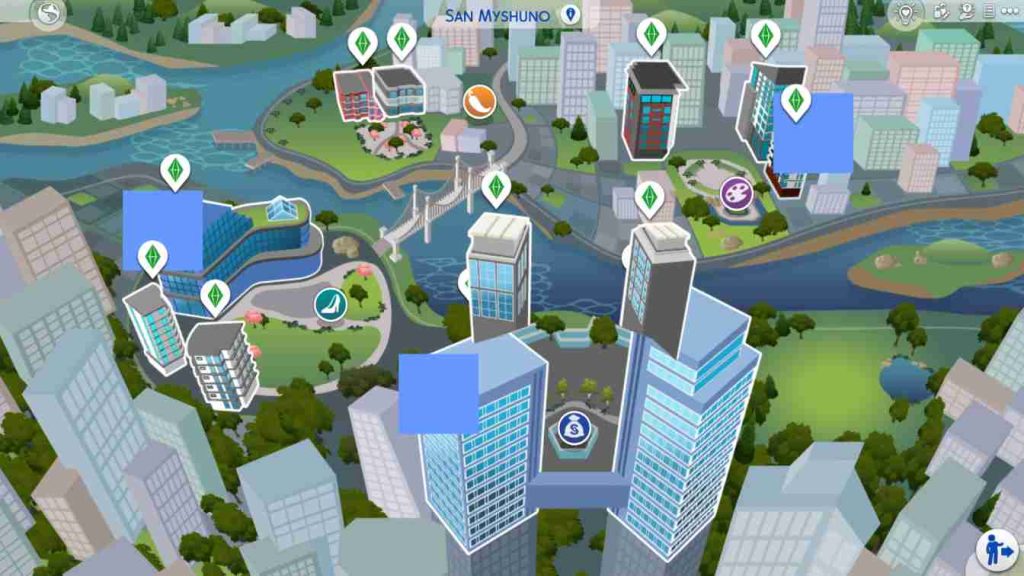
Many players have recently reported the Sims 4 San Myshuno travel glitch, a frustrating issue that prevents Sims from traveling to apartments, festivals, and rental lots in the City Living expansion pack. After a recent EA App update, the bug often appears when trying to load destinations within San Myshuno—causing infinite loading screens, missing travel options, or complete game freezes.
Introduction: Cannot go to san myshuno
Glitch
The EA App, which now replaces Origin as the main launcher for The Sims 4, plays a major role in managing game files, packs, and updates. However, after new patches or version changes, many players experience technical issues like corrupted cache files, mod conflicts, or travel errors, especially when the game fails to sync properly with EA servers.
This guide explores the San Myshuno travel bug in detail, explaining why it happens, how to fix Sims 4 travel glitches step by step, and what preventive measures can keep the issue from returning. Whether you’re stuck outside the Spice Market or can’t visit an apartment in Uptown, this article provides verified solutions from community reports and EA troubleshooting forums to help you get back to smooth gameplay.
What Causes the San Myshuno Travel Glitch?
The Sims 4 San Myshuno travel glitch is one of the most frustrating issues players face in the City Living expansion pack. It prevents Sims from visiting apartments, markets, festivals, and rental lots, leaving the “Travel” option greyed out or stuck on an endless loading screen. Understanding the root causes of this bug is key to finding a permanent fix.
1. EA App Cache and File Corruption
One of the most common triggers is corrupted EA App cache files. The EA App stores temporary data that helps load game assets faster. However, after major EA App updates, old or conflicting cache files can disrupt travel functions in The Sims 4. This often results in San Myshuno lots failing to load or causing the game to freeze.
2. Broken or Outdated Mods and CC
Many players use mods and custom content (CC) to enhance gameplay, but outdated files can conflict with new patches. Mods that modify travel systems, apartments, or neighborhood routing often break after updates, directly triggering the San Myshuno travel error.
3. Game Patch Conflicts
After every Sims 4 update, the game reconfigures certain internal scripts. If the City Living expansion hasn’t synced correctly with the latest patch, players may face missing map data, broken routing, or travel errors specific to San Myshuno. This is especially common when playing offline or after skipping updates.
4. Missing or Damaged Expansion Pack Files
Sometimes the glitch originates from incomplete or damaged expansion pack files. If the City Living DLC wasn’t properly installed or updated, the game can’t recognize specific locations or lot types, resulting in travel-related bugs.
5. Save File Corruption
Old or bloated save files may also trigger the San Myshuno glitch. When saves exceed stability limits or store outdated neighborhood data, traveling to certain lots may fail. In some cases, corrupted households cause the travel screen to freeze entirely.
6. EA Server Sync Problems
The EA App must verify licenses and sync data each time The Sims 4 launches. If the EA servers are under maintenance or unstable, travel-related actions might malfunction—especially for players using online galleries, rental systems, or shared mods.
7. System or Drive Permissions
Some players report issues when the EA App doesn’t have full administrator permissions or access to the correct installation path. Limited permissions can prevent the app from writing or reading key game files needed for neighborhood travel.
In most cases, the San Myshuno travel glitch results from a mix of EA App cache problems, outdated mods, or incomplete updates. By pinpointing the cause—whether it’s a corrupted save or mod conflict—you can apply the right fix without reinstalling your entire game.
Step-by-Step Fixes for the Sims 4 San Myshuno Travel Bug
The Sims 4 San Myshuno travel glitch can stop players from visiting apartments, festivals, or rental lots, showing endless loading screens or greyed-out travel options. Fortunately, community-tested solutions and official EA troubleshooting steps can restore smooth gameplay. Below are 20 detailed fixes to help you eliminate the issue permanently.
1. Restart the EA App and The Sims 4
Before making deeper changes, restart the EA App and the game completely. This refreshes temporary processes that might be blocking travel. Close the EA App from Task Manager and relaunch it as an administrator for a clean start.
2. Clear EA App Cache
Corrupted cache data is a major trigger for Sims 4 travel glitches.
How to clear it:
- Exit The Sims 4 and the EA App.
- Navigate to:
C:\Users\[Your Name]\AppData\Local\Electronic Arts\EA Desktop\Cache - Delete all contents.
Restart your PC and reopen the game.
3. Delete The Sims 4 Cache Files
Clearing the game’s internal cache also helps.
Steps:
- Go to:
Documents\Electronic Arts\The Sims 4 - Delete the folders:
cache,cachestr, andonlinethumbnailcache.
Do not delete yoursavesfolder.
4. Update The Sims 4 via EA App
Open the EA App → Library → Manage → Check for Updates.
Outdated builds often cause neighborhood bugs, including San Myshuno travel failures. Always stay current with the latest EA patch.
5. Repair the Game in EA App
EA’s “Repair” option scans and replaces missing or corrupted files.
Steps:
- Go to Library → The Sims 4 → Click the three dots.
- Choose Repair.
- Wait for completion and restart the EA App.
This can fix broken City Living expansion files that prevent San Myshuno travel.
6. Temporarily Disable Mods and Custom Content
If you use mods or CC:
- Move your Mods folder to your desktop.
- Launch the game and test San Myshuno travel.
If travel works, one of your mods is outdated. Reintroduce them in batches to find the culprit.
7. Update or Replace Outdated Mods
Visit sites like ModTheSims, CurseForge, or creators’ Patreon pages for updates. Pay attention to mods that modify:
- Travel menus
- Apartment interactions
- Festivals or lot loading
Keeping these current prevents post-update compatibility issues.
8. Reset Game Settings to Default
Sometimes altered settings conflict with new patches.
How to:
- In
Documents\Electronic Arts\The Sims 4, renameOptions.initoOptions_old.ini. - Restart the game to generate a new settings file.
Test travel afterward.
9. Move the Saved Game Folder
If your saves are corrupted, the glitch might persist.
- Move your
savesfolder to the desktop. - Launch The Sims 4—new save data will generate.
- Try traveling in a new household.
If it works, your old save is the issue.
10. Check Expansion Pack Installation
Verify that City Living is installed correctly.
- Open EA App → Library → The Sims 4 → Manage Add-ons.
- Ensure “City Living” is toggled ON.
If not, reinstall the pack.
11. Check EA Server Status
When EA servers are under maintenance, neighborhood travel may break.
Visit help.ea.com → Server Status → The Sims 4.
If servers are down, wait until service resumes before troubleshooting further.
12. Run the EA App as Administrator
Right-click the EA App icon → Run as Administrator.
This grants full access to your drive and ensures the app can write/update files needed for neighborhood travel.
13. Update Your Graphics Drivers
Travel bugs occasionally stem from GPU driver conflicts that cause game freezes during lot loading.
Update via:
- NVIDIA GeForce Experience
- AMD Radeon Software
- Intel Driver Support Assistant
14. Verify Windows Permissions
Ensure The Sims 4 has read/write permissions.
Steps:
- Right-click the Sims 4 folder → Properties → Security → Edit → Allow Full Control.
- Apply changes and restart your PC.
15. Check Storage Space and Drive Health
If your drive is nearly full, lot data may fail to load.
Free up at least 10 GB of space and use Windows’ built-in Disk Cleanup tool.
16. Disable Background Apps and Overlays
Apps like Discord overlay, MSI Afterburner, or OBS can interrupt game loading.
Close unnecessary programs before launching The Sims 4.
17. Try Offline Mode, Then Online Again
Switching between offline and online can resync your local and cloud data.
How to:
- In EA App, go Offline, launch the game, then return Online and restart.
This often fixes license verification or sync-related travel bugs.
18. Test Without Expansion Packs
Disable other packs temporarily to isolate the problem.
In the EA App, uncheck everything except City Living, then relaunch.
If travel works, another expansion may be conflicting with the City Living environment.
19. Reinstall The Sims 4 (Last Resort)
If none of the above works:
- Backup your saves and mods.
- Uninstall The Sims 4 and the EA App.
- Reinstall fresh copies and restore your data.
A full reinstall ensures no corrupted dependencies remain.
20. Contact EA Support
When all else fails, contact EA Help with detailed information:
- Device and OS version
- EA App version
- Installed packs and mods
- Screenshots or video evidence
Support can escalate your ticket for manual data verification or bug reporting.
Additional Tips
- Avoid saving during festivals or mid-travel.
- Clear cache after every major EA App update.
- Keep mods organized in subfolders.
- Use Sims 4 Tray Importer to back up lots and households safely.
Summary
The Sims 4 San Myshuno travel glitch fix often requires a layered approach: start simple with cache clearing and mod disabling, then progress to repairs or reinstalls if necessary. These 20 fixes combine EA’s official recommendations with player-tested solutions, ensuring your Sims can once again enjoy apartment life, festivals, and markets in San Myshuno without interruptions.
Tips to Prevent Sims 4 Glitches and Travel Bugs in the Future
After fixing the Sims 4 San Myshuno travel glitch, it’s essential to prevent it—and other game-breaking errors—from returning. Many players overlook small habits that lead to file corruption, mod conflicts, and EA App sync issues over time. Here are expert-level strategies and community-proven methods to keep The Sims 4 running smoothly, especially after new updates or expansion pack installations.
1. Keep the EA App Updated
The EA App regularly receives performance and stability patches. Always allow automatic updates or manually check for them before launching the game. Running an outdated launcher is one of the most common reasons for Sims 4 travel errors and pack verification issues.
2. Update The Sims 4 After Every Patch
Whenever EA rolls out a new update, ensure The Sims 4 is fully synced. Avoid skipping patch downloads or playing offline for long periods—this can lead to outdated core files that cause loading loops or travel glitches in worlds like San Myshuno, Sulani, or Brindleton Bay.
3. Regularly Clear Cache Files
Clearing cache removes broken data that accumulates over time. Every few weeks:
- Exit both The Sims 4 and EA App.
- Delete the folders
cache,cachestr, andonlinethumbnailcachefromDocuments\Electronic Arts\The Sims 4.
This simple step prevents a wide range of loading and neighborhood bugs.
4. Keep Mods and Custom Content Organized
Outdated or broken mods cause 70% of post-patch issues. Always:
- Keep mods in labeled folders (e.g., “CAS Mods,” “Gameplay Mods,” “UI Mods”).
- Use tools like The Sims 4 Mod Manager or Sims 4 Tray Importer to track outdated content.
- Delete mods that haven’t been updated since major EA patches.
When EA releases new expansions or game patches, temporarily disable all mods, test the game vanilla (without mods), then reintroduce them one by one.
5. Avoid Saving Mid-Travel or During Events
Saving the game while your Sims are transitioning between lots or while an event (like a festival) is loading can cause save corruption. Always wait until your Sim has fully loaded into the new area before saving.
6. Use a Clean Save File System
Periodically archive or rotate your saves. For example:
- Keep 3–5 active saves.
- Backup old ones to a separate folder monthly.
This prevents large, outdated save files from slowing down the game or introducing corrupted neighborhood data.
7. Verify Game Files After Updates
After each EA App or Sims 4 patch, use the Repair option in the EA App to verify all files. This ensures missing or damaged assets from expansion packs (like City Living) are restored automatically.
8. Avoid Overloading the Mods Folder
The Sims 4 has an internal file load limit. Too many mods or CC pieces can cause memory overload, leading to travel and UI glitches. Keep your total mod size under 5–8 GB if possible.
9. Maintain Enough Storage Space
A nearly full drive can prevent The Sims 4 from properly saving or loading lot data. Always keep at least 10 GB of free space on your installation drive, especially if you use heavy mods or custom worlds.
10. Use EA App Offline Mode Only When Necessary
Offline mode can be useful, but prolonged offline play prevents proper synchronization of your game data and expansions. Go online at least once a week to ensure the EA App validates your packs and licenses.
11. Disable Unnecessary Overlays
Third-party overlays (like Discord, NVIDIA, or Xbox Game Bar) can interfere with Sims 4’s rendering and loading processes. Disable them while playing to reduce crashes and travel bugs.
12. Check for Mod Conflicts After Every Update
Use tools like Better Exceptions or Sims 4 Mod Conflict Detector to identify incompatible or broken mods after updates. These tools automatically flag outdated script mods before they cause gameplay disruptions.
13. Keep Graphics Drivers Up to Date
Travel glitches sometimes occur due to GPU-driver mismatches, especially after Windows or Sims updates. Update your graphics drivers monthly using NVIDIA, AMD, or Intel utilities.
14. Don’t Use Autosave Mods Without Testing
Some players install autosave mods that trigger mid-travel or during events, which can break routing scripts. Only use tested, updated autosave mods compatible with the latest patch.
15. Backup Mods and Saves Before Every Update
Before installing a new patch or expansion, move your Mods and Saves folders to the desktop. After updating, reintroduce them gradually. This habit protects your files from being overwritten or corrupted.
16. Avoid Multiple EA App Accounts
Using more than one EA account on the same PC can confuse the launcher, resulting in missing expansions or unsynced game states. Stick to one account per installation for best performance.
17. Use Proper Shutdown Procedures
Always exit The Sims 4 through the in-game menu rather than closing it abruptly. Force-closing the game can leave incomplete session data, leading to future loading or travel errors.
18. Monitor Known Issues via EA Help and Reddit
The Sims 4 community frequently reports bugs first. Regularly check:
- EA Answers HQ for official bug threads.
- Reddit’s r/Sims4 for player-discovered workarounds.
Being aware of ongoing bugs helps you avoid triggering them accidentally.
19. Rebuild Configuration Files Annually
Once a year, move your Documents\Electronic Arts\The Sims 4 folder to the desktop and launch the game fresh. This rebuilds all configuration files and ensures maximum stability.
20. Keep System Software Healthy
Run regular Windows updates, clear temporary files, and defragment drives (if HDD). A stable OS environment minimizes file conflicts with The Sims 4 and EA App.
Final Tip
If the Sims 4 San Myshuno travel glitch or similar bugs reappear, don’t panic—most issues stem from cache buildup or mod incompatibility. Regular maintenance, careful mod management, and consistent EA App updates ensure your game remains stable, responsive, and bug-free for the long term.
Community Reports & Player Experiences
The Sims 4 San Myshuno travel glitch has become one of the most discussed issues on EA Answers HQ, Reddit (r/Sims4), and various Sims fan forums. Hundreds of players have reported being unable to travel to apartments, festivals, or markets in San Myshuno after recent EA App or game updates. The issue appears across both PC and Mac, though PC players using mods or custom scripts seem to experience it more frequently.
On Reddit, many users describe the bug starting after switching households or trying to visit festival lots like the Spice Market or Fashion District. Some report infinite loading screens, while others see travel options completely greyed out. A few temporary solutions—such as clearing cache, disabling mods, or repairing game files—have worked for many, but the glitch often reappears after updates.
Players on the EA forums also note that the bug sometimes aligns with server maintenance periods or incomplete DLC verification. Despite frustrations, the community remains active in sharing workarounds, bug reports, and patch confirmations. Many express hope that EA will release an official fix soon, ensuring smoother gameplay and reliable travel throughout the bustling city of San Myshuno.
FAQ About Sims 4 Travel Glitches
1. What is the Sims 4 San Myshuno travel glitch?
The San Myshuno travel glitch occurs when Sims cannot visit apartments, festivals, or public lots within the City Living world. Players often see infinite loading screens, greyed-out travel buttons, or freezing when attempting to enter the city. It’s most common after an EA App update or mod conflict.
2. Why does the travel option not work after the EA App update?
After EA App updates, cached data or missing expansion files may cause license verification or sync issues. This prevents City Living world data from loading properly, leading to travel errors and stuck loading screens. Clearing EA cache and repairing the game usually fixes this.
3. Can mods and custom content cause travel bugs?
Yes. Outdated mods that modify travel systems, apartments, or events can break after new patches. Always update your mods or test the game in vanilla mode (no mods) to see if the glitch disappears.
4. Why does the game freeze when traveling to San Myshuno?
This usually happens when save files or routing data in that neighborhood are corrupted. Testing in a new save or deleting the game’s cache files often restores normal travel.
5. Is this issue related to EA servers?
Sometimes. If EA servers are under maintenance or the app fails to verify expansion ownership, the game can temporarily block travel to worlds like San Myshuno. Try switching to offline mode or waiting until the servers stabilize.
6. Will reinstalling The Sims 4 fix the travel glitch?
A clean reinstall can resolve persistent bugs caused by corrupted files or failed patches. Always back up your saves and mods first, then reinstall both the EA App and The Sims 4.
7. How can I prevent future Sims 4 travel glitches?
Keep the EA App and The Sims 4 updated, clear cache regularly, avoid saving during travel, and always test new mods after updates. Maintain at least 10 GB of free space on your drive to prevent corrupted saves or loading issues.
Conclusion
The Sims 4 San Myshuno travel glitch has frustrated many players, especially after recent EA App and game updates. Whether your Sims are stuck on a loading screen, unable to visit their apartments or festivals, or facing missing travel options, the issue usually stems from cache corruption, outdated mods, or incomplete expansion data.
By following the detailed step-by-step fixes—from clearing EA App cache, repairing the game, and disabling mods to verifying expansion installations—you can restore full functionality to your City Living world. Consistently updating The Sims 4, keeping your mod folder clean, and monitoring EA forum reports can help prevent similar bugs from returning.
While EA continues refining the game with new patches, players can rely on these community-tested solutions to maintain smooth travel and gameplay. Remember to back up saves regularly, clear caches monthly, and stay informed about upcoming Sims 4 updates.
With proper maintenance and awareness, your Sims will once again explore San Myshuno’s vibrant neighborhoods, markets, and festivals—without the frustration of travel errors or freezes.