

Many Skate PC players on Steam have reported a recurring issue where the game crashes or freezes roughly 30 seconds after starting to skate. This problem occurs almost immediately after finishing the tutorial sequences or spawning in the first skate area, making early gameplay frustrating or entirely unplayable.
The crashes have been reported across multiple GPU types, including Nvidia and AMD cards, and on different system configurations, suggesting that the problem is not hardware-specific. Players note that the game often freezes mid-trick or during animations, sometimes producing a “Failed to allocate memory” error in Windows. Others report that the game becomes unresponsive until it must be killed via Task Manager.
Community reports indicate that the issue may be tied to memory allocation errors, graphics driver conflicts, or corrupted game files. Certain features like FSR, RTX, or high-resolution textures appear to trigger instability in the first few moments of active gameplay. Background applications and Steam overlays may also contribute to crashes, particularly during tutorial or tutorial board sequences.
What Happens When Skate Crashes After 30 Seconds
When Skate crashes shortly after starting a session, it disrupts gameplay almost immediately. Players describe a consistent sequence of events and symptoms that make the game unplayable. Here’s what typically happens:
1. Normal Launch and Character Spawn
The game launches without issue, allowing you to complete the tutorial or spawn into the first skate area. Menus, loading screens, and character creation work as expected.
2. Skating Begins
Once you start skating, everything initially appears normal. You can perform tricks, navigate ramps, and interact with the environment for about 30 seconds.
3. Freeze or Crash Occurs
Around the 30-second mark, the game suddenly freezes or crashes. Players report that this can happen during basic skating, trick execution, or simple movement. In some cases, there’s no error message; in others, Windows may display a “Failed to allocate memory” or a graphics-related error.
4. Steam Shows Game as Running
Even after the crash, Steam often still indicates that the game is active. Players must use Task Manager to force quit the application before attempting to relaunch.
5. Affects Multiple GPU Types
This bug is not limited to a single type of graphics card. Reports show it occurs on both AMD Radeon and Nvidia GeForce GPUs, suggesting the issue is software-related rather than hardware-specific.
6. Disrupts Progress and Tutorials
Because the crash happens so early, players are unable to complete tutorial objectives or start free skate sessions. Frequent crashes make it impossible to advance, which significantly impacts early-game enjoyment.
7. Possible Triggers
While not confirmed, common triggers include high graphics settings, FSR/RTX features, background applications, or corrupted game files. These factors increase memory load and may contribute to instability during the first skating session.
This issue makes Skate practically unplayable until a fix is applied, emphasizing the need for players to troubleshoot and apply temporary workarounds to stabilize early gameplay.
Why Skate Crashes After 30 Seconds on PC
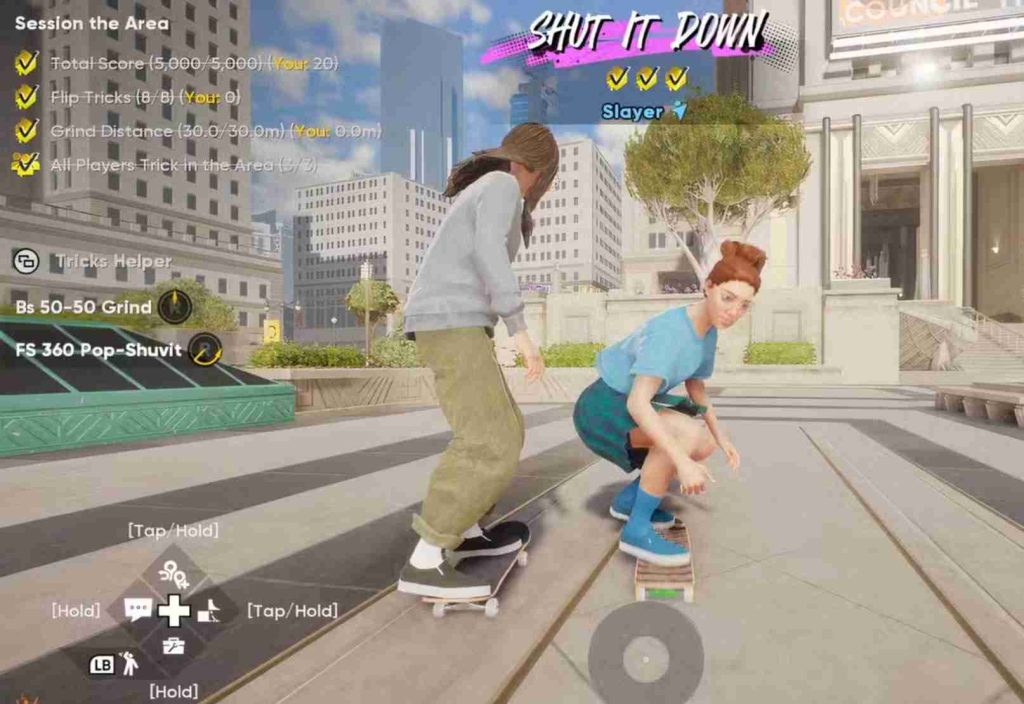
Several technical factors can cause Skate to crash roughly 30 seconds after starting a session on PC. Based on player reports, forum discussions, and system logs, the problem is often related to memory management, graphics settings, or software conflicts. Understanding these causes is key to applying effective fixes.
1. Memory Allocation & VRAM Spikes
Skate loads multiple resource-intensive elements immediately after the tutorial sequence or during the first skating session. This includes high-resolution textures, mega ramp physics, and complex environment models. On systems with limited RAM or VRAM, this sudden load can overload memory, causing the game to freeze or crash. Players frequently see “Failed to allocate memory” errors during these crashes.
2. Graphics Driver Conflicts
Both AMD and Nvidia GPUs are affected by this bug. Issues arise particularly when features such as FSR (FidelityFX Super Resolution), RTX (ray tracing), or other upscaling options are enabled. Even if drivers are up-to-date, certain GPU configurations may struggle to handle the combination of high-end rendering and real-time physics, leading to early-game crashes.
3. Corrupted Game Files
If essential game assets are missing or damaged, the engine may fail to load textures, physics, or animations properly. This can trigger a crash almost immediately after starting a new session. Verifying game files through Steam or reinstalling the game is often necessary to resolve this cause.
4. Background Applications & Steam Overlay
Programs like Discord, Chrome, OBS, or music streaming apps consume RAM and GPU resources. Running these simultaneously with Skate, especially with the Steam overlay enabled, can create conflicts. Memory-heavy background applications increase the likelihood of freezes or crashes during the first skating sequences.
5. Low Windows Virtual Memory / Page File
PCs with insufficient virtual memory (page file) may fail to allocate enough memory for the game during high-load moments. Skate dynamically loads textures, physics, and AI elements, and without adequate page file size, Windows cannot handle memory spikes, resulting in crashes.
In summary, Skate’s 30-second crash issue is typically caused by a combination of high memory demand, GPU rendering conflicts, corrupted game assets, background software interference, and insufficient system virtual memory. Addressing these factors through driver updates, resource management, and system configuration adjustments can significantly reduce early-game crashes and improve stability.
How to Fix Skate Crashing After 30 Seconds on PC (Step-by-Step)
Many PC players experience Skate crashing or freezing roughly 30 seconds after starting a session, often making the game unplayable during early gameplay. Fortunately, there are multiple tested fixes that can stabilize the game. Below is a comprehensive guide including the initial seven standard fixes and 15 additional advanced solutions to address this frustrating bug.
1. Verify Game Files on Steam
Missing or corrupted files are a common cause of crashes. Steam provides a built-in tool to verify game integrity.
Steps:
- Open Steam Library → Right-click Skate → Properties → Local Files → Verify Integrity of Game Files
- Steam will replace any missing or corrupted assets.
- Relaunch the game and test for stability.
2. Update Graphics Drivers
Outdated or conflicting GPU drivers can cause crashes, especially when using FSR, RTX, or other upscaling features.
Steps:
- Visit Nvidia GeForce Experience or AMD Radeon Software.
- Download and install the latest drivers.
- Temporarily disable FSR/RTX in the game settings if crashes persist.
3. Lower Graphics Settings
High graphics settings can overload VRAM, particularly during mega ramp sequences.
Steps:
- Launch the game in windowed mode.
- Reduce texture quality, shadows, anti-aliasing, and visual effects.
- Gradually increase settings after confirming stability.
4. Close Background Applications
Memory-heavy apps can conflict with Skate.
Steps:
- Press Ctrl + Shift + Esc → Task Manager.
- Close apps like Discord, Chrome, OBS, antivirus scans, or streaming tools.
- Leave only Steam and Skate running.
5. Increase Virtual Memory / Page File
Low Windows virtual memory can prevent Skate from allocating sufficient RAM.
Steps:
- Windows → Settings → System → About → Advanced System Settings → Performance → Advanced → Virtual Memory
- Set page file size to 16GB or higher.
- Restart PC and launch Skate.
6. Run Skate as Administrator
Insufficient system permissions can cause crashes during memory-intensive sequences.
Steps:
- Right-click Skate.exe → Run as Administrator.
- Disable Steam overlay if needed.
7. Reinstall the Game (Optional)
If crashes persist, corrupted installation may be the culprit.
Steps:
- Uninstall Skate.
- Delete leftover files in Documents → EA Skate.
- Reinstall via Steam and test.
Additional Fixes (15 Advanced Solutions)
8. Disable Fullscreen Optimization (Windows 10/11)
- Right-click Skate.exe → Properties → Compatibility
- Check Disable Fullscreen Optimizations
- Click Apply
9. Set High Priority in Task Manager
- Open Task Manager → Right-click Skate → Set Priority → High
- Ensures Windows allocates maximum resources
10. Limit FPS to Reduce VRAM Load
- Enable V-Sync or cap FPS to 60 in settings
- Prevents spikes that overload GPU memory
11. Check DirectX & Visual C++ Redistributables
- Ensure DirectX 12 and latest VC++ runtime are installed
- Reinstall if necessary
12. Update Windows
- Outdated Windows builds can trigger crashes
- Check Windows Update → Optional Updates
13. Disable Overclocking
- Overclocked GPU/CPU may cause instability
- Revert to factory clocks in BIOS or GPU software
14. Run in Compatibility Mode
- Right-click Skate.exe → Properties → Compatibility → Run this program in compatibility mode for Windows 10
- Useful for older builds
15. Reduce Texture Streaming Distance
- In-game Graphics Settings → Texture Streaming → Lower value
- Reduces VRAM load and early crash risk
16. Disable Shadow Maps / Ambient Occlusion
- Heavy shadow rendering can trigger memory crashes
- Turn off AO, dynamic shadows, and environment shadows
17. Disable Anti-Aliasing
- Turning off MSAA or FXAA reduces GPU load
- Helps prevent early freezing
18. Clean GPU Drivers
- Use DDU (Display Driver Uninstaller) to remove old GPU drivers
- Reinstall latest official drivers
19. Set High-Performance Power Plan
- Windows → Control Panel → Power Options → High Performance
- Prevents throttling of CPU/GPU during gameplay
20. Enable Large Address Aware (PC Only)
- Modify Skate.exe with Large Address Aware tool
- Allows game to use more than 2GB RAM, reducing early crashes
21. Disable Steam Overlay & Background Recording
- Steam Overlay can conflict with rendering
- Disable in Steam → Settings → In-Game → Enable Steam Overlay
22. Check Antivirus / Firewall Exceptions
- Some antivirus programs block game assets
- Add Skate.exe to whitelist or allow full disk access
23. Increase Shader Cache Size (GPU Settings)
- Nvidia/AMD control panel → Shader Cache → Enable / Increase size
- Reduces GPU computation spikes
24. Run Without Mods / Third-Party Plugins
- Mods or texture packs can conflict with early-game rendering
- Remove all mods and verify game stability
25. Lower Screen Resolution Temporarily
- Start at 1080p or lower instead of 1440p/4K
- Reduces VRAM usage during initial skate session
26. Monitor Temperatures
- High CPU/GPU temps can crash the game
- Use HWMonitor / MSI Afterburner to ensure below 85°C
27. Check RAM Health & Test MemTest
- Faulty RAM can cause allocation errors
- Run MemTest86 or Windows Memory Diagnostic
✅ Final Recommendations
- Always verify game files after updates.
- Keep graphics drivers and Windows updated.
- Close background apps and increase virtual memory if needed.
- Start with lower graphics settings and windowed mode, then gradually increase.
- Maintain a stable, non-overclocked system environment.
By following this comprehensive guide of 22+ fixes, most players can eliminate the 30-second crash issue on PC, enabling stable early-game sessions and enjoyable skateboarding.
Temporary Workarounds for Skate Crashing After 30 Seconds
While waiting for an official patch or applying full fixes, there are several temporary workarounds that can help reduce crashes during early gameplay in Skate on PC. These methods focus on minimizing memory usage, avoiding known crash triggers, and keeping gameplay stable.
1. Skip Tutorials and Cutscenes
Many crashes occur during tutorial animations or board intros. If the game allows, skip cutscenes and character intro sequences to prevent early memory spikes. This reduces the chance of the game freezing or crashing within the first 30 seconds.
2. Avoid Mega Ramps Initially
The mega ramp sequences are resource-intensive, combining complex physics, textures, and real-time animations. For the first few sessions, stick to smaller skate areas or empty parks. This helps the game load gradually and prevents crashes caused by high VRAM or RAM usage.
3. Monitor RAM and VRAM Usage
Use tools like Task Manager or MSI Afterburner to watch memory consumption while skating. If you notice spikes close to system limits, consider lowering graphics settings, reducing texture quality, or limiting FPS. Monitoring usage helps identify whether crashes are memory-related and allows you to adjust settings before starting.
4. Run in Windowed Mode
Windowed mode reduces memory and GPU load compared to fullscreen, helping prevent early crashes.
By combining these temporary strategies, players can enjoy early gameplay without constant crashes while implementing longer-term fixes, such as updating drivers or adjusting virtual memory.
Skate PC Crashing with Nvidia or AMD GPU
Many Skate PC players with Nvidia or AMD GPUs report the game crashing shortly after starting. Despite using different graphics cards, the issue occurs across both brands, indicating a software or game engine problem rather than hardware failure.
Crashes often happen during early gameplay, tutorials, or trick sequences. Features like FSR, RTX, or high-resolution textures can trigger instability, especially if drivers are outdated.
Players have found that updating drivers, lowering graphics settings, and adjusting VRAM-intensive features can reduce crashes. The problem is widespread, affecting both older and newer GPU models on Windows 10 and 11.
Memory Allocation Issues Causing Skate to Crash
Skate frequently crashes due to RAM and VRAM allocation problems. During the first 30 seconds of gameplay, the game loads textures, mega ramp physics, and environment models simultaneously, creating memory spikes.
PCs with insufficient RAM or low virtual memory are particularly affected. Players often encounter the “Failed to allocate memory” error before the game freezes.
Background applications further increase memory usage, making crashes more likely. Properly managing system memory, increasing virtual memory/page file size, and reducing graphics settings can help prevent these allocation issues and allow Skate to run more smoothly during early sessions.
Step-by-Step Fix for Skate Steam Crashes
To fix Skate crashing on Steam, start by verifying game files via Steam’s Local Files menu. Update your graphics drivers and temporarily disable FSR or RTX. Lower graphics settings, run the game in windowed mode, and close background apps like Discord or Chrome. Increase Windows virtual memory/page file to at least 16GB, and run Skate as an administrator.
If crashes persist, consider a clean reinstall of the game. Additional steps include disabling Steam overlay, reducing texture streaming, and ensuring Windows and DirectX are fully updated to stabilize early gameplay.
Temporary Workarounds to Prevent Skate Freezing
While permanent fixes are applied, players can try temporary solutions to avoid early crashes. Skip tutorials and cutscenes where possible, as they can spike memory usage.
Avoid high-intensity areas like mega ramps for the first 30 seconds, starting in smaller skate zones instead. Monitor RAM and VRAM usage during gameplay with Task Manager or MSI Afterburner to identify spikes. Running the game in windowed mode reduces GPU load, and lowering resolution or texture quality can prevent freezing. These workarounds allow early gameplay without constant crashes until full solutions are implemented.
Player Reports: Skate Crashing After 30 Seconds
Community feedback shows that Skate consistently crashes around 30 seconds into gameplay. Reports from Steam, Reddit, and EA forums indicate that crashes occur on both Nvidia and AMD GPUs, across multiple Windows versions.
Players describe freezes during tutorial boards, character intro sequences, or first skate areas, often requiring Task Manager to force quit.
Many encounter the “Failed to allocate memory” error, while others report graphical glitches before the crash. These reports confirm the problem is widespread and not limited to individual PCs, highlighting a game engine or memory management issue in early gameplay sessions.