

Many players have encountered the Battlefield 6 Virtual Machine error, also known as Battlefield 6 error 121, which prevents the game from launching properly.
This issue is often related to the EA Javelin anti-cheat system, which mistakenly detects a virtual environment on regular PCs. Even when players are not using software like VMware or VirtualBox, the system may still trigger the Battlefield 6 unable to run in virtual machine message.
Battlefield 6 Virtual Machine Error (121) Explained
The Battlefield 6 virtualization error has become more common on Windows 11, especially after updates such as KB5066835. These updates introduce new security layers that interfere with game launch detection. The Battlefield 6 Windows 11 VM error is also known to affect both Steam and EA App users, often leading to a crash or a refusal to start.
Key points:
- The Battlefield 6 error 121 occurs due to EA Javelin anti-cheat VM detection.
- The Battlefield 6 anticheat VM error may appear even without virtualization software.
- Enabling virtualization features in BIOS can trigger the Battlefield 6 virtualization error.
- Players running Windows 11 are more likely to see the Battlefield 6 unable to run in virtual machine alert.
- A temporary Battlefield 6 error 121 fix involves disabling virtualization in BIOS and restarting the system.
Why You See “Unable to Run in a Virtual Machine. Please Exit the VM and Try Again.”
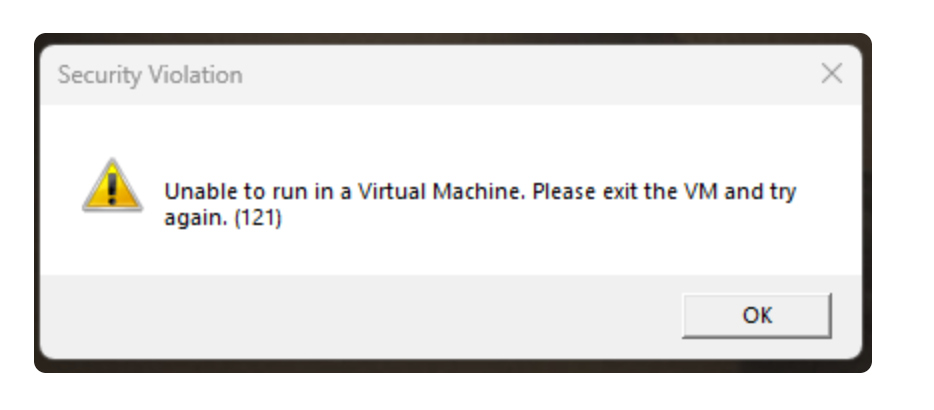
The message “Unable to run in a Virtual Machine. Please exit the VM and try again.” is directly linked to the Battlefield 6 error 121 problem. This message typically appears when the game’s anti-cheat engine, EA Javelin, falsely believes the player is using a virtual environment. The Battlefield 6 unable to run in virtual machine issue is one of the most common startup errors for PC players in 2025.
In many cases, built-in Windows features like Hyper-V or Windows Subsystem for Android cause Battlefield 6 virtualization error warnings to appear. These services emulate a virtual environment that the EA Javelin anti-cheat system interprets as potential cheating software. As a result, the Battlefield 6 not launching error 121 stops the game from opening completely.
Key points:
- The Battlefield 6 virtualization error can be caused by Windows Hyper-V and WSA.
- The Battlefield 6 anticheat VM error triggers false detection of virtualization software.
- The Battlefield 6 unable to run in virtual machine message may appear after KB5066835 update.
- Disabling Hyper-V, Core Isolation, or Memory Integrity can fix Battlefield 6 not launching error 121.
- Restarting the PC after changes helps prevent Battlefield 6 won’t start after update issues.
Common Causes Behind Battlefield 6 VM Detection Error on PC
The Battlefield 6 Virtual Machine error and Battlefield 6 error 121 are caused by conflicts between anti-cheat systems and Windows security features. These conflicts lead to false detections that prevent the game from starting.
Main causes include:
- Virtualization Enabled in BIOS: Intel VT-x or AMD-V features can lead to Battlefield 6 virtualization error triggers.
- Hyper-V and WSA Conflicts: These cause Battlefield 6 unable to run in virtual machine issues by simulating virtual layers.
- Windows Updates: The KB5066835 update has been linked to Battlefield 6 won’t start after update complaints.
- EA Javelin Anti-Cheat Misidentification: The Battlefield 6 EA Javelin error 121 occurs when the anti-cheat system flags safe processes as virtual.
- Third-Party Apps: Programs like OBS, Sandboxie, and Docker can cause Battlefield 6 virtualization error alerts.
- Steam Version Issues: The Battlefield 6 Steam launch problem can arise due to virtualization drivers in background services.
Fix suggestions:
- Disable virtualization options in BIOS to stop Battlefield 6 unable to run in virtual machine messages.
- Turn off Windows Hyper-V and restart the PC.
- Check for security features like Core Isolation that could cause Battlefield 6 error 121.
- Uninstall conflicting background applications that create virtual layers.
- Reinstall the game if the Battlefield 6 not launching error 121 persists.
By applying these steps, most users can successfully resolve the Battlefield 6 Virtual Machine error and continue playing without further interruptions.
Step-by-Step Fix to Bypass Virtual Machine Error (121) in Battlefield 6

Many players have encountered the Battlefield 6 Virtual Machine error or Battlefield 6 error 121, preventing the game from launching properly. The message usually reads: “Unable to run in a Virtual Machine. Please exit the VM and try again.” This issue is connected to EA Javelin anti-cheat falsely detecting virtualization on Windows 11 PCs or systems recently updated.
Below are 10 detailed fixes to help you completely bypass the Battlefield 6 error 121 and get back to smooth gameplay.
1. Disable Virtualization in BIOS Settings
- Restart your PC and enter BIOS or UEFI settings (usually by pressing Del, F2, or F10 during boot).
- Locate the Virtualization Technology (VT-x or SVM) option under the Advanced or CPU Configuration tab.
- Disable it and save changes before restarting.
This directly addresses the Battlefield 6 virtualization error, as the EA Javelin anti-cheat system sometimes interprets virtualization as a cheat environment. Disabling this feature ensures the game boots without triggering the “Unable to run in a virtual machine” alert.
2. Reinstall or Repair EA Anti-Cheat
- Go to the EA App installation folder and open the EA Anti-Cheat folder.
- Right-click EAAntiCheat.Installer.exe and select Repair.
- If the issue persists, uninstall and reinstall it.
A corrupted anti-cheat module is a major reason for the Battlefield 6 EA Javelin error 121. Repairing or reinstalling ensures the detection files are refreshed and prevents false virtual machine detection.
3. Disable Windows Virtualization Features
- Press Win + R, type
optionalfeatures, and press Enter. - In the Windows Features menu, uncheck:
- Hyper-V
- Virtual Machine Platform
- Windows Hypervisor Platform
- Click OK and restart.
These features sometimes conflict with Battlefield 6 startup processes, leading to the Battlefield 6 unable to run in virtual machine issue. Disabling them ensures anti-cheat no longer detects virtualization support.
4. Turn Off Core Isolation and Memory Integrity
- Open Windows Security → Device Security → Core Isolation.
- Disable Memory Integrity.
- Restart your PC.
This is a common fix for the Battlefield 6 not launching error 121. The virtualization features tied to core isolation can mimic a VM environment, confusing anti-cheat systems into blocking the launch.
5. Update Windows and Roll Back Problematic Patches
Some users reported the Battlefield 6 won’t start after KB5066835 update. If this applies to you:
- Open Windows Update Settings → Update History → Uninstall Updates.
- Locate KB5066835 and uninstall it.
- Reboot and retry launching Battlefield 6.
Sometimes, specific patches introduce conflicts with virtualization APIs. Rolling back or reinstalling Windows updates can resolve Battlefield 6 not running on Windows 11 after update issues.
6. Verify Game Files on Steam or EA App
- On Steam, right-click Battlefield 6 → Properties → Installed Files → Verify Integrity of Game Files.
- On the EA App, click the game → Manage → Repair.
Missing or corrupted files can lead to the Battlefield 6 Steam launch problem and error 121. Verification ensures the game’s executable and anti-cheat configurations are properly aligned.
7. Run Battlefield 6 as Administrator
- Locate your Battlefield 6 shortcut or
.exefile. - Right-click → Properties → Compatibility.
- Check Run this program as an administrator.
This simple step fixes permission conflicts that might be causing the Battlefield 6 not launching error 121. It gives anti-cheat and game files full control to initialize without triggering false VM alerts.
8. Check for Third-Party Virtualization or Sandbox Tools
If you use tools like BlueStacks, VMware, VirtualBox, or Sandboxie, they might leave active services even when closed.
- Open Task Manager → Services tab.
- Disable anything related to virtualization or emulation.
These hidden processes can cause Battlefield 6 unable to run in VM even without virtualization because EA Javelin anti-cheat still detects traces of virtual environments.
9. Adjust Secure Boot and TPM Settings
- Enter BIOS/UEFI.
- Ensure Secure Boot is Enabled and TPM (Trusted Platform Module) is Active.
- Save and restart.
Improper Secure Boot configurations can trigger the Battlefield 6 secure boot virtualization settings warning. Enabling TPM and Secure Boot ensures system authenticity, helping bypass anti-cheat validation errors tied to virtualization.
10. Perform a Clean Boot to Isolate Conflicts
- Press Win + R, type
msconfig, and hit Enter. - Under the Services tab, select Hide all Microsoft services and click Disable all.
- Go to the Startup tab and open Task Manager → Disable all non-essential startup apps.
- Restart your system.
This step helps determine if background programs (like VM detection tools or performance boosters) are causing the Battlefield 6 VM detection error on PC. If the game runs fine after a clean boot, re-enable services one by one to find the culprit.
Bonus Fixes for Advanced Users
11. Reinstall DirectX and Visual C++ Redistributables
Battlefield 6 depends on several runtime libraries. Corrupt DirectX or Visual C++ files can trigger the Battlefield 6 launch issue error code 121. Reinstall these from Microsoft’s official site to eliminate compatibility errors.
12. Switch from EA App to Steam or Vice Versa
If the Battlefield 6 Steam launch problem persists, try launching through the EA App. Cross-platform launcher conflicts sometimes interfere with anti-cheat initialization.
13. Disable Overlays
Turn off Discord, NVIDIA GeForce Experience, and Steam overlays. These inject overlay hooks that sometimes trigger the Battlefield 6 EA Javelin anti-cheat VM false positive.
14. Reinstall the Game to a Different Drive
If all else fails, reinstall Battlefield 6 to another storage location. Drive permission or path conflicts occasionally lead to persistent Battlefield 6 virtualization error messages.
15. Check Event Viewer for Detailed Logs
- Press Win + X → Event Viewer.
- Under Windows Logs → Application, search for Battlefield 6 errors.
Logs can reveal whether the cause is virtualization, anti-cheat, or Windows kernel conflict, helping you take the right next step.
Conclusion
The Battlefield 6 error 121 and Virtual Machine detection problem are mostly triggered by false positives from EA Javelin anti-cheat, especially on Windows 11 systems with virtualization or hypervisor features enabled.
By following these step-by-step solutions — from disabling virtualization in BIOS to performing a clean boot — you can effectively bypass the Battlefield 6 unable to run in virtual machine problem and return to the game without interruptions.
EA is aware of these reports, and an upcoming patch is expected to address Battlefield 6 not launching due to VM detection once and for all. Until then, these fixes will help you play smoothly and safely.
Checking Windows Features That May Cause False VM Detection
One of the most common reasons behind the Battlefield 6 Virtual Machine error is that Windows automatically enables features that mimic virtualization — even when no actual virtual machine software is installed. These features trigger the Battlefield 6 virtualization error or Battlefield 6 unable to run in virtual machine message because the EA Javelin anti-cheat system interprets them as signs of a virtualized environment.
To check whether these are active:
- Press Win + R, type
optionalfeatures, and hit Enter. - In the Windows Features window, look for and uncheck the following:
- Hyper-V
- Virtual Machine Platform
- Windows Hypervisor Platform
- Windows Subsystem for Linux (WSL) if not in use
- Click OK and restart your system.
Each of these features can cause Battlefield 6 to show error 121 or fail to launch after an update. Even though they are built into Windows 11 for developers and IT professionals, anti-cheat software flags them as unsafe. Disabling them ensures that Battlefield 6 anti-cheat can validate your system as a clean, non-virtualized environment.
If you recently installed a Windows 11 cumulative update, these settings might have been turned back on automatically. Reviewing them regularly can prevent Battlefield 6 won’t start after update or similar EA Javelin anti-cheat VM detection problems in the future.
How to Disable Virtualization and Hyper-V Correctly in Windows 11
To fully resolve the Battlefield 6 error 121 or Battlefield 6 not launching due to virtualization, you must ensure virtualization and Hyper-V are both disabled at the system and BIOS levels. Simply turning them off in Windows Features might not be enough, as some firmware-level settings can override them during startup.
Here’s how to disable them completely:
- Disable Hyper-V and Virtualization in Windows:
- Press Win + R, type
optionalfeatures, and uncheck Hyper-V, Virtual Machine Platform, and Windows Hypervisor Platform. - Restart your PC.
- Press Win + R, type
- Disable Virtualization in BIOS or UEFI:
- Reboot your computer and press Del, F2, or F10 to open BIOS.
- Find Intel Virtualization Technology (VT-x) or AMD SVM Mode under CPU Configuration.
- Set it to Disabled, then save and exit.
- Verify Changes After Restart:
- Open Task Manager → Performance tab → CPU.
- Check that Virtualization: Disabled appears in the lower-right corner.
This method resolves persistent Battlefield 6 unable to run in virtual machine messages by removing all traces of virtual environments. After rebooting, the game should launch normally without triggering Battlefield 6 EA Javelin anti-cheat VM false positive warnings.
If the issue persists, reinstalling EA Anti-Cheat and updating BIOS firmware can further stabilize the game’s launch process on Windows 11.
Fixing Battlefield 6 Launch Issues After KB5066835 and KB5066131 Updates
Many players started facing the Battlefield 6 error 121 and virtual machine restriction message after installing the latest Windows 11 updates — particularly KB5066835 and KB5066131. These updates modify kernel-level virtualization modules and hypervisor services, which can mistakenly trigger the Battlefield 6 unable to run in virtual machine error.
To fix this issue, first uninstall the problematic update:
- Press Win + I → Windows Update → Update History → Uninstall Updates.
- Find KB5066835 or KB5066131 and remove them.
- Restart your system and relaunch Battlefield 6.
If the game runs normally afterward, delay reinstalling these updates until EA or Microsoft patches the compatibility issue. Also, disable Hyper-V and Virtual Machine Platform features, as they are re-enabled automatically by some updates.
Players who experience Battlefield 6 not launching after update should also verify their game files through Steam or EA App to repair damaged anti-cheat configurations. This fix typically resolves the Battlefield 6 EA Javelin error 121 caused by Windows updates interfering with anti-cheat checks.
Updating EA AntiCheat to Resolve the Battlefield 6 VM Restriction Bug
The EA Javelin Anti-Cheat system is a critical component in Battlefield 6, but outdated versions can produce the Battlefield 6 Virtual Machine error or Battlefield 6 error 121 when launching. Updating the anti-cheat manually can prevent false VM detection and let the game start properly.
Here’s how to update EA Anti-Cheat safely:
- Open the EA App → Battlefield 6 → Manage → View Properties.
- Click Repair to automatically reinstall the anti-cheat component.
- Alternatively, navigate to the game’s installation directory and run EAAntiCheatInstaller.exe as Administrator.
- Select Battlefield 6, then choose Uninstall followed by Install again.
Restart your system afterward to ensure the new version syncs correctly. This often resolves the Battlefield 6 unable to run in virtual machine issue caused by corrupted or outdated anti-cheat modules.
If the error persists, disable Windows Hyper-V and ensure Secure Boot is enabled. This helps the anti-cheat validate your environment correctly and bypass Battlefield 6 virtualization error messages.
How BIOS Virtualization Settings Affect Battlefield 6 Startup
BIOS-level virtualization settings directly influence whether Battlefield 6 identifies your PC as a virtual environment. If Intel VT-x or AMD SVM is enabled, EA Javelin anti-cheat may misread it, leading to the Battlefield 6 unable to run in virtual machine or Battlefield 6 error 121 messages.
To fix this, enter your system BIOS during startup by pressing Del, F2, or F10. Navigate to the CPU configuration menu and locate virtualization options such as Intel Virtualization Technology (VT-x) or AMD SVM Mode. Set them to Disabled.
After saving and restarting, verify your system by opening Task Manager → Performance → CPU tab. Ensure “Virtualization: Disabled” is displayed.
Disabling these settings prevents the Battlefield 6 anti-cheat VM false positive and stabilizes the startup process. This method is especially helpful if Battlefield 6 won’t start after update or shows a virtualization restriction despite not using a VM. Re-enabling the feature later is safe once EA releases a permanent anti-cheat update.
Why Battlefield 6 Flags Normal PCs as Virtual Machines
A major reason behind the Battlefield 6 virtualization error and Battlefield 6 unable to run in virtual machine message is EA Javelin’s strict anti-cheat detection system. It scans for any signs of virtualization or sandboxing, even if you are running a standard Windows installation.
Normal PCs can be flagged due to:
- Enabled Hyper-V or Virtual Machine Platform in Windows Features.
- BIOS virtualization being active (Intel VT-x / AMD SVM).
- Background security tools, such as sandbox software or debuggers.
- Recent Windows 11 kernel updates introducing new virtualization frameworks.
Even developer tools like Android emulators or Docker can trigger the Battlefield 6 VM restriction bug. The anti-cheat engine interprets these as potential cheating environments and blocks the game from starting.
To avoid this, disable all virtualization-related features and remove background tools that mimic virtual machine activity. These steps typically eliminate Battlefield 6 error 121 false detections on legitimate gaming PCs.
Temporary Workarounds Until EA Releases a Permanent Fix
While EA works on a permanent patch for the Battlefield 6 Virtual Machine error 121, several temporary workarounds can help you play without interruption.
- Disable Hyper-V, Virtual Machine Platform, and Windows Subsystem for Linux from optional features.
- Turn off virtualization in BIOS (Intel VT-x or AMD SVM Mode).
- Uninstall Windows updates KB5066835 and KB5066131 if the problem started afterward.
- Reinstall EA Anti-Cheat using the official installer.
- Run Battlefield 6 as Administrator and disable overlays from Discord, Steam, and NVIDIA.
Additionally, ensure Secure Boot is enabled to prevent false detection by the EA Javelin anti-cheat system. Avoid using Android emulators or any background apps that may mimic virtual environments.
These fixes are effective for most players facing Battlefield 6 not launching or unable to run in virtual machine issues. Once EA updates the anti-cheat, you can safely re-enable virtualization or reinstall the latest Windows updates.
How to Report Battlefield 6 Virtual Machine Error (121) to EA Support
If you’ve tried multiple fixes and still face the Battlefield 6 Virtual Machine error, the next step is to report the issue directly to EA Support. This ensures your case is logged and helps EA engineers identify trends causing the Battlefield 6 error 121 or Battlefield 6 unable to run in virtual machine bug.
To report effectively, follow these steps:
- Visit help.ea.com and sign in using the account linked to your Battlefield 6 purchase.
- Select Battlefield 6 → Technical Support → Game won’t launch / Error 121.
- Describe the problem clearly, including:
- When the Battlefield 6 error 121 appears (before or after anti-cheat loads).
- Whether you have Hyper-V or virtualization enabled.
- If the issue began after specific Windows updates (like KB5066835).
Attach your DxDiag report and EA Anti-Cheat logs from the Battlefield 6 installation folder. This helps EA identify whether the error stems from Windows virtualization, the EA Javelin anti-cheat, or kernel-level conflicts.
You can also post details on the EA Battlefield 6 Technical Forums to join ongoing discussions. Many players experiencing the Battlefield 6 virtualization error have received personalized troubleshooting steps through direct EA replies.
Advanced Troubleshooting: Using Command Prompt and System Configuration
If normal fixes fail, advanced troubleshooting through Command Prompt and System Configuration (msconfig) can resolve stubborn Battlefield 6 Virtual Machine error 121 messages. These tools allow you to disable virtualization services and repair system conflicts.
Step 1: Use Command Prompt (Admin Mode)
- Type
bcdedit /set hypervisorlaunchtype offand press Enter. - Restart your PC — this disables Hyper-V, preventing Battlefield 6 unable to run in virtual machine detection.
- To re-enable later, use
bcdedit /set hypervisorlaunchtype auto.
Step 2: Run System Configuration (msconfig)
- Press Win + R, type
msconfig, and hit Enter. - Go to Services → Hide all Microsoft services → Disable all, then selectively enable essential ones.
- Under Startup, disable non-essential programs that may mimic virtualization (like Android emulators).
Step 3: Clean Boot the System
- Restart your PC with minimal background processes and launch Battlefield 6.
This process isolates the cause of the Battlefield 6 virtualization error. Many players find that disabling hidden VM-related services or sandbox tools resolves Battlefield 6 not launching error 121 instantly.
How Future Patches May Prevent False VM Detection in Battlefield 6
The Battlefield 6 error 121 and Battlefield 6 unable to run in virtual machine issues are primarily caused by over-aggressive anti-cheat detection. EA’s Javelin anti-cheat scans system-level processes to block cheaters, but it often flags legitimate virtualization drivers, Hyper-V, or BIOS virtualization settings as threats.
Future Battlefield 6 patches are expected to refine this detection system. EA has already acknowledged reports of Battlefield 6 Virtual Machine error false positives affecting regular Windows users. Upcoming updates will likely include:
- Improved Anti-Cheat Kernel Filtering — distinguishing real VM environments from standard Windows virtualization frameworks.
- Better Compatibility with Windows 11 updates like KB5066835, reducing conflicts that trigger Battlefield 6 virtualization error alerts.
- Automatic Environment Validation — allowing the game to bypass harmless virtualization flags.
EA may also release hotfixes to improve the Battlefield 6 launch sequence and reduce startup scanning time. Until then, disabling Hyper-V and updating the EA Anti-Cheat tool remain the most reliable solutions.
Future improvements should eliminate the Battlefield 6 VM detection bug entirely, ensuring stable gameplay without players having to modify BIOS or system configurations.