
Many FC 26 players on Nintendo Switch have reported encountering a frustrating error immediately after launching the game. The message reads:
“You have more than one storage device with a FC 26 profile. Please select a storage device to load from.”
The problem becomes immediately apparent because pressing OK does not resolve the issue. Instead, the message keeps reappearing, preventing players from accessing the main menu or continuing gameplay. This effectively renders the game unplayable, leaving users stuck on a loop as soon as they try to start a session.
Interestingly, this error occurs even for players who only use the Switch’s internal storage and do not have an SD card inserted. Many users have confirmed that their system does not actually have multiple storage devices, which suggests that the issue may be related to profile recognition, game save data corruption, or system storage misidentification caused by the game’s software.
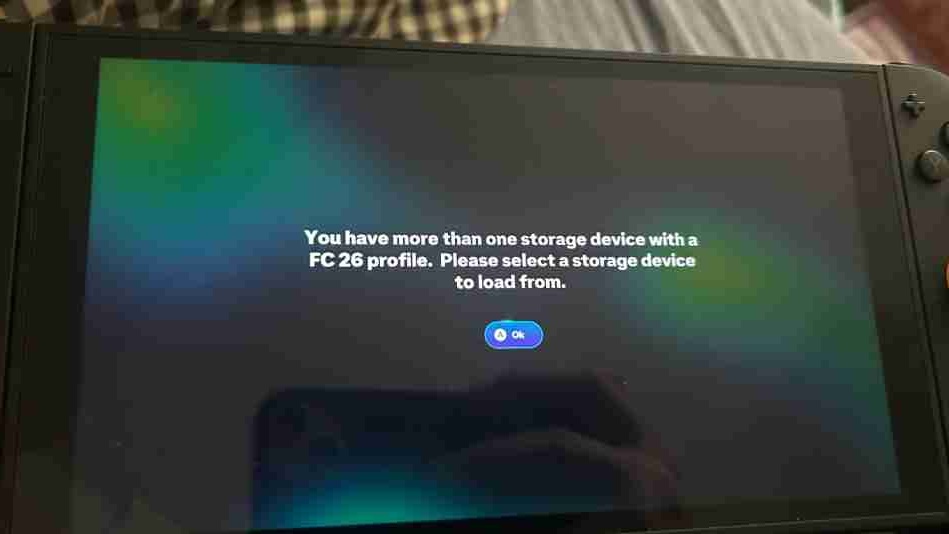
The glitch has caused considerable frustration within the FC 26 community, as affected players are unable to load their progress, play matches, or access any game modes. Discussions on forums and social media indicate that this issue is widespread, impacting both new and veteran players on the Nintendo Switch.
As of now, there is no official fix from EA or Nintendo, leaving players to seek workarounds or wait for a patch. Many hope that a future update will address this storage device error, restoring proper game access and allowing players to continue enjoying FC 26 without interruption. Meanwhile, affected players are encouraged to report the issue to EA support with details about their console, storage configuration, and game version to help prioritize a resolution.
Why This Error Happens
The “You have more than one storage device with a FC 26 profile” error on Nintendo Switch 2 is primarily caused by profile detection issues. The game mistakenly believes multiple storage devices are present, even when players only use the internal console storage. Based on player reports and community feedback, several factors can contribute to this problem:
1. Corrupted Profile Data
If a player’s save files become corrupted or partially duplicated internally, the game may detect them as multiple profiles. This can happen after a failed update, system crash, or improper shutdown while saving progress. Even minor corruption can trigger the error message repeatedly.
2. Old or Leftover Saves
Previous FC 26 profiles stored on an SD card that is no longer inserted can still be referenced by the system. The game may continue to search for these nonexistent profiles, causing confusion in detecting the correct save location.
3. Switch Internal Storage Confusion
Nintendo Switch’s internal storage indexing can occasionally misidentify save paths. For example, if the system reorganizes files during updates or data management, the game may interpret duplicated references as multiple storage devices.
4. Cloud Save Conflicts
For players who use Nintendo Switch Online cloud saves, having multiple cloud save versions for the same profile can lead the game to think there are separate storage devices. This is especially common if the player switches between consoles or reinstalls the game without syncing properly.
5. User Account Linking Issues
The error may also occur when the FC 26 profile is linked to multiple Nintendo accounts or EA accounts on the same Switch. Conflicting account credentials can make the game detect more than one profile source.
6. System Update or Game Patch Conflicts
Recent console firmware updates or FC 26 patches may change how the game reads storage devices, unintentionally triggering this error. In some cases, the new update may conflict with older saved data formats.
7. SD Card Formatting or Previous Usage
Even if no SD card is currently inserted, previously used cards that weren’t properly formatted or removed can leave residual data traces, causing the system to detect phantom storage locations.
Understanding these causes can help players troubleshoot effectively while waiting for an official patch from EA or Nintendo.
Step-by-Step Fixes for the “Multiple Storage Device” Error in FC 26 on Nintendo Switch
Many FC 26 players on Nintendo Switch have reported being unable to access the game due to the persistent error message:
“You have more than one storage device with a FC 26 profile. Please select a storage device to load from.”
This issue prevents players from launching the game, as pressing OK simply brings the message back. Fortunately, there are several step-by-step fixes and workarounds that can help resolve this problem. These methods focus on addressing profile detection issues, residual data conflicts, and save data corruption. While some solutions involve potential data deletion, they are necessary to restore proper access. Below is a detailed guide covering each approach.
1. Restart and Reinsert the Game
Sometimes, the error is caused by temporary detection issues that occur during startup. Performing a complete restart can often resolve these glitches.
Steps:
- Fully close FC 26 by pressing the Home button, highlighting the game, and pressing X → Close.
- Power off the Nintendo Switch completely by holding the Power button → Power Options → Turn Off.
- Wait 30–60 seconds to ensure all cached data is cleared.
- Turn the Switch back on and relaunch FC 26.
This process can refresh the system’s internal memory and may eliminate the false multiple storage detection, allowing the game to load normally. Many players report that simply restarting the console once or twice can resolve the issue, especially if it’s a minor sync glitch caused by a previous shutdown or update.
2. Check for Residual SD Card Data
Even if no SD card is currently inserted, leftover save files from previous sessions can trigger the error. The game might think these old profiles still exist, causing the multiple storage detection message.
Steps:
- If you have ever used an SD card with FC 26, remove it from the Switch.
- Insert the SD card into another Switch or PC to inspect its contents.
- Look for FC 26 save data, backup files, or duplicated folders.
- Delete unnecessary or outdated save files, or back them up to a secure location if you wish to preserve progress.
Residual data is a common culprit, especially for players who have moved between multiple Switch consoles or formatted SD cards without fully deleting prior game files. Removing or consolidating old data often resolves the detection conflict.
3. Clear Corrupted Save Data (Internal Storage)
Corrupted save files on the Switch’s internal storage can prevent the game from recognizing the correct profile. Clearing these files can often fix the multiple storage error.
⚠️ Warning: Deleting local save data will remove progress stored locally. Make sure to back up your save to Nintendo Cloud if available.
Steps:
- Go to System Settings → Data Management → Save Data → Delete Save Data → FC 26.
- Confirm deletion. This removes corrupted or misidentified save files that could be causing the error.
- Relaunch the game. FC 26 should now attempt to create a fresh save or detect the correct profile from cloud backup.
Clearing corrupted saves is particularly effective if the game has previously crashed, updated during gameplay, or experienced an improper shutdown.
4. Restore from Cloud Save
Once local data has been cleared, downloading a cloud save ensures you retain progress while avoiding the corrupted or duplicated files that triggered the error.
Steps:
- Go to System Settings → Data Management → Save Data Cloud → FC 26 → Download Save Data.
- Ensure the cloud save corresponds to your primary profile.
- Launch the game to verify that your progress is restored and the multiple storage device error is resolved.
Using cloud saves avoids the risk of local file conflicts and is often the safest way to restore full progress after clearing corrupted data.
5. Reinstall the Game
If clearing local saves and restoring cloud backups does not work, a full reinstall of FC 26 may be necessary. This step removes any residual files, cache, or corrupted installation data that may interfere with storage detection.
Steps:
- Highlight FC 26 on the Home menu, press X → Delete.
- Confirm deletion of the game software. Local saves stored in internal storage or cloud remain unless manually deleted.
- Re-download the game from the Nintendo eShop.
- Launch the game and check if the storage device error persists.
Reinstallation ensures the game has a clean install environment and eliminates potential conflicts caused by corrupted installation files or system updates.
6. Contact Nintendo or EA Support
If none of the above solutions resolves the issue, it may be a known bug that requires intervention from EA or Nintendo. Providing detailed information helps support teams identify and prioritize the problem.
Steps:
- Visit EA Help: https://help.ea.com
- Visit Nintendo Support: https://www.nintendo.com/support
- Include detailed information in your report:
- The exact error message.
- Screenshots or video clips of the issue.
- Your Nintendo Switch model and system version.
- Whether an SD card was ever used with FC 26.
- Any troubleshooting steps already attempted.
- Use keywords like “FC 26 Switch multiple storage device error” to help categorize the issue for developers.
Support teams can provide further guidance, escalate the bug for patching, or offer account-specific solutions to restore game access.
Additional Tips
- Always ensure your Nintendo Switch firmware and FC 26 are updated to the latest versions. Minor updates often fix underlying storage detection issues.
- Avoid switching between multiple Nintendo accounts while troubleshooting, as this can create additional profile conflicts.
- Regularly back up your progress to Nintendo Cloud to prevent data loss during troubleshooting.
- If using an SD card, make sure it is properly formatted for the Switch (FAT32 or exFAT). Improperly formatted cards can cause phantom storage detection.
By following these step-by-step fixes, most players are able to resolve the multiple storage device error and restore access to FC 26 on Nintendo Switch. Persistence and careful handling of save data are key to preventing repeated issues.
Tips to Avoid This in the Future
The “multiple storage device” error in FC 26 can be frustrating, but there are several preventive measures players can take to avoid encountering it again on Nintendo Switch.
1. Always Back Up Saves to Nintendo Cloud
Regularly uploading your save files to Nintendo Cloud ensures that your progress is safe, even if local files become corrupted. This is especially important before performing updates, system maintenance, or moving between consoles. Cloud backups also make it easier to restore your profile if the game misidentifies storage devices.
2. Avoid Switching Storage Devices While the Game Is Running
Do not insert, remove, or switch between SD cards and internal storage while FC 26 is open. Doing so can confuse the game’s storage detection system and trigger the multiple device error. Always close the game completely before making any changes to storage or inserting external media.
3. Keep Only One Profile per Switch User Account
Ensure that each Switch user account only has one FC 26 profile. Multiple profiles or duplicate saves on the same account can cause the game to detect phantom storage devices, leading to errors. If you need to create a separate profile, do so on a different user account, and avoid sharing profiles across multiple accounts.
By following these simple steps, players can significantly reduce the risk of encountering storage detection errors and enjoy a smoother FC 26 experience on Nintendo Switch.
FC 26 Switch Storage Device Error – FAQ
What does “You have more than one storage device with a FC 26 profile” mean?
This error occurs when FC 26 thinks there are multiple storage locations for your profile. It can happen even if you only use the Switch internal storage. Usually, it’s caused by corrupted save data, leftover SD card files, or cloud save conflicts.
Why does the message keep appearing when I hit OK?
Pressing OK does not bypass the message because the game cannot detect a single valid profile. The system believes multiple storage locations exist, creating a loop that prevents the game from launching.
Do I need an SD card to fix this error?
Not necessarily. The issue can occur without an SD card. If you’ve previously used an SD card, leftover save files may trigger the error. The key is to check and clean up duplicate or corrupted save data.
Will deleting my save data fix the problem?
Yes, deleting corrupted local saves can fix the issue, but you should back up progress to Nintendo Cloud first. After deletion, you can restore your profile from the cloud to continue playing.
Can I reinstall the game to fix the storage device error?
Yes. Reinstalling FC 26 can help reset storage detection issues. Make sure to back up cloud saves before deleting the game to avoid losing progress.
Is this a common issue on Switch?
Yes. Multiple players have reported this error on Switch consoles. It can happen on any system, especially after updates or if there are conflicts between cloud saves and local saves.
Will Nintendo or EA fix this bug?
Both Nintendo and EA are aware of this issue. If temporary fixes don’t work, you should contact EA Help or Nintendo Support and provide screenshots of the error message.
How can I prevent this from happening again?
- Keep only one profile per Switch user account for FC 26.
- Avoid switching storage devices while the game is running.
- Regularly backup saves to Nintendo Cloud.
Where can I report this FC 26 storage device error?
You can report it to:
- EA Help: https://help.ea.com
- Nintendo Support: https://www.nintendo.com/support
Include screenshots, console info, and a description like “FC 26 Switch multiple storage device error.”