
Many players are reporting a strange “No Gun Showing” bug in Battlefield 6, especially during multiplayer matches after respawning.
You start the match with your weapon and arms visible, but after dying and respawning, both disappear — leaving only the environment on-screen. You can still shoot and move, but there’s no weapon model, no hands, and no crosshair, making aiming nearly impossible.
This visual glitch has resurfaced even after the November 11th update, frustrating players across PC, PlayStation, and Xbox.
Why the “No Gun Showing” Bug Happens in Battlefield 6
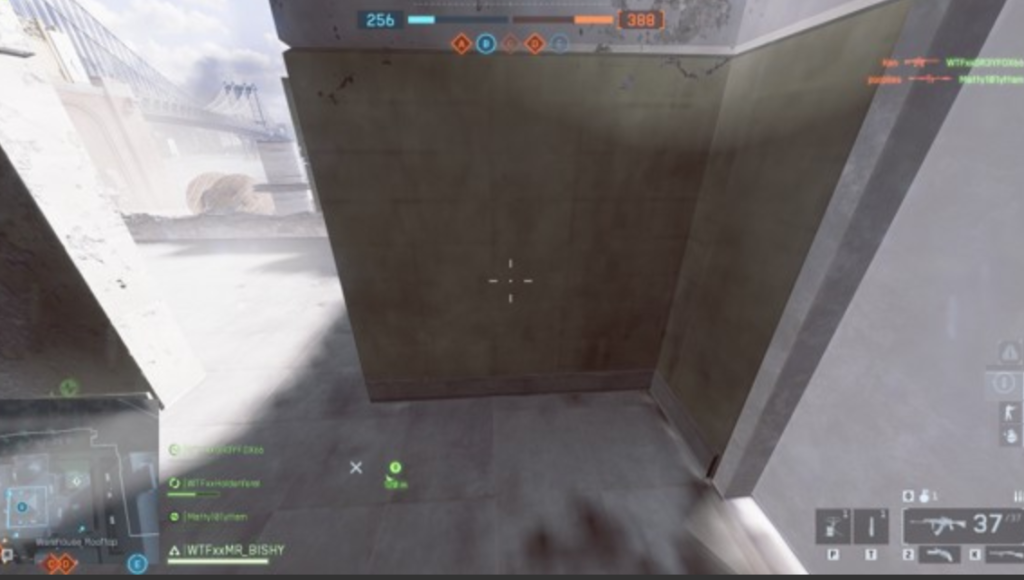
This issue usually stems from a rendering or animation desync between your first-person model and the game’s camera system.
After respawning, the weapon rendering layer sometimes fails to reload due to:
- GPU driver or shader cache corruption.
- Multiplayer animation asset desync after patches.
- Incomplete texture or model streaming on high-latency servers.
- First-person FOV or field-of-view data resetting incorrectly post-respawn.
In simpler terms — your character and weapon still exist in-game, but the render pipeline skips their visual draw call, causing them to vanish from your screen.
Fix 1: Restart the Match or Reload from Menu
A simple return to main menu and rejoin often reloads the visual assets and restores the weapon model.
Steps:
- Press Escape → Quit to Main Menu.
- Rejoin the same server or lobby.
- Wait for your loadout to render fully before moving.
This fix works because it forces Battlefield 6 to rebuild your in-game camera and weapon animations.
Fix 2: Clear Shader Cache and Rebuild Graphics Settings
Corrupted shaders often cause first-person render bugs like this.
Steps:
- Close Battlefield 6.
- Delete shader cache from:
Documents\Battlefield 6\Settings\Cache - Relaunch the game and let shaders rebuild automatically.
- Reapply your preferred graphics settings.
This can prevent invisible weapon issues from recurring during respawns.
Fix 3: Update GPU Drivers (NVIDIA / AMD)
Outdated or mismatched GPU drivers can cause post-update rendering bugs.
✅ For NVIDIA:
- Use the latest Game Ready driver 560.72 or newer.
✅ For AMD:
- Update to Adrenalin 24.9.1 or higher.
After updating, restart your PC and verify Battlefield 6 files through EA App or Steam to rebuild shader data with the new driver.
Fix 4: Disable DLSS, Ray Tracing, and Post-Processing
Some players report the missing gun bug only occurs when DLSS or ray tracing is enabled.
Steps:
- Go to Settings → Graphics → Advanced.
- Disable DLSS, Ray Tracing, and Post-Processing Effects.
- Restart the game.
These settings can interfere with first-person rendering under high latency conditions. Turning them off ensures the camera and weapon layers load correctly.
Fix 5: Lower FOV (Field of View) and Reset Visual Settings
A high or customized FOV can occasionally push the camera beyond the weapon model’s render zone.
Steps:
- Set FOV to 70–80 temporarily.
- Save settings → Restart game → Respawn again.
If your gun reappears, you can gradually increase the FOV afterward.
Fix 6: Verify Game Files and Repair Installation
Corrupted or partially updated animation files may cause invisible models.
EA App:
- Go to My Library → Battlefield 6 → Manage → Repair Game.
Steam:
- Right-click Battlefield 6 → Properties → Installed Files → Verify Integrity.
This will replace any broken model or texture assets responsible for the bug.
Fix 7: Disable Overlays (Discord, NVIDIA, Steam)
In some cases, third-party overlays conflict with Battlefield 6’s rendering system.
Steps:
- Turn off Discord Overlay (Settings → Overlay → Disable).
- Disable Steam Overlay (Settings → In-Game → Uncheck).
- Disable NVIDIA GeForce Overlay if active.
Restart your PC afterward. Many players report this completely removes invisible weapon glitches.
Fix 8: Switch to Borderless or Fullscreen Mode
Battlefield 6 sometimes loses render focus after respawn when running in windowed mode.
Steps:
- Go to Settings → Display → Mode → Borderless or Fullscreen.
- Restart the game.
This ensures consistent rendering between deaths and respawns.
Fix 9: Reinstall the Latest Patch or Repair Missing Content Packs
After major updates, the multiplayer package can partially desync, removing certain weapon models.
Steps:
- In EA App → Manage Add-ons → Battlefield 6, reinstall Multiplayer content pack.
- Run Repair Game.
This re-registers missing first-person assets that may have failed to install during the November update.
Fix 10: Contact EA Support if the Issue Persists
If none of the above solutions work, report the issue directly to EA for manual verification.
How to Contact EA:
- Visit help.ea.com.
- Select Battlefield 6 → Technical Issues → Missing Assets or Rendering Problems.
- Include screenshots or clips showing the invisible weapon glitch.
EA can verify whether your account or build version is affected by the bug and may provide early access to upcoming hotfixes.
Fix 11: Rebuild DirectX Shader Cache
Battlefield 6 uses DirectX 12 rendering, which stores shaders locally. If these files become corrupted, the game may fail to load first-person weapon models.
Steps:
- Close Battlefield 6 completely.
- Press Win + R, type:
%LocalAppData%\D3DSCache - Delete all files in the folder.
- Restart your PC and launch Battlefield 6.
This rebuilds all DX12 shaders from scratch, fixing broken lighting or missing weapon render layers after respawn.
Fix 12: Clear NVIDIA Shader Cache via Control Panel
If you’re on an NVIDIA GPU, outdated shader cache may conflict with new patch assets.
Steps:
- Open NVIDIA Control Panel → Manage 3D Settings → Shader Cache.
- Turn Off, click Apply, then turn it On again.
- Restart your PC and launch Battlefield 6.
This forces your GPU to refresh the cached pipeline state — resolving invisible weapon glitches for many RTX users.
Fix 13: Reset Battlefield 6 User Profile Settings
Corrupted local configuration files can break your first-person render.
Steps:
- Go to:
Documents\Battlefield 6\Settings - Delete or rename files like
PROFSAVE_profileandPROFSAVE_lastProfile. - Launch the game to generate new settings automatically.
Your control and video preferences can be re-adjusted later. This fix often restores missing weapon animations tied to old config data.
Fix 14: Reinstall or Repair EA AntiCheat
Believe it or not, a broken EA AntiCheat service can interrupt asset loading at spawn.
Steps:
- Go to your Battlefield 6 install directory → EA AntiCheat folder.
- Run
EAAntiCheat.Installer.exe. - Select Battlefield 6 → Uninstall → Reinstall.
Restart your PC and relaunch the game.
This ensures the anti-cheat layer doesn’t block model rendering threads or multiplayer sync.
Fix 15: Disable HDR or Auto-HDR in Windows
Players using HDR-enabled monitors report that auto-switching between SDR and HDR during respawn causes a temporary camera render failure.
Steps:
- Go to Windows Settings → System → Display → Use HDR → Off.
- Restart Battlefield 6.
This stabilizes lighting and shadow rendering pipelines, restoring visible weapon and arm models in multiplayer matches.
Fix 16: Delete EA App and Battlefield 6 Cache Folders
A corrupted cache can cause Battlefield 6 to load outdated shader data or missing visual models.
Steps:
- Close the EA App.
- Press Win + R → type
%ProgramData%\EA Desktop→ Enter. - Delete all files inside.
- Then go to:
Documents\Battlefield 6\Cacheand delete that folder too. - Relaunch Battlefield 6.
This clears every cached asset reference, forcing a clean rebuild of visuals on startup.
Fix 17: Lower Weapon FOV and Disable ADS Transition Effects
Sometimes the invisible gun bug triggers during Aim-Down-Sight (ADS) transitions with custom FOVs.
Steps:
- Go to Settings → Gameplay → ADS Field of View.
- Turn OFF “ADS Field of View” and lower the global FOV to around 80.
- Save and restart the match.
This ensures the weapon model remains inside the render zone when switching from idle to aiming.
Fix 18: Turn Off “Future Frame Rendering” in Graphics Settings
This option can delay weapon model refresh on certain GPUs.
Steps:
- Open Settings → Video → Advanced Graphics.
- Find Future Frame Rendering → Turn it Off.
- Restart the game.
This forces Battlefield 6 to load each frame in real-time, reducing rendering delays during respawns and weapon swaps.
Fix 19: Switch to DirectX 11 via Launch Options (Temporary Workaround)
If DirectX 12 continues to break your weapon rendering, you can temporarily switch to DX11 for stability.
Steps:
- In EA App → Battlefield 6 → Manage → View Properties.
- Under “Advanced Launch Options,” enter:
-dx11 - Save and launch the game.
DX11 uses a simpler rendering pipeline that avoids many shader-based first-person visual bugs.
Fix 20: Disable Cloud Sync and Rebuild Local Save
EA’s cloud synchronization occasionally overwrites local visual cache data, re-triggering this bug each session.
Steps:
- Open EA App → Settings → Sync → Disable Cloud Saves.
- Launch Battlefield 6 → Rebuild settings and loadouts manually.
- Play a few matches to confirm visuals remain stable.
If the bug doesn’t return, you can safely re-enable cloud sync later.
Why Does My Gun Disappear in Battlefield 6 After Respawning?
The Battlefield 6 disappearing gun bug happens when the game fails to reload the first-person rendering layer after you respawn. This is caused by a shader or animation desync within the game’s DirectX 12 engine.
When you die and respawn, Battlefield 6 reloads your character’s camera and weapon models separately. If this reload sequence fails — due to memory cache corruption, GPU driver mismatch, or server lag — your weapon model doesn’t render, leaving you with no visible gun or arms even though you can still shoot.
✅ Fix Tips:
- Clear the game’s shader cache from your Documents folder.
- Disable DLSS and Ray Tracing under graphics settings.
- Update your GPU drivers and restart the game.
This bug is purely visual and doesn’t affect hit registration or gameplay mechanics.
EA DICE has acknowledged the Battlefield 6 no gun showing bug and is testing a hotfix to restore proper first-person model rendering during respawns.
Is the Battlefield 6 Invisible Gun Bug Happening After the Latest Update?
Yes — the Battlefield 6 invisible gun glitch became more common after the November 11th update. Many players across PC, Xbox, and PlayStation noticed that after respawning in multiplayer, their weapon and arms vanish from view.
This bug appears to be linked to changes in the game’s post-patch rendering system, which handles weapon animation blending and shader caching differently. After the latest update, the lighting pipeline occasionally fails to initialize the first-person mesh when players rejoin mid-match or respawn quickly.
✅ Confirmed Causes:
- Post-update shader recompilation issues.
- Corrupted cache from old patch data.
- Desynced FOV settings or DLSS interference.
To fix it temporarily, you can clear Battlefield 6’s shader cache, repair the game through EA App, or disable advanced lighting features like Ambient Occlusion and Ray Tracing.
EA has confirmed that the issue is under active investigation, and a patch will be released soon to stabilize weapon rendering after updates and respawns.
Why Can I Still Shoot But Not See My Weapon or Crosshair in Battlefield 6?
If you can still shoot but can’t see your weapon or crosshair in Battlefield 6, you’re experiencing a first-person render failure, not a gameplay glitch.
The gun, hands, and reticle exist functionally — meaning your bullets still register hits — but the visual layer responsible for displaying the weapon model fails to load after respawning or switching loadouts.
✅ Why It Happens:
- Shader cache corruption from the previous update.
- Animation blueprint fails to rebind to the camera.
- FOV or ADS transitions pushing the weapon outside the render zone.
✅ Quick Fix:
- Return to the main menu and rejoin the match.
- Lower Field of View (FOV) to default (70–80).
- Disable Future Frame Rendering and DLSS.
Doing so resets the camera pipeline and reloads weapon visuals correctly.
While this bug doesn’t affect performance or accuracy, it makes aiming nearly impossible without a crosshair. A Battlefield 6 rendering hotfix is in progress to address the issue for all players.
Is Battlefield 6 No-Gun Glitch a Rendering Issue or Gameplay Bug?
The Battlefield 6 no-gun glitch is a rendering issue, not a gameplay or weapon logic bug.
Your weapon is technically active — you can still fire, reload, and hit enemies — but the visual model and crosshair layers fail to render due to a post-respawn graphics error.
Battlefield 6’s Frostbite engine separates gameplay systems (hit detection, weapon logic) from rendering systems (visual models, shadows, and lighting). When the rendering subsystem loses sync after a respawn or round transition, your weapon’s first-person mesh doesn’t appear, even though it exists in-game.
✅ Fix Steps:
- Clear DirectX and NVIDIA shader caches.
- Verify Battlefield 6 files via EA App or Steam.
- Turn off Ray Tracing and Post-Processing Effects.
Since the November patch, several players confirmed the bug occurs more frequently after death-to-respawn transitions. EA has acknowledged the issue as a graphics pipeline regression, with a fix planned in the next optimization update.
Does the Battlefield 6 Invisible Weapon Bug Affect All Classes or Maps?
Yes — the Battlefield 6 invisible weapon bug affects all classes and maps, though it appears more frequently in large multiplayer maps with heavy visual effects such as New Sobek City and Operation Firestorm.
This bug isn’t tied to specific weapons or classes (Assault, Recon, or Engineer). Instead, it occurs when the first-person rendering stream fails to reload weapon models after respawn or fast deployment.
✅ Common Patterns Noted by Players:
- More frequent during high-ping matches or crossplay sessions.
- Triggered by fast respawning after vehicle deaths.
- Randomly occurs after switching loadouts mid-match.
✅ Fix Suggestions:
- Use Borderless Fullscreen Mode for stable rendering.
- Avoid rapid loadout switching until visuals reload.
- Clear EA App cache and verify game files.
EA DICE confirmed the bug affects PC, Xbox, and PlayStation platforms and originates from a multiplayer lighting update introduced in the latest patch. A future graphics stability update will address this widespread no-weapon rendering bug across all maps and factions.
Is the Battlefield 6 Invisible Gun Bug Caused by Texture Streaming Issues?
Yes — one major cause of the Battlefield 6 invisible gun bug is a texture streaming issue within the game’s rendering pipeline.
After an update or respawn, Battlefield 6 dynamically reloads assets like weapon textures, hands, and first-person models. When texture streaming fails, these visual assets simply don’t load — leaving you with no visible weapon or arms, even though the gun is technically active.
This problem often occurs on systems using DirectX 12 with high VRAM usage or unstable GPU drivers. When the texture buffer becomes overloaded, the engine deprioritizes first-person assets in favor of world geometry, causing the no-gun glitch.
✅ Fix Steps:
- Lower texture quality and shadow resolution.
- Disable “Texture Streaming Budget” in advanced graphics settings.
- Clear shader and DirectX caches.
- Restart the game after applying changes.
EA DICE has confirmed that this visual bug is connected to texture memory streaming conflicts and is preparing a rendering optimization patch to stabilize weapon model loading during respawns.
Can Missing Assets or Corrupted Cache Files Cause Weapons to Disappear?
Absolutely — missing assets and corrupted cache files are two of the most common reasons your weapon disappears in Battlefield 6.
When the game updates, old cache data and shader files can conflict with new patch assets. This causes first-person models, arms, and crosshairs to fail to load after respawn or when switching classes mid-match.
Battlefield 6 stores cached lighting, animations, and shaders locally in your system folders. If any of these become corrupted, the rendering engine may skip them — resulting in invisible weapons or missing visual effects.
✅ Fix Steps:
- Close the game and go to:
Documents\Battlefield 6\Settings\CacheDelete this folder. - Clear EA App cache via Help → App Recovery → Clear Cache.
- Verify game files on EA App or Steam.
- Relaunch Battlefield 6 to rebuild assets.
This process restores clean, uncorrupted model data and usually fixes weapon disappearance after respawning or patch updates.
Does the No-Gun Glitch Occur More Often in Certain Game Modes or Maps?
Yes — the Battlefield 6 no-gun glitch tends to occur more often in multiplayer modes and on high-density maps like New Sobek City and Operation Firestorm.
These maps contain high visual complexity, more dynamic lighting, and large texture streaming demands. The bug often triggers when the player respawns quickly, switches loadouts, or re-enters combat during heavy GPU load.
Game modes such as Conquest and RedSec appear to trigger the glitch more frequently due to frequent respawns and server load balancing. On the other hand, single-player and smaller team modes rarely experience this issue.
✅ What Helps:
- Restart the match or return to the main menu.
- Lower graphics settings, especially “Mesh” and “Texture Quality.”
- Avoid switching classes during respawn.
EA developers have noted that the bug is not map-exclusive, but certain maps amplify it due to performance strain. The upcoming performance optimization patch will include fixes for render queue timing during respawns in high-load environments.
Can Turning Off DX12 or Ray Tracing Fix the Battlefield 6 Invisible Weapon Issue?
Yes — disabling DirectX 12 (DX12) and Ray Tracing can significantly reduce or completely eliminate the Battlefield 6 invisible weapon issue for some players.
The bug appears to stem from a DX12 pipeline timing error that prevents the first-person weapon model from initializing correctly after a respawn. Ray tracing, which adds extra GPU load and lighting complexity, can worsen the problem by delaying shader compilation.
✅ Fix Steps:
- In the EA App → Battlefield 6 → Manage → Advanced Launch Options, type:
-dx11to force DirectX 11. - Launch the game and disable Ray Tracing under Graphics → Advanced Settings.
- Restart Battlefield 6.
Many players report that using DX11 stabilizes first-person visuals, ensuring weapons and hands always appear correctly after respawn.
EA has acknowledged this as a rendering synchronization flaw under DX12 and is testing improved ray tracing integration in future patches.
Why Does Battlefield 6 Lose Crosshair and Weapon Model After Respawn?
The Battlefield 6 no crosshair and missing weapon model issue happens when the camera’s first-person layer fails to reload after respawn.
Battlefield 6 separates world rendering (maps, enemies, environment) from first-person elements like weapons, arms, and crosshairs. When the game reloads your character after death, it must synchronize both layers — if this fails, you lose all visible weapon assets but can still fire.
✅ Possible Causes:
- Shader cache corruption.
- FOV or ADS transition bug.
- Post-patch rendering desync.
- Overloaded GPU during respawn.
✅ Fix Tips:
- Lower FOV to 70–80.
- Turn off “Future Frame Rendering.”
- Verify game files and update GPU drivers.
- Restart the match to reload visual assets.
The issue is purely visual — your character and weapon still function.
EA confirmed it’s a rendering layer timing bug triggered during respawn, and it’s being prioritized for an upcoming stability fix in Battlefield 6’s next patch rollout.
How to Fix Battlefield 6 No Gun Showing in Multiplayer Matches
The Battlefield 6 no gun showing bug in multiplayer is caused by a rendering or shader cache failure that prevents your weapon and arms from loading after respawning.
To fix it quickly, start by clearing your shader cache and verifying your game files:
✅ Steps:
- Close Battlefield 6 and go to:
Documents\Battlefield 6\Settings\CacheDelete this folder. - Open EA App → Help → App Recovery → Clear Cache.
- Restart Battlefield 6.
- Rejoin the same match or start a new one.
You can also disable DLSS, Future Frame Rendering, and Ray Tracing in the graphics settings to stabilize first-person visuals.
This fix helps the game rebuild corrupted rendering data and ensures your weapon and crosshair reappear properly after death. EA DICE has confirmed that the invisible gun issue is being reviewed for an official fix in an upcoming patch.
Does Restarting the Match or Respawning Fix the Invisible Weapon Bug?
Yes — restarting the match or respawning often temporarily fixes the Battlefield 6 invisible weapon bug for many players.
When you respawn or return to the main menu and rejoin, Battlefield 6 reloads your first-person camera and weapon assets, forcing the game to refresh missing models. This simple reset can restore both your gun and crosshair instantly.
✅ Try This Quick Fix:
- Press ESC → Quit to Main Menu.
- Rejoin the same server or select a new match.
- Wait 5–10 seconds before moving after spawning to ensure assets load fully.
This method works because the rendering pipeline resets, clearing temporary desyncs that occur after death or high ping respawns.
However, if the problem happens repeatedly, you’ll need to clear your shader and DirectX caches, update your GPU drivers, or repair the game files.
EA DICE is aware of the issue and working on a permanent fix for first-person rendering after respawns.
Can Repairing or Reinstalling Battlefield 6 Fix the Missing Gun Glitch?
Yes — repairing or reinstalling Battlefield 6 can completely fix the missing gun glitch, especially if corrupted game files or broken shader data are causing the problem.
Sometimes after updates, certain visual files fail to install properly — leading to invisible weapons, missing textures, or no arms showing after respawn.
✅ Repair Game Method:
- On EA App: My Library → Battlefield 6 → Manage → Repair Game.
- On Steam: Properties → Installed Files → Verify Integrity.
This automatically replaces damaged model and texture files that cause weapon rendering to fail.
If the repair doesn’t help, a clean reinstall ensures all multiplayer content packs, texture assets, and shaders download correctly.
Be sure to clear the EA App cache before reinstalling for a clean setup.
After reinstalling, relaunch Battlefield 6 — the no-gun bug should be gone permanently unless triggered by a new patch.
Is There a Temporary Fix for the No-Gun Bug After Respawning in BF6?
Yes — there are a few reliable temporary fixes for the no-gun bug in Battlefield 6 multiplayer until EA releases a permanent patch.
✅ Working Temporary Fixes:
- Switch to Borderless Window Mode:
Helps stabilize the rendering focus during respawn transitions. - Lower FOV (Field of View):
Set it to 70–80 to ensure the weapon stays within the visible render zone. - Turn Off DLSS & Ray Tracing:
These features sometimes break the first-person shader pipeline. - Restart the Match:
Quit to the main menu and rejoin to reload visual assets. - Clear Shader Cache:
Deletes corrupted post-update shader data that cause invisible guns.
These fixes ensure that your weapon and arms render correctly when respawning or switching loadouts mid-match.
While not a permanent solution, players confirm these steps minimize the issue until EA’s weapon rendering hotfix becomes available.
Will EA Release a Patch to Fix Battlefield 6 Weapon Visibility Issue?
Yes — EA DICE has officially acknowledged the Battlefield 6 weapon visibility bug and confirmed that a stability patch is being developed to fix it.
After the November update, many players began reporting invisible weapons, missing arms, and disappearing crosshairs after respawning in multiplayer. EA has since confirmed the issue is caused by a render synchronization error in the Frostbite engine’s first-person lighting system.
The upcoming patch will address:
- Weapon and arm models failing to load post-respawn.
- Broken camera-layer synchronization.
- Shader caching conflicts causing visual flickers.
✅ In the meantime:
Players can minimize the issue by turning off DLSS, clearing shader caches, and verifying game files.
EA Support has also advised players to submit DXDiag and cache logs to help identify recurring issues. The fix will roll out in the next Battlefield 6 stability update, restoring full weapon visibility across PC, Xbox, and PlayStation platforms.
Final Thoughts
The Battlefield 6 “No Gun Showing” bug is a rendering glitch caused by missing visual data after respawning — not a gameplay or account issue.
✅ Best fixes that work right now:
- Clear shader cache.
- Update GPU drivers.
- Disable DLSS and overlays.
- Repair or verify game files.
EA DICE is already investigating the issue after the November 11th update, and a patch is expected soon to stabilize weapon rendering during multiplayer respawns.