
If you’re loading up Avatar: Frontiers of Pandora on PS5 and wondering why your Banshee (Ikran) skins are nowhere to be found, you’re definitely not alone — and no, you’re not doing anything wrong.
This is a known issue, and Ubisoft support has already told multiple players that it happens a lot, especially around DLC launches and big updates. The problem isn’t that the skins don’t exist or that you didn’t actually buy them. You do own the skins, but the game sometimes fails to properly recognize or display the DLC entitlements after installation or updates.

The short version
You own the skins.
The game just isn’t showing them.
And yes, it’s usually fixable.
In some cases, the fix is on your end — like making sure the DLC is fully installed or the game is updated. In other cases, it’s a Ubisoft-side entitlement sync issue that needs support to step in. It’s frustrating, but the good news is that this isn’t a rare or permanent problem, and most players eventually get their missing Ikran skins restored.
Read also: Blaze Fruit Unreachable in Avatar: Frontiers of Pandora: Solved
Why the Banshee skins aren’t showing up
Here are the most common reasons — ranked from “happens all the time” to “classic Ubisoft moment”:
1. The DLC didn’t actually install
Buying DLC on PS5 doesn’t always mean it installs automatically. Even if it clearly says Owned in the store, the add-on itself might not be downloaded or enabled on your system.
This is one of those frustrating console quirks that trips up a ton of players, especially with cosmetic packs. The game expects that add-on file to be present before it unlocks the skins in-game, and if it isn’t, nothing shows up.
Yep. It’s dumb — but it’s also incredibly common. A lot of players have fixed missing Banshee (Ikran) skins simply by going into the PS5’s “Manage Game Content” menu and realizing the DLC was never installed in the first place, even though they paid for it.
2. Your game isn’t fully updated
The From the Ashes update added new Ikran customization options, including the menus that actually display certain cosmetic items. If your game is missing even a single patch or didn’t finish updating properly, things can break in weird ways. In this case, the skins technically exist in your ownership data, but the game doesn’t have the updated interface needed to show them. That’s why this issue is so confusing — the content is there, but you have no way to access it.
So if you’re missing a patch, here’s what happens:
The skins exist.
The menu to show them doesn’t.
The result is invisible cosmetics that look like they never unlocked. This usually gets fixed after installing the latest update and restarting the game (and sometimes the console), but until then, it feels like the skins just vanished into thin air.
3. Entitlement sync bug (Ubisoft-side issue)
This is the big one.
Sometimes Ubisoft’s servers just… don’t flag your account correctly. When that happens, the game has no idea you’re entitled to those Banshee (Ikran) skins, even though you absolutely are. You can reinstall the DLC, update the game, restart your console, and double-check every menu, and it still won’t make a difference. That’s because the problem isn’t on your PS5 at all — it’s happening on Ubisoft’s end.
When this entitlement sync bug kicks in, the skins simply won’t appear no matter what you do locally. At that point, the only real fix is contacting Ubisoft Support and having them manually verify and repair your account entitlements. It’s frustrating, slow, and very “classic Ubisoft,” but once they correct it, the missing skins usually show up without any further action needed from you.
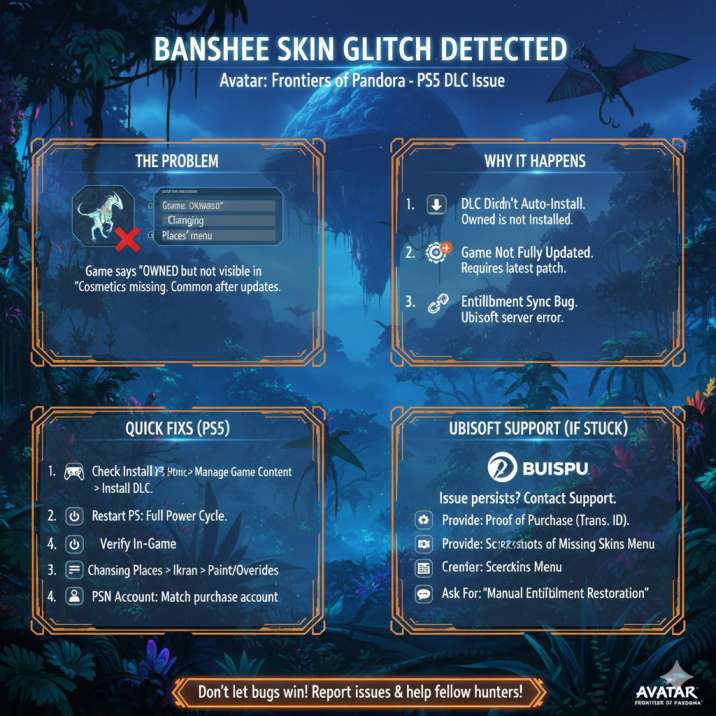
How to fix missing Banshee skins on PS5
Try these in order — most players don’t need to go past step two.
Step 1: Check your DLC install
This sounds basic, but it’s easily the most common fix. Head to your PS5 home screen and highlight Avatar: Frontiers of Pandora. Press the Options button on your controller, then select Manage Game Content. From there, you’ll see a list of DLC and add-ons tied to the game. Make sure the DLC or cosmetic pack that includes the Banshee (Ikran) skins is actually marked as installed, not just owned.
If it isn’t installed, download it manually. Once the download finishes, fully restart the game — and yes, restarting matters more than it should. In a lot of cases, the skins suddenly appear after this step alone, which is why it’s always the first thing you should try before assuming something is seriously broken.
Read also: From the Ashes DLC Stuck on Loading Screen (0%) Avatar: Frontiers of Pandora : Solved
Step 2: Update the game
If the DLC is installed and the skins are still missing, the next thing to check is your game version. Make sure you’ve fully installed the latest update for Avatar: Frontiers of Pandora, especially patches tied to major DLC releases like From the Ashes. On PS5, updates can sometimes pause, fail, or install partially without making it obvious, which is all it takes to break cosmetic menus.
Check for updates manually, install the latest patch, and once it’s finished, restart your PS5 — not rest mode, a full restart. Yes, it feels unnecessary, but this step alone fixes the issue for a lot of people. After rebooting, launch the game again and check the Ikran customization menus. For many players, this is the moment the missing Banshee skins finally show up.
Step 3: Look in the right menu
After the update, the Banshee skins aren’t always where you expect them to be. Ubisoft shuffled things around with newer patches, so it’s easy to miss them if you’re checking old menu paths out of habit. The skins are now found under:
- Changing Places
- Ikran (Banshee) Customization
- Ikran Paint / Overrides
If you’re jumping in right after installing an update or DLC, don’t panic if they don’t appear immediately.
The game sometimes takes a short moment to sync entitlements after booting up, especially on PS5. Backing out of the menu and reopening it, or waiting a minute after loading into the world, can make the skins pop in.
It’s subtle, annoying, and not very well explained in-game — but checking the correct menu and giving it a little time has helped more players than you’d expect.
Step 4: Double-check your PSN account
This one catches more people than you’d think, especially if you have multiple profiles on your console. Make sure the PSN account that actually bought the DLC is the exact same account you’re using to play Avatar: Frontiers of Pandora.
If the purchase was made on a different profile, the game may not grant the cosmetic entitlements properly, even if the DLC shows as installed on the system.
There aren’t really any account-sharing loopholes here.
Cosmetics like Banshee (Ikran) skins are tied directly to the purchasing PSN account, not the console itself. So if you’re logged into a secondary account, the skins simply won’t appear. Switching to the correct profile and restarting the game can sometimes be all it takes to fix the issue.
Read also: From the Ashes DLC Stuck on Loading Screen (0%) Avatar: Frontiers of Pandora : Solved
Still missing? This is where Ubisoft support comes in
If you’ve gone through all the steps above and your Banshee skins are still missing, you’re almost certainly dealing with an entitlement bug on Ubisoft’s side. At this point, there’s nothing else you can realistically fix locally. The good news is that support can resolve it — but only if you give them the right information upfront.
When contacting Ubisoft Support, don’t just say “my skins are missing.” That usually gets you a generic, copy-paste response and a lot of back-and-forth.
Instead, send them everything they need right away:
- Your PSN purchase receipt (with transaction ID)
- A screenshot showing the DLC as Owned
- A screenshot of the missing skins menu
- Your PSN ID
- Your Ubisoft account ID (if linked)
Then clearly ask them to:
“Manually verify and restore my DLC entitlements.”
That exact wording matters. It signals that you understand the issue and helps fast-track the ticket to someone who can actually fix it.
Is Ubisoft actually fixing this?
Yes — but slowly.
Ubisoft support has already acknowledged that this is a common problem, and PS5 players seem to be getting hit the hardest. Some fixes do roll out quietly through game patches, especially after major DLC drops, which is why the issue sometimes resolves itself after an update. Other cases aren’t that simple and require manual account repair on Ubisoft’s end to correct broken DLC entitlements.
Unfortunately, there’s no public ETA for a full, permanent fix, which is understandably frustrating if you’ve paid for content you can’t access. The upside is that players are getting their Banshee skins back once their cases are escalated and properly reviewed. It may take a bit of persistence, but the issue isn’t being ignored — it’s just moving at Ubisoft speed.
Quick FAQ (because everyone asks)
Is this my fault?
Nope. This is mostly on Ubisoft’s side. While it’s always worth double-checking installs and updates, the missing Banshee (Ikran) skins issue is usually caused by entitlement bugs or delayed DLC recognition, not anything you did wrong.
Should I reinstall the whole game?
Usually no. Reinstalling the entire game is time-consuming and rarely necessary. In most cases, reinstalling just the DLC or cosmetic pack works far better and saves you a lot of waiting.
Are the skins gone forever?
No. If you bought the DLC, you’re entitled to them. The content isn’t removed or lost — it’s just not being displayed correctly.
Can I get a refund instead?
Unlikely. Ubisoft generally treats this as a fixable issue rather than missing content, which is why support focuses on restoring entitlements instead of offering refunds.
Bottom line
If your Banshee skins are missing in Avatar: Frontiers of Pandora, you’re not crazy and you definitely didn’t miss some hidden menu or secret unlock condition.
This is a known DLC entitlement issue that’s been affecting a lot of players, especially on PS5, and Ubisoft is already aware of it. While it’s annoying — and yeah, a little exhausting — it’s also usually fixable.
For many players, the solution is as simple as installing the right DLC or updating the game. For others, it takes a bit of persistence with support to get the entitlement fixed on Ubisoft’s side.
If you want, I can:
- Write a copy-paste Ubisoft support message that actually gets results
- Turn this into a Reddit-optimized post
- Or trim everything down into a quick troubleshooting checklist