
Alright, here’s what’s happening — and yeah, it’s frustrating.
A lot of players are running into the From the Ashes DLC stuck on the loading screen issue right after installing the expansion. You boot it up, hit the DLC, and then… nothing. The screen just sits there at 0%, goes completely black, or loops the loading animation forever without moving forward.
What makes it extra annoying is that the base game works perfectly fine. You can load your normal save, roam Pandora, no crashes — but the moment you try to enter From the Ashes, the game refuses to move past the first loading screen.
This Avatar: Frontiers of Pandora DLC not loading problem shows up on PS5, Xbox Series X|S, and PC, so it’s not a platform-specific issue. It also usually happens immediately after installing the DLC, which points to a setup or data issue rather than anything you did in-game.
In short:
- The game isn’t frozen
- Your console or PC isn’t the problem
- Your main save isn’t broken
The issue is almost always tied to how the From the Ashes DLC initializes, which is why players see an infinite loading screen, a black screen, or a loading screen stuck at 0% when trying to start the expansion.
Clear Answer – What’s Actually Happening
Yes — the From the Ashes DLC loading screen bug happens because the DLC installation files or the DLC-specific save data become corrupted during download, installation, or the first launch attempt.
When this occurs, Avatar: Frontiers of Pandora cannot properly initialize the From the Ashes expansion, causing the game to hang on the first loading screen.
This is why players see a loading screen stuck at 0%, a permanent black screen, or an infinite loading loop.
Importantly, the base game save remains intact and playable. The issue does not affect main story progress, character data, or world saves. Only the From the Ashes DLC content fails to load, which is why the problem appears isolated to the expansion even though the main game runs normally.
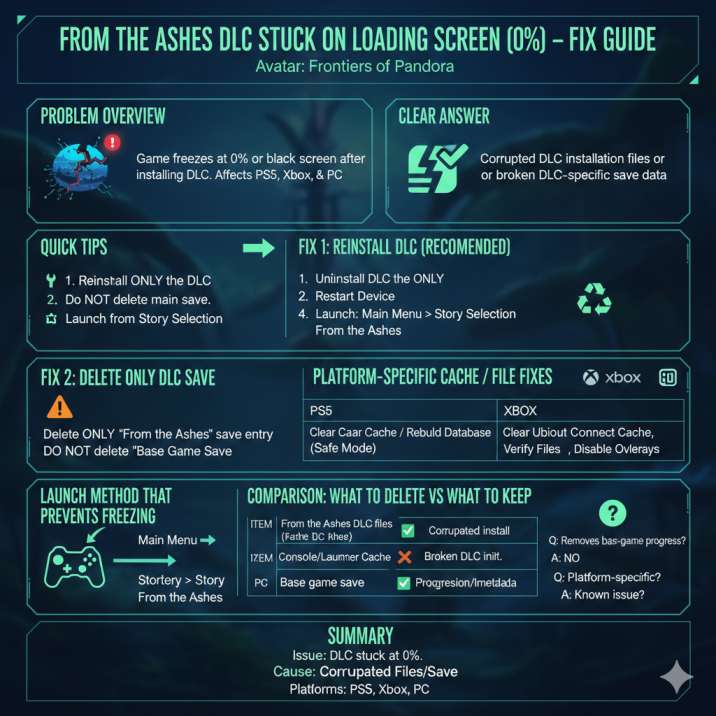
In short:
- The DLC data fails to load correctly
- The game waits indefinitely for missing or invalid DLC data
- The result is an infinite loading screen when starting From the Ashes
This explains why reinstalling the DLC or resetting only the DLC save resolves the issue in most cases.
Read also: All Mangkwan Token Locations in Avatar: Frontiers of Pandora (From the Ashes DLC)
Quick Tips – Try These First
Before trying anything complicated, start with these quick fixes. In most cases, one of these steps resolves the From the Ashes DLC stuck on loading screen issue.
- Reinstall only the From the Ashes DLC
Uninstalling and reinstalling the DLC replaces corrupted files without affecting the base game. This is the most reliable fix for a loading screen stuck at 0%. - Do not delete the main campaign save
The base game save is not the cause of the issue. Deleting it can break character import and progression links. Only the DLC data should be touched if needed. - Launch the DLC from Story Selection
Always start From the Ashes through Main Menu → Story Selection. Loading directly from a DLC-linked save can trigger an infinite loading screen. - Clear cache or verify files if reinstalling fails
Cache or file verification issues can prevent the DLC from initializing correctly, especially on PC and consoles after updates.
These steps fix the Avatar: Frontiers of Pandora DLC not loading problem for the majority of players and should always be tried before advanced troubleshooting.
From the Ashes DLC Stuck on Loading Screen Fix Methods
If the From the Ashes DLC is stuck on the loading screen or frozen at 0%, work through the fixes below in order. These target the exact causes of the Avatar: Frontiers of Pandora DLC not loading issue and avoid risking your main save.

Fix 1: Reinstall the From the Ashes DLC (Recommended)
This is the safest and most effective fix and solves the problem for most players.
What’s happening here is simple: the DLC files didn’t install cleanly, so the game can’t finish loading the expansion.
What to do
- Uninstall only the From the Ashes DLC
- Fully restart your console or PC (don’t skip this step)
- Reinstall the DLC
- Launch the game and enter the DLC from Main Menu → Story Selection
Reinstalling forces the game to download fresh DLC files, which fixes the common causes of an infinite loading screen, black screen, or From the Ashes loading screen stuck at 0%. Your base-game progress stays untouched.
Fix 2: Delete Only the From the Ashes DLC Save
If the DLC still won’t load after reinstalling, the problem is usually a corrupted DLC-specific save file.
This happens when the DLC fails during its first launch and creates a broken entry that the game keeps trying to load.
Important — do this carefully
- Delete only the From the Ashes DLC save or DLC entry
- Do not delete the main campaign save
Deleting the base save can affect character import, progression, and achievements, while deleting the DLC save simply forces the expansion to rebuild its data the next time you launch it.
This step often fixes cases where reinstalling alone doesn’t stop the Avatar DLC infinite loading screen.
Fix 3: Platform-Specific Cache / File Fixes
If the DLC still fails to initialize, cached data or launcher files may be blocking it.
| Platform | What to Do |
|---|---|
| PS5 | Boot into Safe Mode and clear the system cache or rebuild the database |
| Xbox Series X|S | Fully shut down the console, unplug for 30 seconds, then restart |
| PC | Clear Ubisoft Connect cache, verify game files, and disable overlays |
These steps clear leftover data that can prevent From the Ashes DLC from loading properly, especially after updates or failed installs.
Which Fix Should You Try First?
Start with Fix 1, then move down the list only if needed. In nearly all cases, one of these steps resolves the From the Ashes DLC freeze without affecting the base game.
If the DLC still won’t load after all three fixes, the issue is likely server-side or patch-related rather than something on your system.
From the Ashes DLC Stuck on Loading Screen Fix Methods
Avatar: Frontiers of Pandora
If the From the Ashes DLC is stuck on the loading screen or frozen at 0%, work through the fixes below in order. These target the exact causes of the Avatar: Frontiers of Pandora DLC not loading issue and avoid risking your main save.
Fix 1: Reinstall the From the Ashes DLC (Recommended)
This is the safest and most effective fix and solves the problem for most players.
What’s happening here is simple: the DLC files didn’t install cleanly, so the game can’t finish loading the expansion.
What to do
- Uninstall only the From the Ashes DLC
- Fully restart your console or PC (don’t skip this step)
- Reinstall the DLC
- Launch the game and enter the DLC from Main Menu → Story Selection
Reinstalling forces the game to download fresh DLC files, which fixes the common causes of an infinite loading screen, black screen, or From the Ashes loading screen stuck at 0%. Your base-game progress stays untouched.
Fix 2: Delete Only the From the Ashes DLC Save
If the DLC still won’t load after reinstalling, the problem is usually a corrupted DLC-specific save file.
This happens when the DLC fails during its first launch and creates a broken entry that the game keeps trying to load.
Important — do this carefully
- Delete only the From the Ashes DLC save or DLC entry
- Do not delete the main campaign save
Deleting the base save can affect character import, progression, and achievements, while deleting the DLC save simply forces the expansion to rebuild its data the next time you launch it.
This step often fixes cases where reinstalling alone doesn’t stop the Avatar DLC infinite loading screen.
Fix 3: Platform-Specific Cache / File Fixes
If the DLC still fails to initialize, cached data or launcher files may be blocking it.
| Platform | What to Do |
|---|---|
| PS5 | Boot into Safe Mode and clear the system cache or rebuild the database |
| Xbox Series X|S | Fully shut down the console, unplug for 30 seconds, then restart |
| PC | Clear Ubisoft Connect cache, verify game files, and disable overlays |
These steps clear leftover data that can prevent From the Ashes DLC from loading properly, especially after updates or failed installs.
Which Fix Should You Try First?
Start with Fix 1, then move down the list only if needed. In nearly all cases, one of these steps resolves the From the Ashes DLC freeze without affecting the base game.
If the DLC still won’t load after all three fixes, the issue is likely server-side or patch-related rather than something on your system.
Launch Method That Prevents Freezing
Avatar: Frontiers of Pandora
This part matters more than it looks.
To avoid the From the Ashes DLC stuck on loading screen issue, the expansion should always be launched using the correct menu path:
Main Menu → Story Selection → From the Ashes
When the DLC is started this way, the game performs a clean check of the expansion files and initializes the DLC separately from your main campaign save.
Loading directly from a DLC-linked save can force the game to reuse corrupted DLC data. When that happens, the result is usually an infinite loading screen, a black screen, or a loading screen stuck at 0%.
In short:
- Story Selection = clean DLC initialization
- Direct save load = higher chance of freezing
Using the Story Selection menu consistently helps prevent the Avatar: Frontiers of Pandora DLC not loading problem, especially after reinstalling the DLC or resetting DLC save data.
Why This Issue Occurs
Based on widespread player reports, the From the Ashes DLC stuck on loading screen problem is caused by failures during how the expansion is installed, verified, or initialized — not by anything done during normal gameplay.
The most common causes are:
- Incomplete or corrupted DLC installation
If the DLC download is interrupted or doesn’t finish cleanly, the game lacks required files and gets stuck waiting at the first loading screen, often freezing at 0%. - DLC entitlement sync failure
Sometimes the platform or launcher fails to properly register ownership of the DLC. When the game cannot confirm access to From the Ashes, it may hang on an infinite loading screen instead of showing an error. - Corrupted DLC-specific save data
If the DLC crashes or fails on first launch, it can create a broken DLC save entry. Each time the expansion is launched, the game tries to load this data and freezes. - Cache or launcher verification errors
Outdated cache files or launcher metadata can prevent the DLC from initializing correctly, especially on PC or after recent updates.
It’s important to note what does not cause this issue. The Avatar: Frontiers of Pandora DLC not loading bug is not related to player progression, hardware performance, difficulty settings, or in-game choices. The base game remains fully playable while only the DLC fails to load.
Comparison: What to Delete vs What to Keep
| Item | Should It Be Deleted? | Reason |
|---|---|---|
| From the Ashes DLC files | ✅ Yes (if reinstalling) | Replaces corrupted install |
| From the Ashes DLC save | ✅ Yes (if needed) | Fixes broken DLC initialization |
| Base game save | ❌ No | Required for progression and imports |
| Console / launcher cache | ✅ Yes | Clears corrupted metadata |
FAQ
Does reinstalling the DLC remove base-game progress?
No. Reinstalling the DLC does not affect the main campaign save.
Is this bug platform-specific?
No. The issue is reported on PS5, Xbox Series X|S, and PC.
Is this a known issue?
Yes. Similar infinite loading screen issues have occurred previously and were resolved through patches or DLC reinstalls.
Summary
- Issue: From the Ashes DLC stuck on loading screen (0%)
- Primary cause: Corrupted DLC files or DLC save data
- Best fix: Reinstall the DLC
- Secondary fix: Delete only the DLC save
- Platforms affected: PS5, Xbox Series X|S, PC
Read also: Battlefield 6 DLAA Artifacts Explained: Why Your Game Looks Glitched (And How to Fix It)