
If your screen starts flickering like crazy, shows a strange grid pattern, or strobes whenever you turn the camera in Avatar: Frontiers of Pandora, yeah—you’re definitely not imagining it.
A growing number of players have been running into this exact issue, and when it happens, it can completely pull you out of the experience or make the game feel borderline unplayable. One minute everything looks stunning, the next the screen is flashing, shimmering, or breaking into weird visual patterns depending on where you look.
The good news?
In most cases, this isn’t a dying GPU, a corrupted save, or anything permanently broken. It’s usually tied to specific graphics settings or rendering features not playing nicely together. Once you know what to tweak, the fix is often quick and painless.
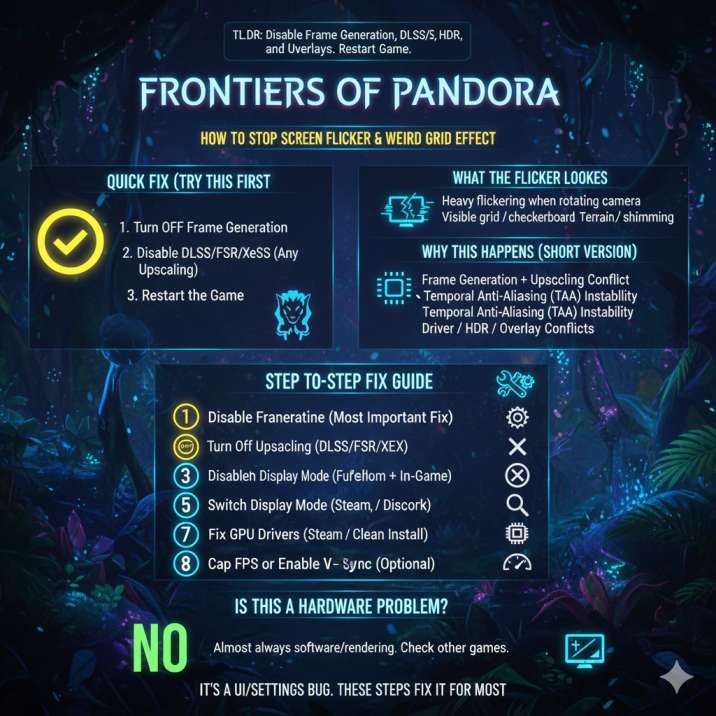
Quick Fix (Try This First)
Before you start digging through every graphics setting or reinstalling drivers, try these three quick steps first. For most players, this is all it takes to stop the flickering and grid effect:
- Turn OFF Frame Generation
- Disable DLSS / FSR / XeSS (any kind of upscaling)
- Fully restart the game
These features rely heavily on temporal rendering, and when they clash, the visuals can break in exactly the way players are describing. If the flickering disappears after doing this, congrats—you’ve already found the root of the problem, and you can move on without touching anything else.
Read also: Avatar: Frontiers of Pandora Stuck After the Intro?
What the Flicker Looks Like (So We’re on the Same Page)
To make sure we’re talking about the same issue, here’s how players usually describe it. The most common symptom is heavy flickering when rotating the camera, especially during slow pans or quick turns. Many also notice a clear grid or checkerboard pattern layered over the image, which becomes more obvious in bright areas or open spaces.
Others report the screen flashing when facing certain directions, almost like the lighting is rapidly turning on and off. In some cases, terrain, foliage, or distant objects shimmer or look unstable, as if they can’t fully settle into focus. For some players, the problem even gets worse the longer the game is running, only disappearing after a restart.
This isn’t a visual style choice, and it isn’t tied to combat, weather effects, or specific story moments. It’s a rendering issue, plain and simple.
Why This Happens (Short Version)
Avatar: Frontiers of Pandora uses a very heavy temporal rendering approach, which means the game constantly pulls data from previous frames to smooth out motion, lighting, and fine details. When everything lines up, the results look fantastic.
The problem is that this system is extremely sensitive. As soon as a few advanced features start interacting in the wrong way, the rendering pipeline can become unstable—and that’s when flickering, grid patterns, and strobing start to appear.
The most common triggers include:
- Frame Generation combined with DLSS, FSR, or XeSS
- Temporal Anti-Aliasing (TAA) instability
- Recent GPU driver updates or regressions
- HDR conflicts between the game and system settings
- Overlay software interfering with frame timing
Basically, the game’s visual tech can trip over itself depending on your hardware, drivers, and settings, even if your system is otherwise running perfectly fine.
Step-by-Step Fix Guide Frontiers of Pandora Flickering (In Order)
1️⃣ Disable Frame Generation (Most Important Fix)
If you only try one fix, make it this one. Frame Generation is the single most common trigger behind the flickering and grid effect for players.
What to do:
- Open the game’s graphics settings
- Turn Frame Generation OFF
- Fully restart the game (don’t just return to the menu)
Frame Generation relies heavily on temporal data from previous frames, and when it clashes with other visual features, it can cause severe instability. Disabling it immediately stabilizes the image for a huge number of players and often solves the issue on its own.
2️⃣ Turn Off Upscaling (DLSS / FSR / XeSS)
Upscaling technologies rely heavily on frame history to reconstruct each image. When that history becomes unstable—especially alongside other temporal features—the result is flickering, shimmering, or visible grid artifacts.
What to set:
- Upscaling → Off / Native resolution
- Leave all other graphics settings unchanged
- Restart the game and test again
You may see a small dip in performance after disabling upscaling, but visual stability improves immediately for many players, making this one of the most reliable fixes after turning off Frame Generation.
3️⃣ Disable HDR (Windows + In-Game)
HDR can look fantastic when everything is working correctly, but when it breaks, it often shows up as bright flashes, color flickering, or directional strobing—exactly the kind of issues players are seeing here.
What to do:
- Turn HDR off in Windows display settings
- Turn HDR off in the in-game graphics settings
- Restart the game to apply the changes properly
If HDR was part of the problem, disabling it usually results in a much more stable image right away, even if everything else stays the same.
Read also: Missing Banshee skins in Frontiers of Pandora? : Solved
4️⃣ Switch Display Mode
On some systems, the flickering only shows up in a specific display mode. It’s a simple fix, but it works more often than you’d expect.
Try switching between:
- Fullscreen
- Borderless Windowed
Apply the change, then play for a minute or knowing look around in the areas where the flicker usually happens. If the issue disappears in one mode but not the other, you’ve found an easy workaround without touching any other settings.
5️⃣ Turn Off Overlays
Overlays can quietly interfere with how frames are rendered and presented, which can make flickering and strobing much worse in games that rely heavily on temporal rendering.
Temporarily disable:
- Ubisoft Connect overlay
- Steam overlay
- NVIDIA or AMD overlays
- Discord overlay
- MSI Afterburner / RivaTuner (for testing)
Once they’re off, restart the game and check if the flickering improves.
6️⃣ Verify Game Files
If certain textures or lighting files are corrupted or didn’t install correctly, visual instability like flickering can show up.
Do this:
- Steam → Properties → Verify integrity of game files
- Ubisoft Connect → Verify files
Let the process finish completely, then launch the game again and test.
7️⃣ Fix GPU Drivers (If the Issue Started Recently)
If the flickering started showing up right after a GPU driver update, this step is especially important. Driver changes can sometimes introduce regressions that don’t play nicely with the game’s rendering pipeline.
Your best options are:
- Roll back to the previous stable driver that you know worked fine
or - Do a clean driver reinstall using DDU (Display Driver Uninstaller)
A clean install removes leftover files and settings from older drivers, and it fixes a surprising number of visual issues in this game, including flickering and grid artifacts.
8️⃣ Cap FPS or Enable V-Sync (Optional)
Unstable frame pacing can make temporal artifacts much more noticeable, even if everything else is set up correctly.
To test for this:
- Cap your FPS close to your monitor’s refresh rate
or - Enable V-Sync temporarily to smooth out frame delivery
This won’t be the main fix for everyone, but if flickering is reduced or disappears after doing this, it’s a strong sign that frame timing was making the issue worse.

Common Symptoms & What They Mean
| What You See | Likely Cause | What Fixes It |
|---|---|---|
| Grid pattern while moving | Frame Gen + upscaling | Disable Frame Generation |
| Flicker only in some directions | TAA instability | Turn off upscaling |
| Bright flashing | HDR conflict | Disable HDR |
| Flicker after long sessions | Driver / memory issue | Restart + clean drivers |
| Whole screen strobing | Overlay conflict | Disable overlays |
This a Hardware Problem?
Almost always, no.
This issue usually isn’t a sign that your GPU is failing. In most cases, it’s tied to how the game handles rendering rather than anything physically wrong with your hardware.
It might be hardware-related if:
- You see similar artifacts or flickering in other games
- The desktop or non-game applications also flicker
- Your GPU temperatures or clock speeds are unstable or unusually high
If everything else on your system runs fine, this points to a software or rendering issue, not a dying GPU.
Still Flickering? Here’s How to Report It Properly
If none of the fixes above solve the issue, reporting it with clear, useful info gives it the best chance of being looked at and fixed quickly. Vague reports tend to get ignored; detailed ones don’t.
When submitting a report, make sure to include:
- DxDiag file
- GPU driver version
- Windows version
- Monitor refresh rate
- Your exact in-game graphics settings
- A short video clip showing the flicker or grid effect
- Where it happens (specific location and camera direction)
The more specific you are, the easier seen pattern is to reproduce on their end.
Simple report text you can copy:
Severe screen flicker / grid effect when rotating the camera.
Happens with Frame Generation and DLSS enabled.
Flicker stops when Frame Generation is disabled.
System info and video attached.
Read also: From the Ashes DLC Keeps Crashing? Avatar: Frontiers of Pandora: Solved
Final Take
This flickering issue is frustrating—but the good news is that it’s very fixable.
For most players, the solution really does come down to a few key changes:
- Turn off Frame Generation
- Disable upscaling (DLSS / FSR / XeSS)
- Disable HDR and any overlays
Once those are out of the picture, the visuals usually stabilize immediately and the game looks the way it’s meant to—smooth, clean, and immersive instead of distracting.