
So you boot up Avatar: Frontiers of Pandora, the intro plays fine, everything looks normal…
and then boom — the loading screen just sits there forever.
No crash. No error message. No helpful warning. Just a frozen loading screen that refuses to move, no matter how long you wait. You can hear your PC running, the game hasn’t technically crashed, but nothing is happening — and restarting it just leads to the exact same problem again.
If that’s you, don’t worry — you’re definitely not alone. This is a very common PC issue, and it’s been popping up for a lot of players across different setups. The good news? In most cases, it’s not a serious problem and it’s usually fixable in a few minutes without reinstalling Windows or upgrading your hardware. Let’s walk through the fixes that are actually working for players right now.
Why the Game Gets Stuck After the Intro
Quick breakdown before we jump in. This usually happens because of a handful of common PC-side issues, not because your system suddenly can’t handle the game. In most cases, Avatar: Frontiers of Pandora is technically running, but something goes wrong right as it tries to load the world after the intro.
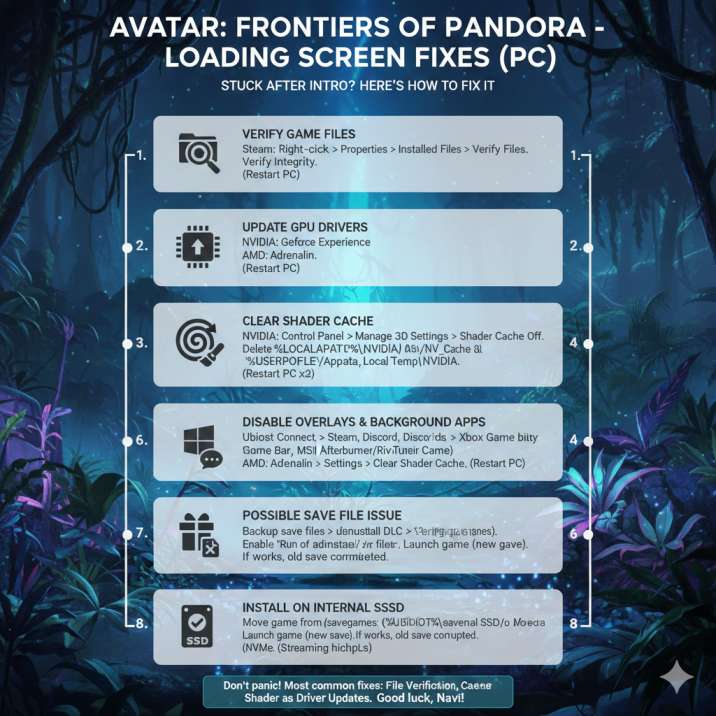
The most frequent causes include corrupted or incomplete game files, which can happen after an update or interrupted download. Shader cache issues are another big one (and yes, they’re super common), especially if you’ve updated drivers recently. GPU driver problems can also cause the loading process to hang without crashing. On top of that, Windows 11 compatibility weirdness, Ubisoft Connect or overlay conflicts, and even broken DLC or save data can all trigger this exact freeze.
You don’t need to understand all of that in detail — just follow the steps below in order, and you’ll cover every major cause.
Read also: Blaze Fruit Unreachable in Avatar: Frontiers of Pandora: Solved
Fix: Avatar Frontiers of Pandora Stuck After Intro Loading Screen
If you’re stuck staring at a loading screen that refuses to move, this is the section that matters most. The fixes below are ordered from quickest and most likely to work to more involved solutions, so you don’t waste time doing things you don’t need.
Work through them one by one, even if some seem basic. A lot of players skip the early steps and end up missing the exact fix that solves it. As soon as the game loads past the intro and drops you into the world normally, you can stop — no need to keep going.
1. Verify Game Files (Do This First)
This is the easiest fix and, honestly, the one that solves the problem for a lot of players. If even a single file didn’t download properly or got corrupted after an update, Avatar: Frontiers of Pandora can hang right after the intro with no warning.
On Steam
- Open your Library
- Right-click the game
- Go to Properties → Installed Files
- Click Verify integrity of game files
On Ubisoft Connect
- Go to Games
- Select Avatar: Frontiers of Pandora
- Open Properties
- Click Verify files
Let the process finish completely — it might take a few minutes and may re-download missing files. Once it’s done, restart your PC (don’t skip this) and then launch the game again to see if it loads past the intro.
2. Update Your GPU Drivers
Outdated or buggy graphics drivers can absolutely cause Avatar: Frontiers of Pandora to hang on the loading screen after the intro, even if it was working fine before. A recent game update or Windows update can easily create conflicts with older drivers.
Make sure you’re running the latest drivers for your GPU:
- NVIDIA → Update through GeForce Experience
- AMD → Update using AMD Adrenalin
- Intel → Update via Intel Driver & Support Assistant
Install the update fully, then restart your PC once it’s finished. This step is important — driver changes don’t always apply correctly until after a reboot. Once you’re back in Windows, launch the game again and check if the loading screen issue is gone.
3. Clear Shader Cache (Very Common Fix)
If the game freezes immediately after the intro, shader cache problems are one of the biggest suspects. This is especially common after driver updates or crashes.
NVIDIA users
- Open NVIDIA Control Panel
- Go to Manage 3D Settings
- Turn Shader Cache off
- Restart your PC
- Delete these folders:
%LOCALAPPDATA%\NVIDIA Corporation\NV_Cache%USERPROFILE%\AppData\Local\Temp\NVIDIA
- Turn Shader Cache back on
- Restart your PC again
AMD users
- Open AMD Adrenalin
- Find the option to clear shader cache
- Restart your PC
After doing this, launch the game again. A lot of players report that this step alone fixes the loading screen freeze, so don’t skip it.
4. Turn Off Overlays and Background Apps
As helpful as they can be, overlays have a bad habit of breaking games right at launch — and Avatar: Frontiers of Pandora is no exception. If the game gets stuck on the loading screen after the intro, an overlay conflict is a very real possibility.
Make sure the following are disabled before launching the game:
- Ubisoft Connect overlay
- Steam overlay
- Discord overlay
- Xbox Game Bar
- MSI Afterburner / RivaTuner
Once they’re turned off, fully close the game if it’s running, then relaunch it and see if it loads normally this time.
5. Windows 11 Fix (Important)
If you’re playing on Windows 11, especially if this problem started out of nowhere after an update, this step is worth doing. Some Windows 11 builds don’t always play nicely with Ubisoft games, and it can cause Avatar: Frontiers of Pandora to hang right after the intro.
Here’s what to try:
- Right-click the game’s exe file
- Select Properties → Compatibility
- Enable Run as administrator
- Check Disable fullscreen optimizations
Apply the changes, then launch the game again. This often helps smooth out launch and loading issues caused by Windows-level conflicts.
6. Check DLC (Sneaky Cause)
This one catches a lot of people off guard. If you have DLC installed, there’s a chance it’s the reason Avatar: Frontiers of Pandora won’t get past the loading screen after the intro. A corrupted or partially downloaded DLC file can cause the game to hang without throwing any errors.
Here’s what to do:
- Disable or uninstall the DLC temporarily
- Verify the game files again
- Launch the base game without any DLC enabled
If the game loads normally after that, you’ve found the culprit. You can then reinstall the DLC once the base game is running properly.
7. Possible Save File Issue (Back Up First)
If the game only freezes on a specific profile, there’s a good chance the save data itself is the problem. A corrupted save can cause Avatar: Frontiers of Pandora to hang right after the intro with no warning.
Before doing anything, back up your save files so you don’t lose progress. Once that’s done:
- Move the save files out of the Ubisoft save folder
- Launch the game and let it create a fresh save
- Try loading into the game again
If the new save loads without any issues, that confirms the original save was corrupted. You can keep playing on the new save or attempt to restore the old one later if needed.
8. Install the Game on an Internal SSD
If Avatar: Frontiers of Pandora is installed on an external drive or a slower hard drive, that alone can cause the loading screen to hang after the intro. The game streams a lot of data during startup, and if the drive can’t keep up, it may just freeze instead of crashing.
If possible:
- Avoid external USB drives
- Avoid slower HDDs
Reinstall the game on your main internal SSD or NVMe drive, then launch it again. For some players, this step alone fixes the problem.
9. Reinstall Ubisoft Connect
Yeah, it’s a bit annoying — but in some cases, this is exactly what fixes the issue. Problems with the launcher itself can stop Avatar: Frontiers of Pandora from loading properly after the intro.
Here’s what to do:
- Uninstall Ubisoft Connect
- Restart your PC
- Download and install the latest version of Ubisoft Connect
- Verify the game files one more time
Once that’s done, launch the game again and check if it finally loads past the stuck screen.
Read also: From the Ashes DLC Stuck on Loading Screen (0%) Avatar: Frontiers of Pandora : Solved
Final Thoughts
If Avatar: Frontiers of Pandora is stuck on the loading screen after the intro, it’s almost never a hardware issue. In most cases, one of these fixes does the trick — especially file verification, shader cache clearing, or driver updates.
Take it step by step, don’t panic, and you should be back on Pandora soon.