
So you just unlocked a new hairstyle in Avatar: Frontiers of Pandora — you even got the little yellow notification — but when you head to the customization menu… nothing. No new hair. No options. Just disappointment staring back at you like the game is pretending nothing ever happened.
Yeah, you’re definitely not alone. This is actually a pretty common issue, especially on PS5, and a lot of players have run into the same confusing moment. The good news? In most cases, it’s not a permanent bug and your hairstyle isn’t lost. The game usually knows you unlocked it — it just doesn’t always show it properly.
This tends to be a UI or syncing issue rather than a real progression problem. Sometimes the menu doesn’t refresh, sometimes gear overrides the style, and sometimes the game just needs a little nudge to catch up. Let’s break down what’s actually happening and how to fix it without losing your mind.
Why Your Hairstyle Isn’t Showing Up in Avatar: Frontiers of Pandora
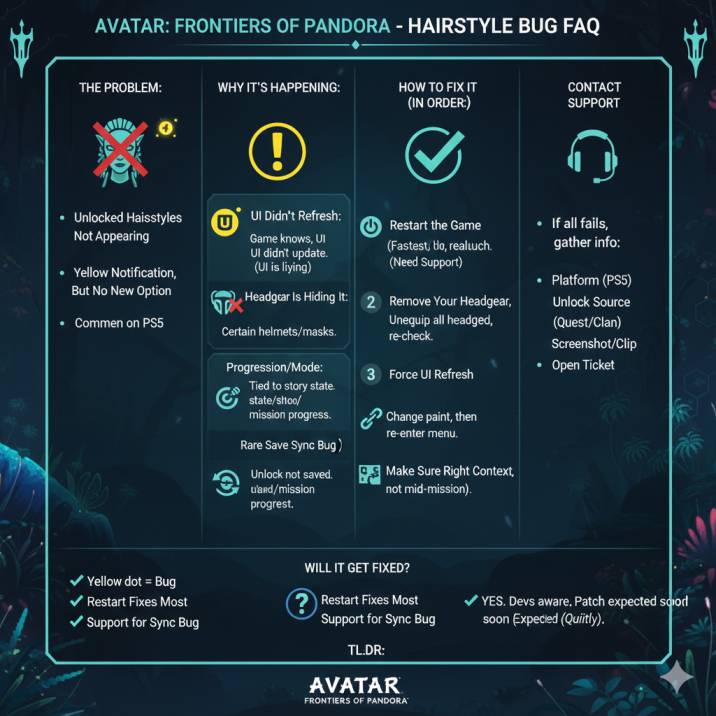
Most of the time, this isn’t you messing something up or missing a step. It’s usually one of a few annoying—but fixable—game quirks. And yep, the most common one is way simpler than you’d expect.
1. The UI Just Didn’t Refresh
This is by far the biggest culprit. The game knows you unlocked a new hairstyle — that’s why you see the yellow notification — but the customization menu doesn’t always update correctly. Basically, the unlock goes through, but the menu never gets the memo.
So you end up staring at the same old hairstyle list, wondering if the game just trolled you.
It’s not that the hairstyle is missing or bugged permanently. The UI just didn’t refresh when it should have, which makes it look like nothing unlocked at all. In other words… the UI is lying to you, and it does this more often than it should.
2. Your Headgear Is Hiding It
Some headgear straight-up overrides your hairstyle entirely. If you’ve got a helmet, mask, or certain cosmetic headpieces equipped, your new hair might actually be there — you just can’t see it.
This catches a lot of players off guard because the game doesn’t warn you about it. You unlock a hairstyle, get the notification, head into customization… and it looks like nothing happened. In reality, the headgear is forcing a preset look that hides your hair completely.
If you want to check, try removing all headgear and backing out of the menu, then open customization again. A lot of the time, the missing hairstyle suddenly shows up like nothing was ever wrong.
3. Progression or Mode Weirdness
Some hairstyles only show up under specific conditions, which can make it feel like they’ve vanished for no reason. This usually happens when the game limits customization based on where you are in the story or what mode you’re currently in.
For example, certain hairstyles won’t appear until you’re back in free roam, not mid-mission or during a scripted sequence. Others may only show up once a quest fully completes or once you return to a regular exploration state.
So if you unlocked a hairstyle during a mission or right before a cutscene, try finishing that segment and heading back into open exploration. Once you’re fully out of the mission flow, the hairstyle often shows up like it should.
4. Rare Save Sync Bug
In rarer cases, the game shows the unlock notification but never properly saves the item to your cosmetic inventory. You’ll see the pop-up, get excited, and then… nothing shows up where it should. This one’s less common, but it does happen.
When this occurs, the game basically fails to sync the unlock with your save file. It’s not something you caused, and restarting alone doesn’t always fix it. That said, don’t rush straight to support just yet — there are still a few things you can try first that often force the game to resync properly before you need to escalate it.
Read also: Avatar: Frontiers of Pandora Stuck After the Intro?
How to Fix Hairstyle Isn’t Showing Up in Avatar: Frontiers of Pandora (Try These in Order)

✅ Fix #1: Restart the Game (Seriously)
This one sounds basic, but it genuinely fixes the issue for most players.
Fully quitting the game forces the UI and cosmetic systems to reload properly, which often makes the missing hairstyle appear right away.
Here’s what to do:
- Quit to the main menu
- Fully close the game on your PS5 (don’t just suspend it)
- Relaunch the game and load your save
- Head to a Changing Place and check your hairstyles again
It’s simple, but surprisingly effective — and it should always be the first thing you try.
✅ Fix #2: Remove Your Headgear
This one catches a lot of people off guard.
Some headgear completely overrides your hairstyle, making it look like nothing new unlocked even when it actually did. The fix is quick and easy:
- Go to the customization menu
- Unequip all headgear
- Exit the menu completely
- Reopen it and check your hairstyles again
For a lot of players, the missing styles show up instantly once the headgear is off. It’s one of those “why didn’t the game tell me this?” moments — but it works.
✅ Fix #3: Force the UI to Refresh
If the menu still isn’t updating, you can manually force it to refresh by changing something else first.
Try this:
- Change your face paint
- Or switch your body paint
- Or adjust your skin tone
After making one change, back out of the customization menu completely, then open it again. This often forces the game to reload its cosmetic data and suddenly makes the missing hairstyle appear.
It’s a small trick, but it works more often than you’d expect.
✅ Fix #4: Make Sure You’re in the Right Context
Sometimes the issue isn’t a bug at all — it’s just the game limiting customization based on where you are in the story.
Double-check that:
- You’re playing on the same save file where you unlocked the hairstyle
- You’re not in the middle of a mission or scripted sequence
- You’re fully back in free exploration
Some cosmetics simply won’t appear during certain story moments or restricted areas. Once you return to normal exploration, the hairstyle usually shows up without any extra effort.
Read also: Blaze Fruit Unreachable in Avatar: Frontiers of Pandora: Solved
When to Contact Ubisoft Support
If you’ve tried every fix above and the hairstyle still refuses to show up, you’re probably dealing with a backend sync issue. At that point, it’s not something you can fix on your end — the game just isn’t registering the unlock properly.
Before reaching out to Ubisoft Support, make sure you have the following ready:
- Your platform (PS5)
- Where you unlocked the hairstyle (quest reward, clan contribution, etc.)
- A screenshot or short clip showing the yellow notification but no hairstyle in the menu
Once you’ve got that, head to Ubisoft Support and open a ticket for Avatar: Frontiers of Pandora. The more details you give them, the faster they can usually sort it out.
Wrapping up:
- Yellow dot but no hairstyle = very common bug
- Restarting the game usually fixes it
- Headgear often hides hairstyles completely
- The UI sometimes just needs a quick refresh
- Worst case scenario: Ubisoft Support can fix it
That’s it — annoying, but usually an easy fix once you know what’s going on.
Avatar: Frontiers of Pandora – Hairstyle Bug FAQ
Q: Why aren’t my hairstyles showing up even though I unlocked them?
This is usually a UI sync issue. The game registers the unlock (that yellow dot), but the customization menu doesn’t refresh properly, so the hairstyle doesn’t appear.
Q: Is this a known bug?
Yes. A lot of players—especially on PS5—have run into this. It’s one of the more common cosmetic glitches in the game.
Q: Are my hairstyles actually gone?
Almost never. In most cases, the hairstyle is unlocked — the game just isn’t displaying it correctly.
Q: What’s the fastest fix?
Fully close the game and reopen it.
Seriously.
This fixes the issue for most players.
Q: I restarted and it’s still missing. What now?
Try this:
- Go to customization
- Unequip all headgear
- Exit the menu
- Reopen it and check again
Some headgear overrides hairstyles completely.