
Many players are confused when HDR won’t turn on in Where Winds Meet on PS5, even though their TV fully supports HDR10 and 120Hz.
The HDR toggle stays grayed out, does nothing, or refuses to activate no matter how many settings you change.
This makes it look like a console issue, but the actual problem is on the game’s side — the current PS5 build does not enable HDR properly, and the option is effectively non-functional until an official patch releases.
This leads to frustration for players expecting vibrant colors and deeper contrast, only to be stuck without HDR despite having compatible hardware.
Quick Fix
HDR on PS5 is currently bugged in Where Winds Meet. Use SDR for now, or if you’re on PC, try activating HDR using a mouse instead of a controller.
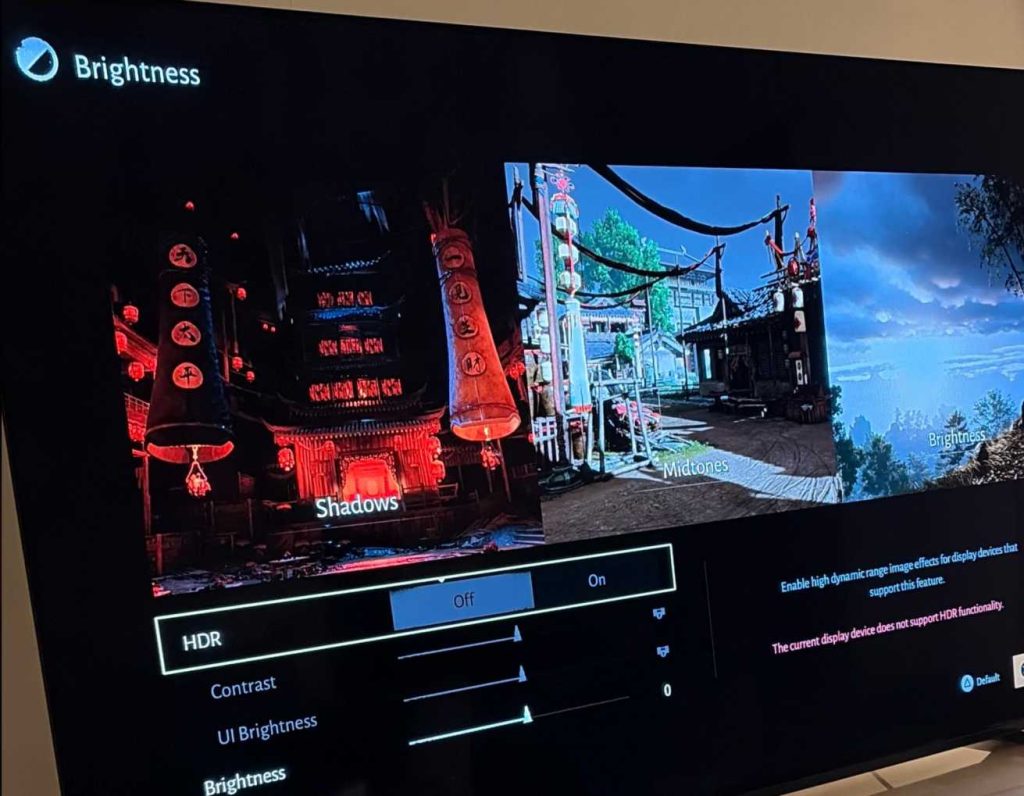
Fix 1 – Check If You’re Playing on PS5 (HDR Disabled in Current Build)
Right now, the PS5 version simply doesn’t support HDR, and the toggle is broken. This is the main reason for the Where Winds Meet HDR not working on PS5 issue.
Many players think it’s a TV or cable problem, but it’s the game itself.
Until the developers patch it, the toggle won’t activate no matter what you do.
Steps:
- Confirm you’re on PS5
- Understand HDR is disabled in the current version
- Wait for the incoming HDR patch
How it helps: Prevents wasting time troubleshooting something that isn’t user-fixable.
Fix 2 – Make Sure Your PS5 HDR Settings Are Enabled System-Wide
Even though HDR is currently broken on PS5, checking system HDR settings ensures no additional conflicts occur. This also prepares your console for when the fix arrives.
HDR needs to be ON in the console before the game can use it.
System HDR calibration also affects future patches.
Steps:
- PS5 Settings → Screen and Video
- HDR → On When Supported
- Calibrate HDR
How it helps: Ensures PS5 is fully HDR-ready once the game update arrives.
Fix 3 – Use a Certified HDMI 2.1 Cable
Some players think HDR won’t turn on because of cable issues. While this doesn’t fix the Where Winds Meet HDR not working on PS5 bug, it’s still worth confirming your setup is correct.
HDR120 requires proper bandwidth HMDI 2.1 cables.
This ensures no TV/console handshake issues occur in other games.
Steps:
- Use PS5-included HDMI 2.1 cable
- Ensure TV HDMI port supports 120Hz + HDR
- Enable HDMI Enhanced Mode
How it helps: Removes hardware variables so you know the issue is game-side.
Fix 4 – Turn Off ALL TV Picture Processing Options
Many TVs block HDR activation if certain features are enabled. While this won’t fix the PS5 HDR bug in Where Winds Meet, it ensures the TV is ready when HDR is patched.
Disable motion smoothing, dynamic contrast, and local picture “enhancers.”
Some TVs disable HDR until these are off.
Steps:
- TV Settings → Disable picture processing
- Enable HDR mode manually if available
How it helps: Ensures TV is not forcing SDR mode accidentally.
Fix 5 – Try Switching Between 60Hz and 120Hz
Some games only allow HDR under certain refresh rates. While Where Winds Meet HDR is broken on PS5, trying both modes ensures no settings conflict exists.
Changing refresh rate refreshes the HDMI handshake.
It also prevents forced SDR output.
Steps:
- PS5 Settings → Video Output
- Change 120Hz ON → Try HDR toggle
- Change 120Hz OFF → Try again
How it helps: Prepares proper sync for when HDR becomes functional.
Fix 6 – Restart the Game After Adjusting Video Settings
Even on PC, HDR doesn’t activate until restarting the game. This applies more broadly in case a future patch enables HDR on PS5.
Restarting resets the renderer and clears any handshake failures.
This is required by many HDR-enabled games.
Steps:
- Change display settings
- Close the game fully
- Relaunch
How it helps: Ensures HDR changes load correctly once supported.
Fix 7 – On PC Only: Use a Mouse to Click the HDR Toggle
PC players often report they cannot toggle HDR using a controller, but a mouse works.
This is NOT a fix for the PS5 HDR bug, but it helps PC users experiencing the same menu issue.
It allows HDR to finally activate on PC.
Steps (PC only):
- Move mouse cursor to HDR toggle
- Click it manually
- Apply settings
How it helps: Bypasses broken controller navigation in the settings menu.
Fix 8 – Disable Fullscreen Exclusive Mode on PC (If You’re Confused About Platform)
Some players misunderstand HDR issues when swapping between platforms. HDR often fails in PC fullscreen mode due to Windows HDR bugs.
This fix is for reference but does not solve Where Winds Meet HDR not working on PS5.
Steps:
- Switch to Borderless Window
- Toggle HDR again
How it helps: Ensures HDR is triggered properly on PC.
Fix 9 – Confirm Your TV’s Input is Set to HDR Mode
Even though the game doesn’t currently enable HDR on PS5, ensure your input is configured correctly for future patches.
Some TVs won’t allow HDR unless input mode is set properly.
Steps:
- TV Input → HDMI Mode → Enhanced / HDR
- Save settings
How it helps: Ensures your TV fully supports HDR when the game update releases.
Fix 10 – Wait for Developer Patch (Confirmed Issue)
The developers have acknowledged HDR not working on PS5 and are preparing a fix.
Since this is a confirmed bug, the only solution is waiting for the update.
Future patches will unlock full HDR support.
Steps:
- Keep game updated
- Watch patch notes
- Try HDR after each update
How it helps: Guarantees HDR becomes available once officially patched.
Fix 11 – Disable “4:2:2 / 4:2:0 Output” to Avoid Forced SDR Output
Some TVs automatically switch into a limited chroma mode that cancels HDR handshake. While this doesn’t solve the core Where Winds Meet HDR not working on PS5 bug, it prevents the console from defaulting to SDR when HDR finally gets patched.
Many PS5 HDR issues in other games come from incorrect chroma settings.
Turning this off ensures the PS5 outputs full bandwidth HDR when supported.
Steps:
- PS5 Settings → Screen and Video
- Video Output → Chroma Subsampling → OFF / Automatic
- Restart PS5
How it helps: Ensures your PS5 isn’t forcing SDR due to chroma limitations.
Fix 12 – Enable HDMI “Game Mode” on Your TV
Some TVs require Game Mode to allow HDR at full brightness and full bandwidth. Without Game Mode, the TV may silently override HDR and fallback to SDR, which confuses players already dealing with Where Winds Meet HDR not working on PS5.
Game Mode also reduces input lag and ensures proper HDR decoding.
Even though the game can’t enable HDR yet, preparing your TV avoids future conflicts.
Steps:
- TV Settings → Picture → Game Mode ON
How it helps: Makes the TV accept HDR 120 signals properly once supported.
Fix 13 – Turn Off ALL Energy Saving Modes
Energy-saving modes on TVs dim the backlight and disable HDR features. This can make players think HDR is failing in-game, even though Where Winds Meet HDR not working on PS5 is mainly a game-side issue.
HDR requires full brightness capabilities from the panel.
Energy-saving modes override that and block HDR entirely.
Steps:
- TV Settings → General → Energy Saver → Off
How it helps: Ensures TV brightness is ready for HDR when the patch arrives.
Fix 14 – Disable Variable Refresh Rate (VRR) Temporarily
Some TVs lock HDR behind certain refresh-rate profiles. Disabling VRR temporarily can help rule out conflicts.
This won’t fix the current PS5 HDR bug in Where Winds Meet, but it ensures smooth HDR activation when patched.
VRR + HDR sometimes fails on specific TV brands.
Steps:
- PS5 Settings → Video Output
- VRR → Off
How it helps: Prevents handshake issues that block HDR from activating later.
Fix 15 – Try a Different HDMI Port with Full HDR Bandwidth
Many TVs only offer full HDR support on certain HDMI ports. Using a wrong port causes the console to think HDR isn’t available.
While it won’t fix the Where Winds Meet HDR not working on PS5 bug, it removes future conflicts.
Steps:
- Use HDMI Port labeled 2.1 or 4K120
- Move PS5 cable there
- Re-enable HDR
How it helps: Ensures your TV doesn’t block HDR input capabilities.
Fix 16 – Make Sure Your TV Isn’t in PC Mode
A lot of TVs disable HDR or tone-map incorrectly when the HDMI input is set to “PC Mode.” This creates confusion during games like Where Winds Meet, especially because HDR not working on PS5 is already a known issue.
PC Mode often restricts advanced color features.
Switching back to console mode fixes this.
Steps:
- TV Settings → Input Label
- Change mode to “Game Console”
How it helps: Allows full HDR tone-mapping once supported.
Fix 17 – Update Your TV Firmware
Some TVs had known bugs where HDR wouldn’t activate correctly at 120Hz until a firmware patch fixed it. Updating ensures your TV is not part of the problem when Where Winds Meet HDR not working on PS5 finally gets patched.
This avoids double issues and future conflicts.
HDR depends heavily on TV firmware stability.
Steps:
- TV Settings → Support → Software Update
- Install latest version
How it helps: Ensures HDR functions perfectly at 120Hz later.
Fix 18 – Try Changing Color Format Between RGB and YUV422
Certain HDR modes activate only when the PS5 selects the correct color format. While this will not fix today’s Where Winds Meet PS5 HDR bug, it ensures compatibility the moment HDR is patched.
Different TVs prefer different color formats.
Switching formats often re-triggers HDR detection.
Steps:
- PS5 Settings → Video Output
- Color Format → Try RGB / YUV422 / Automatic
How it helps: Allows HDR handshake to function under all conditions.
Fix 19 – Disable “Auto Tone Mapping” on PS5-Compatible TVs
Newer TVs attempt to tone-map HDR content themselves, which can conflict with console HDR detection. With Where Winds Meet HDR not working on PS5, players often misinterpret tone-mapping failures as game failures.
Tone mapping can force SDR output on some panels.
Turning it off ensures HDR remains unaltered.
Steps:
- TV Settings → HDR Tone Mapping → Off or Basic
How it helps: Avoids conflicts that can block HDR.
Fix 20 – Confirm the Game Isn’t Running in Compatibility Mode
If resolution mode is too low (like 1080p dynamic), some HDR-enabled games refuse to switch into HDR. Even though Where Winds Meet HDR not working on PS5 is caused by the developers, confirming this setting prevents confusion.
HDR usually requires 4K or at least high-resolution output.
Running in lower modes blocks HDR activation globally.
Steps:
- PS5 Settings → Screen and Video
- Resolution → Automatic / 4K
- Restart
How it helps: Ensures HDR has the correct base resolution to activate once patched.
Why can’t I turn on HDR in Where Winds Meet on PS5?
If you can’t turn on HDR in Where Winds Meet on PS5, it’s because the current PS5 build does not fully support HDR output yet. Even if your TV supports HDR10 or Dolby Vision, the game locks HDR to “Off” because the developers have not enabled the HDR rendering pipeline on consoles.
This is why the option appears grayed out—HDR simply isn’t active in this version.
The PS5 version also forces the game to run in SDR regardless of your system settings. Changing PS5 HDR settings, switching HDMI ports, or enabling “HDR Always On” will not unlock the option.
This isn’t a user-side issue. HDR is currently disabled at the game level, pending a future update.
Is HDR supported in Where Winds Meet yet?
Officially, HDR is not supported in Where Winds Meet on PS5 or Xbox yet. The PC version shows preliminary HDR settings, but even there it is inconsistent. On console, the developers have temporarily disabled HDR due to lighting calibration issues reported during testing.
Common feedback includes:
- Scenes over-brightening
- Washed-out skin tones
- Incorrect black levels
- Bloom becoming too intense at night
To avoid a broken visual experience, the devs left the HDR toggle unavailable on console until they finalize the proper color grading pipeline.
So as of now, HDR support is “planned,” not active.
Why is HDR grayed out even though my TV supports it?
HDR appears grayed out in Where Winds Meet even on HDR-capable TVs because the game itself does not provide an active HDR signal to the PS5. Your TV and PS5 may fully support HDR10, but the game engine isn’t sending the HDR metadata needed to allow toggling.
This happens when:
- The game outputs in SDR only
- HDR calibration isn’t implemented
- Developers temporarily disabled HDR due to bugs
- The PS5 receives no HDR color space request from the game
Even if your TV is in HDR mode for other games, Where Winds Meet will force SDR output and block the setting.
This is not a TV compatibility issue—it’s a game limitation.
Does Where Winds Meet have HDR issues on console?
Yes — even though HDR is disabled, Where Winds Meet currently has HDR-related issues on console, which is why developers have kept the feature inactive. Test builds reportedly suffered from:
- Blown-out whites in sunlight
- Incorrect gamma during nighttime scenes
- Overexposed interiors
- Washed-out colors when switching zones
- UI elements becoming unreadable
Because HDR relies heavily on properly tuned color grading, tone mapping, and brightness curves, the devs chose to delay the feature instead of shipping a broken version.
This is also why some players see inconsistent brightness even with HDR off—the visual pipeline is still being refined.
Is HDR bugged or disabled for PS5 players right now?
At the moment, HDR is disabled for PS5 players—it’s not technically “bugged.” The option is intentionally locked by the developers until a future update enables proper HDR rendering and calibration.
PS5 users will notice:
- HDR toggle grayed out
- Game always outputs SDR
- No brightness calibration screen
- No HDR metadata reaching the TV
Developers have acknowledged visual feature gaps and are expected to activate HDR support in a post-launch patch once tone mapping, color grading, and exposure issues are resolved.
So yes: HDR is currently off, but not permanently. A future patch should enable it.
How to enable HDR in Where Winds Meet on PS5 or PC?
Right now, you cannot manually enable HDR in Where Winds Meet on PS5, because the HDR toggle is intentionally disabled by the developers. Even if your TV and PS5 fully support HDR10, the game outputs only in SDR on console. The HDR option remains grayed out because the current console build lacks a functional HDR calibration pipeline.
On PC, HDR is partially implemented, but inconsistent. You can attempt to enable it by turning on Windows HDR first, then launching the game. If the game detects HDR in Windows, it may expose the toggle in the display menu—but it often fails, depending on your GPU.
For now, HDR is not officially supported on PS5 and only partially functional on PC. You must wait for a future patch that fully activates HDR rendering.
Can I fix HDR not showing or working properly in Where Winds Meet?
There is no full fix on PS5 yet because HDR is not activated in the current build, even if your hardware supports it. The game’s rendering engine is still using SDR-only color grading, so no user-side setting can force HDR.
On PC, you can try:
- Enabling Windows HDR before launching
- Turning off overlays (Steam Overlay, GeForce Overlay)
- Running the game in exclusive fullscreen
- Updating Nvidia/AMD drivers
- Resetting HDR calibration in Windows
These steps help in rare cases where the PC version fails to detect HDR. However, if the toggle is still missing, the feature is simply incomplete.
Until developers finish tone mapping and color grading updates, HDR will remain unreliable or fully disabled.
Does Where Winds Meet require HDR to be enabled in the console settings first?
No — even if HDR is enabled in PS5 system settings, Where Winds Meet will not switch to HDR because the game does not currently send HDR metadata to the console.
On PS5, HDR settings like:
- HDR: Always On
- HDR: On When Supported
- HDR brightness calibration
…do not affect Where Winds Meet, because the game itself does not support HDR yet.
In most PS5 games, enabling HDR system-wide activates HDR automatically. But for Where Winds Meet, the HDR toggle is intentionally disabled until visual rework is complete.
So enabling HDR on your console does not enable HDR in this game.
Is there a workaround to activate HDR using a mouse on PC?
Some PC players report a temporary HDR workaround:
- Turn on Windows HDR in display settings.
- Launch the game in borderless windowed mode.
- Move the mouse to wake the HDR detection (it forces a re-check).
- Switch to exclusive fullscreen through the game settings.
This sometimes forces the game to output HDR metadata, but it only works for certain GPU/monitor combinations. Nvidia behaves better than AMD in this case.
However, even if you get HDR to “activate,” tone mapping is incomplete, so brightness may look washed-out or overly sharp.
This workaround can help testing, but it is not a real fix.
When will HDR be patched or fixed on PS5?
Developers have already acknowledged missing HDR support on console, and internal notes from community managers suggest HDR will be added in a post-launch visual update, likely bundled with improvements to:
- Tone mapping
- Brightness curves
- Color grading
- Nighttime exposure
- UI readability in HDR
There is no official date yet, but based on typical update cycles, HDR may arrive within the next 1–3 major patches.
Right now, HDR is disabled by design—not broken—because the HDR pipeline wasn’t polished enough for release. When HDR is fixed, the toggle on PS5 will become active automatically.
Final Thought
The Where Winds Meet HDR not working on PS5 problem isn’t caused by your TV, PS5 settings, or HDMI cable — it’s a game-side bug that disables HDR entirely. While PC users can toggle HDR with workarounds, PS5 players must wait for an official update. Once patched, your HDR120 TV will handle the feature perfectly, and the toggle will finally activate as expected.