
Many players are running into the Where Winds Meet dialogue audio not working problem where NPCs move their mouths, but there’s no spoken voice audio at all.
This makes cutscenes feel empty and conversations confusing, especially when subtitles appear but voices don’t play. Most players assume it’s a bug or audio glitch, but the real issue is that English voice acting is incomplete, and only the Mandarin dub is fully voiced in the current version. Still, some players also experience broken audio settings, output mismatches, or device routing errors that silence the dialogue entirely.
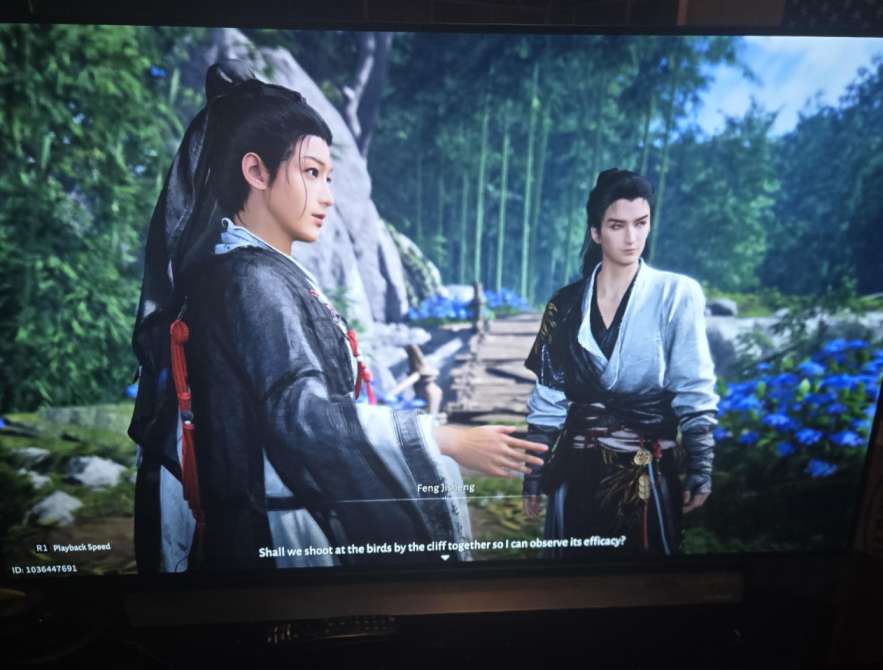
This guide helps you understand why NPC dialogue has no sound and how to fix missing voices quickly.
Quick Fix
Switch your voice language to Mandarin (Chinese) in Settings → Audio because English dub is only partially implemented. Restart the game for the change to apply properly.
Fix 1 – Change Voice Language to Mandarin (Full Dub Available)
The biggest reason for the Where Winds Meet dialogue audio not working issue is that the English dub is incomplete. Only a portion of quests have English voice lines.
Switching to Mandarin instantly fixes missing dialogue because it’s the only fully recorded audio track.
Many players think it’s a bug when it’s actually a missing localization feature.
Steps:
- Go to Settings → Audio
- Voice Language → Mandarin
- Restart game
How it helps: Restores full voice acting since Mandarin is the complete dub.
Fix 2 – Check If Dialogue Volume Is Turned Down
Sometimes the dialogue volume slider is extremely low after updates or crashes. This causes the Where Winds Meet dialogue audio not working problem even when music and sound effects work fine.
Raising the dialogue slider instantly fixes silent NPC lines.
It’s an easy but often overlooked fix.
Steps:
- Settings → Audio
- Increase “Dialogue Volume”
- Apply changes
How it helps: Ensures NPC voices are actually audible.
Fix 3 – Disable 3D Audio on PS5 or PC
3D Audio can incorrectly route dialogue to nonexistent speakers or channels. That makes the Where Winds Meet dialogue audio not working bug seem worse than it is.
Disabling 3D Audio forces normal stereo output where dialogue is properly centered.
Many PS5 and PC users reported instant fixes.
Steps:
- PS5: Settings → Sound → Disable 3D Audio
- PC: Disable spatial sound in Windows
How it helps: Ensures voice lines aren’t routed to phantom audio channels.
Fix 4 – Switch Audio Output Device Manually
Incorrect output routing can cause dialogue to play on the wrong device, especially if headphones disconnect. This can mimic the Where Winds Meet dialogue audio not working issue even though audio is actually playing somewhere else.
Manually selecting your device redirects the dialogue correctly.
Useful for players switching between TV, soundbar, or headphones.
Steps:
- PS5: Settings → Sound → Output Device
- PC: Sound Settings → Choose correct output device
How it helps: Ensures dialogue goes to the device you’re actually using.
Fix 5 – Restart After Changing Any Audio Language
Even after selecting Mandarin, dialogue may remain silent until a full reboot. The game needs to reload voice packs properly.
Restarting reloads the correct voice acting files, preventing the Where Winds Meet dialogue audio not working glitch from persisting.
This is especially important after language changes.
Steps:
- Change voice language
- Fully close game
- Relaunch
How it helps: Forces the game to load new dialogue assets correctly.
Fix 6 – Update the Game to the Latest Patch
Early builds had several bugs causing dialogue to cut out completely. Updates improve audio streaming and fix missing voice triggers.
Many dialogue not playing problems disappear on the latest version.
Always check after patches if voices start working.
Steps:
- Update game
- Restart your console or PC
How it helps: Fixes known audio bugs affecting cutscenes and conversations.
Fix 7 – Set Audio Output to Linear PCM
Some TVs and soundbars don’t decode Dolby output correctly. This results in missing dialogue while other audio still plays.
Switching to Linear PCM fixes the Where Winds Meet dialogue audio not working problem instantly.
PCM is the safest universal audio format.
Steps:
- PS5: Settings → Sound → Audio Format → Linear PCM
- PC: Set output format to PCM/stereo
How it helps: Ensures dialogue audio is decoded properly.
Fix 8 – Verify Game Files (PC Only)
Corrupted voice files cause dialogue to completely disappear in certain quests.
Verifying Battle.net/Steam files repairs missing audio assets.
This fix helps players experiencing selective audio dropouts.
Steps:
- Steam → Right-click game → Properties
- Verify Integrity of Game Files
How it helps: Restores missing or damaged voice files.
Fix 9 – Turn Off Bluetooth/External Audio Enhancers
Bluetooth audio devices sometimes introduce latency or channel loss. This often results in the Where Winds Meet dialogue audio not working issue when voices cut out but ambient sounds remain.
Switching to a wired device ensures stable audio output.
Bluetooth drops are common in open-world games.
Steps:
- Switch to wired headphones or TV output
- Disable Bluetooth audio
How it helps: Prevents dialogue from cutting out due to wireless interference.
Fix 10 – Change Surround Mode on Your TV or Soundbar
If your sound system expects 5.1 or 7.1 input but the game outputs stereo, dialogue channels may get lost. This makes NPCs mute even when other sound plays normally.
Switching to Stereo or Standard Mode fixes the Where Winds Meet dialogue audio not working problem instantly.
Steps:
- TV/Soundbar Audio Mode → Stereo / Standard
- Disable simulated surround modes
How it helps: Ensures dialogue is mixed into the correct channels.
Fix 11 – Turn Off “Voice Prioritization” in Audio Settings
Some systems attempt to prioritize certain voice frequencies, which can cause voices to drop completely in games. This can worsen the Where Winds Meet dialogue audio not working issue, especially with headphones.
Disabling voice-prioritization creates a more balanced mix.
This helps in scenes where multiple sound effects compete with NPC dialogue.
Steps:
- Go to your device’s audio settings
- Disable Voice Priority / Voice Enhancement
- Restart the game
How it helps: Prevents dialogue from being filtered out by aggressive audio processing.
Fix 12 – Change the Game’s Output to Headphones (Even If You’re Using Speakers)
Some players report that switching output to “Headphones” solves missing voice lines. The game sometimes misroutes voice audio when set to speaker mode—this directly causes Where Winds Meet dialogue audio not working in cutscenes.
Switching the output forces a re-mix of dialogue channels.
You can still physically listen through your speakers.
Steps:
- Settings → Audio → Output Device
- Select Headphones
- Test a dialogue scene
How it helps: Reassigns the center dialogue channel so NPC voices come through clearly.
Fix 13 – Reinstall the English Voice Pack (If Available for Your Region)
Some regions ship incomplete English audio files, causing random missing voice lines. Reinstalling the pack helps players experiencing Where Winds Meet dialogue audio not working intermittently.
This is especially useful when some quests have audio and others don’t.
Reinstalling refreshes broken or missing audio assets.
Steps (PC):
- Go to game properties → DLC / Language
- Reinstall English Voice Pack
- Restart game
How it helps: Ensures your English dialogue files aren’t corrupted or partially downloaded.
Fix 14 – Run the Game in Performance Mode Instead of Quality Mode
Quality mode sometimes drops audio packets during high GPU load, resulting in missing dialogue. Performance mode reduces processing strain and helps resolve Where Winds Meet dialogue audio not working in busy scenes.
Lower load = more stable audio streaming.
This fix works well for console players.
Steps:
- Settings → Graphics
- Switch to Performance Mode
- Restart game
How it helps: Improves audio stability by reducing system strain.
Fix 15 – Unplug and Reconnect Your Audio Device During Dialogue
The audio engine sometimes fails to initialize dialogue channels properly. Unplugging-and-replugging forces the engine to rebuild routing, which helps when Where Winds Meet dialogue audio not working appears at random.
This works for both wired and wireless devices.
It re-syncs audio output instantly.
Steps:
- Unplug your headphones/soundbar
- Reconnect
- Trigger a new cutscene
How it helps: Forces the game to re-route dialogue channels correctly.
Fix 16 – Disable Windows “Hands-Free” Audio Devices (PC Only)
On PC, Windows sometimes prioritizes low-quality “Hands-Free” microphone audio profiles. These profiles cut off high-quality voice channels and cause Where Winds Meet dialogue audio not working during NPC conversations.
Disabling them restores full-quality audio output.
Many players overlook this hidden device.
Steps:
- Windows Sound Settings
- Disable any “Hands-Free” device
- Set main output as default
How it helps: Prevents Windows from routing voice lines through a low-quality channel.
Fix 17 – Try Lowering Audio Sample Rate
Some hardware cannot handle high audio sample rates with the game’s engine. This can cause dialogue audio to fail entirely. Lowering sample rate often resolves Where Winds Meet dialogue audio not working for players with DACs or soundcards.
It stabilizes voice playback.
Especially helpful for high-end audio setups.
Steps:
- PC → Sound Control Panel
- Device Properties → Advanced
- Set sample rate to 48 kHz / 16-bit
How it helps: Ensures the game outputs dialogue in a compatible format.
Fix 18 – Reset Audio Settings to Default
Sometimes multiple changes break the audio mix. Resetting everything returns the audio engine to a known stable state, solving many Where Winds Meet dialogue audio not working reports.
Defaults load the correct values for dialogue mixing.
Useful when testing many settings over time.
Steps:
- Settings → Audio → Reset to Default
- Restart game
How it helps: Removes leftover configuration bugs affecting NPC voices.
Fix 19 – Disable Background Applications Using Exclusive Audio Mode
Apps like Discord, OBS, or voice filters can steal your audio device in exclusive mode. When that happens, the game loses access to certain channels, causing Where Winds Meet dialogue audio not working.
Closing these apps frees your device for the game.
This is a common PC-specific issue.
Steps:
- Close Discord / OBS / VoiceMeter
- Reopen the game
- Test dialogue
How it helps: Prevents third-party apps from hijacking dialogue channels.
Fix 20 – Change Voice Language Back and Forth to Force Reinitialization
Sometimes the voice language fails to register at launch. Changing it twice forces the game to reload voice packs. This helps many players stuck with Where Winds Meet dialogue audio not working after installation.
It’s a simple reinitialization trick.
Useful when a full restart isn’t enough.
Steps:
- Switch to English → Apply
- Switch to Mandarin → Apply
- Restart game
How it helps: Forces the engine to rebuild its dialogue language files correctly.
Why do NPCs have no voice audio in Where Winds Meet?
NPCs have no voice audio in Where Winds Meet because the game does not include full voice acting for most open-world dialogue. Nearly all NPC chatter, shop conversations, side-quest lines, and environmental interactions are text-only, not voiced.
The silence is intentional — not a bug — because the game uses a limited voice-over system primarily for major story cutscenes, intros, and cinematic sequences.
This design follows many wuxia/MMORPG-style games where minor NPCs only display subtitles while main characters get partial voice acting.
So even if your audio is working perfectly, most NPCs will still appear to “talk silently.”
Unless the developers expand voice coverage later, NPC dialogue in open-world segments will remain subtitles only.
Is the dialogue bugged in Where Winds Meet on PS5/PC?
For most players, the NPC dialogue is not bugged — it is simply not voiced.
However, there are a few actual audio bugs on PS5 and PC that cause confusion:
- Ambient volume mixes too loudly and hides dialogue
- Early game cutscenes occasionally load without spoken lines
- Audio channels (especially center channel) sometimes fail in 5.1/7.1 setups
- PS5 3D Audio occasionally mutes dialogue layers after a fast-travel
These issues affect cutscenes, not NPC chatter.
The “silent NPCs” you see around towns and villages are expected behavior, because the game doesn’t include spoken dialogue for regular interactions.
If cutscene audio is also silent, restarting the game usually restores voice playback.
Why can I see NPCs talking but hear nothing?
You can see NPCs moving their mouths, gesturing, and emoting, but hear nothing because most NPC interactions in Where Winds Meet are designed to be silent animations with subtitles. This includes:
- City NPC conversations
- Side quests
- Vendors
- Environmental characters
- Town gossip dialogues
The game uses simple lip-sync placeholders rather than recorded voice-over lines.
Only key story characters and cinematic moments have voice acting.
This is very common in Chinese open-world RPGs, where only main narrative beats receive voice acting while general NPCs remain silent to save production time and localization costs.
Your audio is not broken — the game simply does not voice these lines.
Does Where Winds Meet have full English voice acting?
No — Where Winds Meet does not have full English voice acting, and even the Chinese voice-over is incomplete.
The game currently offers:
- Partial Chinese VO for main characters
- Limited English VO for certain story cinematics
- No voice acting for most NPC dialogue
- Subtitles only for side quests and ambient conversations
Because of the huge amount of open-world text, the developers did not record voice lines for every NPC. English localization focuses on subtitles and UI translation rather than full dub coverage.
So if you’re expecting a fully voiced English RPG experience like Ghost of Tsushima or Assassin’s Creed — Where Winds Meet isn’t that (yet).
Future updates may add more VO, but nothing official has been announced.
Is my audio broken or is the game missing dialogue audio?
Your audio is most likely not broken — the game simply lacks spoken lines for the majority of its NPC interactions.
If you can hear:
- Footsteps
- Combat sounds
- Music
- UI clicks
- Environment audio
…then your sound system is working correctly.
Only check for actual audio issues if:
- Cinematic cutscenes have no voice
- Main character dialogue is silent
- Audio disappears after fast-travel
- 3D Audio or Surround Sound channels mute randomly
These are known audio bugs and usually fixed by restarting the game or toggling audio output settings.
But silent NPC conversations during regular exploration are normal, because the game does not include voice tracks for them.
Final Thought
The Where Winds Meet dialogue audio not working problem is usually caused by using the incomplete English dub or incorrect audio routing settings. Switching to Mandarin, adjusting audio output, or resetting dialogue settings restores normal voice playback. With the right setup, NPC voices and cutscene dialogue become fully audible again.