
Many Battlefield 6 players are reporting that their BF Pro awards are missing after the latest update. Even though the game shows the rewards as “unlocked” or “received,” they don’t appear in the Loadout customization menu.
This frustrating bug affects players who purchased Battlefield Pro or unlocked rewards through the Battlepass system. Items appear as owned in the UI but stay hidden or locked in-game.
✅ Quick Summary:
The Battlefield 6 Pro rewards bug is caused by backend desynchronization between your account entitlements and the in-game loadout database. It’s not a lost purchase — the items are tied to your account but failing to sync properly.
Why Battlefield 6 Pro Awards Go Missing After Updates
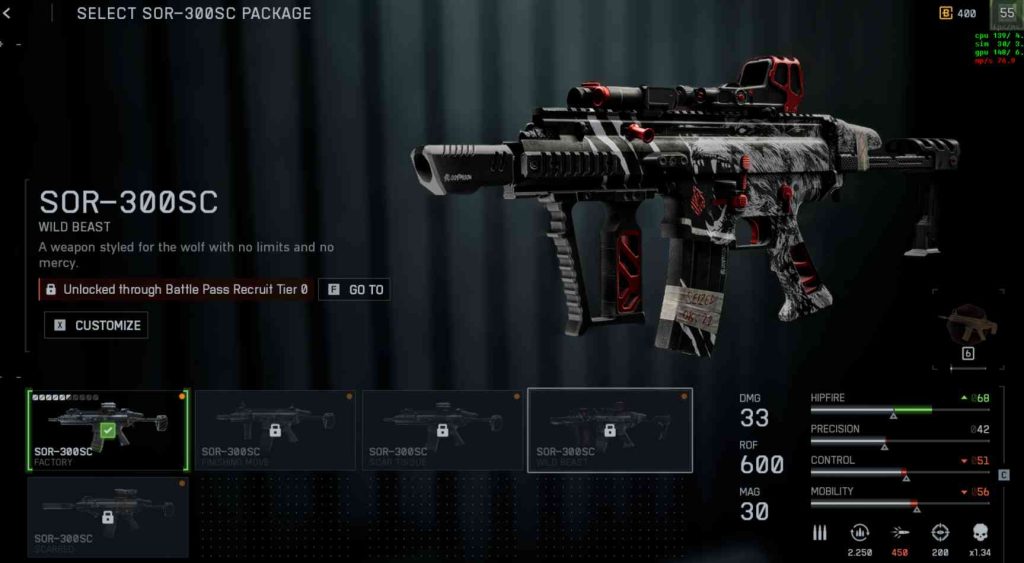
Every time Battlefield 6 receives a major update, EA’s servers revalidate all user entitlements — including Battlepass tiers, BF Pro rewards, and unlockable cosmetics.
If this validation fails mid-sync, your rewards may appear unlocked in the Battlepass or rewards tab but remain unavailable inside your loadouts.
Other common causes include:
- EA servers failing to sync account data after update 1.1.1.0.
- Temporary cache corruption in the EA App.
- Missing texture or item data packs after patch installation.
- UI desync between Battlepass and Loadout menus.
This is a known post-update issue and not linked to account bans or missing content.
Fix 1: Restart Battlefield 6 and Refresh Account Sync
Sometimes the missing rewards reappear after a full client restart.
Steps:
- Close Battlefield 6 and the EA App.
- Wait 1–2 minutes to allow backend data to refresh.
- Reopen the EA App and launch Battlefield 6.
- Check your Loadouts → Skins or Cosmetics tab.
If your rewards were temporarily out of sync, they’ll now appear correctly.
Fix 2: Clear EA App Cache to Rebuild Item Data
A corrupted cache can prevent newly unlocked items from showing up.
Steps:
- In the EA App, click Help → App Recovery → Clear Cache.
- Log back into your account and start Battlefield 6.
- Allow the game to re-download any missing content.
This process refreshes the loadout database and restores missing awards in most cases.
Fix 3: Verify Battlefield 6 Files via EA App or Steam
Broken or outdated files can stop your rewards from loading visually.
EA App:
- Go to My Library → Battlefield 6 → Manage → Repair.
Steam:
- Go to Properties → Installed Files → Verify Integrity.
This process replaces broken configuration files related to loadout visuals and item listings.
Fix 4: Check Add-Ons and Content Packs
If your Battlefield Pro pack is not fully installed, rewards may appear as “unavailable.”
Steps:
- Go to Battlefield 6 → Manage Add-Ons in the EA App.
- Ensure that “BF Pro Content” and “Bonus Skins” are marked as installed.
- If missing, click Install manually.
Reboot the game after installation and check your rewards again.
Fix 5: Re-Link EA and Platform Accounts
Sometimes account desync between EA and your platform (Steam, PlayStation, Xbox) prevents rewards from appearing.
Steps:
- Visit myaccount.ea.com/connections.
- Unlink and re-link your connected account.
- Restart the EA App and launch Battlefield 6.
This will re-sync your inventory with EA’s cloud and often resolves the missing Pro award bug.
Fix 6: Wait for EA Server Revalidation
EA typically performs automatic inventory synchronization within 24 hours after major updates. If your rewards still don’t show, it’s possible the revalidation process is ongoing.
You can check the Battlefield Direct Communication account on Twitter (X) for updates about known issues with the latest patch.
Fix 7: Manually Refresh the Loadout Screen
Some players report that switching between different loadout tabs refreshes the inventory.
Try This:
- Enter Loadouts.
- Switch between Assault, Recon, and Engineer multiple times.
- Exit and re-enter the customization screen.
This triggers a refresh and occasionally restores missing skins or cosmetics.
Fix 8: Disable Cross-Save Sync (Temporary Workaround)
On certain platforms, cross-save synchronization delays can hide unlocks.
Steps:
- Go to Settings → Account → Cloud Sync in the EA App.
- Turn off cross-save temporarily.
- Restart the game and check your Loadouts.
Once items reappear, you can turn cross-save back on safely.
Fix 9: Log in to a Secondary Platform (Optional)
If you have Battlefield 6 linked to multiple platforms, logging into another (like console or PC) can trigger a full sync.
Log in once, open the Loadouts screen, then log out and return to your primary platform.
This method refreshes your item registry directly from EA’s backend.
Fix 10: Contact EA Support for Missing Battlefield 6 Pro Awards
If none of the above steps work, your account may need a manual entitlement refresh from EA Support.
Steps:
- Visit help.ea.com.
- Select Battlefield 6 → Rewards & Content → Missing Pro Awards.
- Attach screenshots showing the missing rewards and your Battlepass progress.
EA can manually revalidate your rewards and restore missing Pro unlocks to your account within 24–48 hours.
Fix 11: Refresh EA App Entitlements Using Offline Mode
Sometimes the EA App fails to sync your Battlefield 6 entitlements while online. Running it in Offline Mode and then switching back can re-trigger the reward sync.
Steps:
- Open the EA App → Menu → Go Offline.
- Close the app, wait 30 seconds, and reopen.
- Go back online and launch Battlefield 6.
- Enter the Loadout section and check for your missing Pro rewards.
This refreshes your online inventory validation and can immediately restore missing cosmetics or weapon skins.
Fix 12: Rebuild Battlefield 6 Shader Cache
After updates, shader cache corruption can cause visual assets like skins or weapon models to disappear from loadouts.
Steps:
- Close Battlefield 6.
- Go to:
Documents\Battlefield 6\Settings\Cache - Delete the Cache folder.
- Relaunch the game — it will rebuild shaders and re-sync your content.
Rebuilding shaders ensures that cosmetic and texture-based rewards render correctly after updates.
Fix 13: Temporarily Disable Cloud Sync to Force Local Refresh
Cloud sync can occasionally override your local inventory, preventing new rewards from displaying.
Steps:
- Open EA App → Settings → Cloud Storage.
- Toggle Cloud Sync off.
- Launch Battlefield 6 and check your Loadout items.
- Exit and turn Cloud Sync back on after verifying your items reappear.
This forces the EA App to prioritize local data, then re-upload a clean sync to the cloud.
Fix 14: Check for Missing Battlefield Pro Pack Files
Sometimes Battlefield Pro content doesn’t finish downloading after patches.
Steps:
- Open the EA App → My Library → Battlefield 6 → Manage Add-ons.
- Ensure “BF Pro Content” and “Pro Skins Package” are listed as installed.
- If not, click Install.
- Restart your PC and relaunch the game.
This ensures your Pro Pack items are actually available to load into your profile.
Fix 15: Reset Battlefield 6 Loadout Config Files
Corrupted Loadout configuration files can cause missing Pro rewards to stay hidden.
Steps:
- Close Battlefield 6.
- Go to:
Documents\Battlefield 6\Settings - Find and delete loadouts.json (or rename it to loadouts_backup.json).
- Relaunch Battlefield 6 — the file will auto-regenerate.
This resets your Loadout setup and forces the game to rebuild your inventory list from EA’s servers.
Fix 16: Turn Off Third-Party Overlays (Discord, GeForce, MSI Afterburner)
Some overlays interfere with the UI rendering of loadout elements, including reward skins.
Steps:
- Close Battlefield 6.
- Disable overlays in Discord, GeForce Experience, Razer Synapse, and Steam.
- Restart your system.
- Reopen Battlefield 6 and check if your rewards appear.
This prevents rendering interruptions that can hide rewards visually within menus.
Fix 17: Reinstall the Battlefield 6 “Base Game” Package Only
Instead of reinstalling the full game, reinstalling only the base files can restore broken reward links.
Steps:
- In EA App, open My Library → Battlefield 6 → Manage → Uninstall Base Game.
- Leave content packs intact (don’t delete data).
- Reinstall the base game, then restart.
This re-registers your account inventory while preserving your progress and add-ons.
Fix 18: Refresh EA Token by Logging Out and Back In
Sometimes your EA session token expires, blocking your inventory sync.
Steps:
- Open the EA App → Profile → Log Out.
- Wait at least one minute.
- Log back in using the same account linked to your BF Pro purchase.
- Launch Battlefield 6 and check rewards.
This refreshes your authentication session, which immediately restores locked or hidden reward items.
Fix 19: Check for Multi-Platform Desync (EA + Steam or Console)
If you play on multiple platforms, your rewards might be stuck on one version of your account.
Steps:
- Go to myaccount.ea.com/connections.
- Verify that your Steam, PlayStation, or Xbox account is correctly linked.
- If you see duplicates, unlink and re-link only your active platform.
- Restart the EA App and Battlefield 6.
This ensures your Pro rewards sync correctly to the platform you actively play on.
Fix 20: Contact EA for Manual Pro Reward Revalidation
If none of the above fixes restore your items, you’ll need a manual entitlement refresh from EA’s backend team.
Steps:
- Go to help.ea.com.
- Select Battlefield 6 → Missing Items → BF Pro Rewards Missing.
- Provide screenshots showing unlocked rewards and missing loadouts.
- EA will manually sync your entitlements, usually within 24–48 hours.
This direct fix re-links your BF Pro content and forces it to appear in your loadout instantly once the support case is resolved.
Why Are My BF Pro Rewards Missing After the Latest Battlefield 6 Update?
The BF Pro rewards missing bug in Battlefield 6 started right after the most recent update, which unintentionally caused account synchronization issues between EA’s servers and in-game loadouts.
After every major patch, Battlefield 6 revalidates ownership data for Battlepass, BF Pro packs, and purchased cosmetics. This process sometimes fails if the EA App cache or cloud sync becomes corrupted during the update, resulting in your Pro rewards appearing “received” but not visible in the loadout section.
✅ Main Causes:
- Corrupted local cache after update 1.1.1.0.
- Incomplete sync between Battlepass and loadout UI.
- EA server delay in entitlement revalidation.
✅ Quick Fix:
Clear EA App cache, restart the game, and verify your Battlefield 6 files.
Most players report their Pro rewards reappearing after the cache rebuild or game repair.
EA DICE has acknowledged the issue and confirmed a patch is being developed to restore missing rewards post-update.
Is Battlefield 6 Removing or Hiding BF Pro Awards From Loadouts?
No — Battlefield 6 is not removing or deleting BF Pro awards, but due to a UI and backend sync bug, the rewards may appear hidden or “locked” in the loadout screen after the latest update.
EA’s backend correctly recognizes that you own the items — which is why they show as unlocked in the Battlepass section — but the loadout database fails to pull that data visually.
✅ Why It Happens:
- Desynchronization between reward tracking and loadout configuration.
- Incomplete reward indexing after update patches.
- Delayed cloud data propagation on EA servers.
✅ Temporary Fix:
- Go to EA App → Help → App Recovery → Clear Cache.
- Reopen Battlefield 6 and toggle between loadout tabs (Assault, Recon, Support).
This refreshes your inventory link and often restores the missing Pro cosmetics.
Your items are not deleted — they’re simply not being displayed correctly in the interface until the sync is repaired.
Did the New Battlefield 6 Patch Reset or Break BF Pro Rewards?
Yes — for many players, the latest Battlefield 6 patch unintentionally broke BF Pro reward tracking, especially on PC and Xbox.
When the new update rolled out, it triggered a full entitlement recheck on EA’s servers. However, the loadout configuration file (loadouts.json) did not update properly, causing BF Pro skins, weapons, and cosmetics to vanish from the customization menu.
✅ Patch Impact:
- BF Pro items show “owned” but fail to load in loadouts.
- Some Battlepass rewards overlap or replace existing Pro content.
- Cross-save sync (EA → Steam or Console) fails intermittently.
✅ Fix:
Delete or rename the file located at:
Documents\Battlefield 6\Settings\loadouts.json
Then restart the game — Battlefield 6 will rebuild your inventory data automatically.
EA has confirmed that an upcoming hotfix will restore missing BF Pro rewards and permanently fix loadout sync after major updates.
Why Do My BF Pro Unlocks Show as Received but Not Appear In-Game?
If your BF Pro unlocks show as received but don’t appear in-game, you’re facing a Battlepass and loadout sync glitch that affects post-patch inventory refresh.
When Battlefield 6 marks rewards as “Received,” it means your EA account successfully owns the item. However, if your local files or shader cache are outdated, the game can’t render the asset in the customization menu.
✅ Causes:
- Outdated reward registry from pre-patch builds.
- Cache conflict between the EA App and in-game storage.
- Corrupted texture pack preventing item display.
✅ Fix:
- Clear EA App cache.
- Run Repair Game in the EA App.
- Verify your Texture and Content Packs are installed.
- Restart your PC and re-launch Battlefield 6.
Once the cache and content data re-sync, your BF Pro unlocks will appear again in the loadout screen.
EA has stated this is a temporary sync issue, not a lost purchase or removal.
Is This Battlefield 6 Pro Rewards Bug Happening to Everyone or Just PC Players?
The Battlefield 6 Pro rewards bug is widespread across all platforms, not just PC.
Reports from players on PlayStation 5, Xbox Series X|S, and Steam all confirm that BF Pro rewards — including skins, emblems, and cosmetics — are showing as “received” but failing to appear in the loadout section.
✅ Platform Breakdown:
- PC (EA App / Steam): Cache and update sync issues are most common.
- Xbox: Missing texture packs or content download failure.
- PlayStation: UI delay between Battlepass and loadout refresh.
✅ What You Can Do:
- Verify your installation files.
- Reinstall missing content packs (under Add-ons).
- Clear cache and restart the game.
EA has confirmed that this is a global synchronization error, not platform-specific.
A patch is currently being tested to stabilize loadout inventory syncing for all players, ensuring BF Pro rewards reappear across every platform.
How to Fix Missing BF Pro Rewards in Battlefield 6 After Update
If your BF Pro rewards disappeared after the latest Battlefield 6 update, it’s most likely a result of account desync or missing content cache. The update reset several backend links between the Battlepass rewards and player loadouts, causing unlocked items to vanish temporarily.
✅ Fix Steps:
- Close Battlefield 6 and the EA App completely.
- Open Help → App Recovery → Clear Cache in the EA App.
- Launch the game and go to My Library → Battlefield 6 → Manage → Repair.
- Wait for the repair to complete, then restart your PC.
- Open Battlefield 6 again and check the Loadouts → Skins or Rewards tab.
This process forces the EA App to revalidate your BF Pro license and reloads missing reward files.
Players report that after verifying or repairing the game, all Pro cosmetics, emblems, and gear reappear automatically.
EA DICE has confirmed they are testing a synchronization patch to permanently fix this issue in future updates.
Does Restarting or Verifying Battlefield 6 Restore Missing BF Pro Items?
Yes — restarting or verifying Battlefield 6 through the EA App or Steam often restores missing BF Pro items caused by corrupted local files or desynced reward data.
When the game updates, cached reward files can fail to refresh, leaving Battlepass unlocks marked as “owned” but invisible in the loadout. Verifying the installation forces the launcher to redownload and repair these missing data assets.
✅ How to Verify:
- EA App: Go to My Library → Battlefield 6 → Manage → Repair.
- Steam: Right-click Battlefield 6 → Properties → Installed Files → Verify Integrity.
After verification, restart your PC and relaunch the game.
You’ll often notice your missing BF Pro skins, charms, or gear reappearing automatically once Battlefield 6 reindexes your account inventory.
If it doesn’t, clear the EA App cache or delete the game’s Settings\Cache folder under Documents\Battlefield 6 to rebuild the local data index.
This fix has worked for most players after the recent patch.
Can Unlinking and Relinking EA or Steam Accounts Fix Missing Rewards?
Yes — if your EA and Steam accounts are out of sync, unlinking and relinking them can restore missing BF Pro rewards in Battlefield 6.
After a major update, cross-platform connections sometimes fail to refresh entitlements correctly. This leads to situations where your rewards show as unlocked in Battlepass but remain unavailable in the Loadout section.
✅ Fix Steps:
- Go to myaccount.ea.com/connections.
- Unlink your connected Steam or Epic Games account.
- Log out of EA App completely.
- Log back in and re-link your account.
- Launch Battlefield 6 and wait for inventory sync to complete.
Once the accounts are reconnected, EA revalidates your licenses — which immediately restores Battlefield 6 Pro rewards and cosmetics.
This fix is especially useful for PC users who purchased the Pro bundle on a different platform (EA App vs. Steam).
EA Support has confirmed that relinking accounts resolves most missing item cases related to cross-platform synchronization.
Why Do My BF Pro Items Appear in Battlepass but Not in Loadout?
If your BF Pro items appear unlocked in the Battlepass but not in the Loadout menu, this means the entitlement system has validated your ownership, but the loadout registry hasn’t updated visually.
This is a UI-level desync — your items are technically owned, but the game’s interface doesn’t pull them from the correct data index.
✅ Causes:
- Broken link between Battlepass and loadout data.
- Corrupted cache after update 1.1.1.0.
- Delayed cloud sync from EA servers.
✅ Fix:
- Clear EA App cache.
- Restart Battlefield 6.
- Switch between classes (Assault, Recon, Engineer) in the Loadout menu.
- Exit and re-enter the customization screen.
This action forces Battlefield 6 to refresh your item inventory and display the correct unlocks.
EA has confirmed that this glitch is purely visual — your BF Pro skins, charms, and rewards remain on your account and will reappear after synchronization completes.
Can EA Manually Restore Battlefield 6 BF Pro Awards That Disappeared?
Yes — if all troubleshooting fails, EA Support can manually restore your missing BF Pro rewards by revalidating your purchase and account entitlement.
This process refreshes your account’s license data directly on EA’s backend and re-syncs it to your game installation.
✅ How to Contact EA Support:
- Go to help.ea.com.
- Select Battlefield 6 → Rewards & Content → Missing BF Pro Rewards.
- Log in with your EA account and attach proof of ownership or screenshots.
- Submit your ticket and wait for manual entitlement sync.
Once verified, EA will reassign the Pro bundle license to your account, and your missing skins or cosmetics will appear the next time you log in.
This fix is 100% safe — EA’s support team has direct access to backend reward entitlements and can restore BF Pro rewards lost due to patch errors or data desync.
Is the Battlefield 6 BF Pro Bug Caused by Update 1.1.1.0 or Server Desync?
The Battlefield 6 BF Pro rewards bug appears to be caused by a combination of update 1.1.1.0 patch errors and EA server desynchronization.
When patch 1.1.1.0 rolled out, it triggered a complete revalidation of in-game content ownership for all accounts. However, the synchronization between the EA servers (which track your purchases) and your local Battlefield 6 installation failed for many players.
As a result, BF Pro rewards — even though marked as owned or received — did not correctly appear in the Loadout customization screen.
✅ What’s Happening:
- The update reset inventory sync for certain entitlements.
- EA servers temporarily failed to confirm ownership data.
- Cache corruption caused missing or invisible items post-update.
EA DICE has acknowledged this issue and confirmed that the next hotfix will address reward validation errors introduced in update 1.1.1.0, ensuring BF Pro items appear properly after server sync.
Why Does the Loadout Section Fail to Show Unlocked or Paid BF Pro Items?
The Loadout section in Battlefield 6 fails to display unlocked or paid BF Pro items because of a UI rendering and data-linking error between your account inventory and in-game asset library.
Even though your account correctly shows the rewards as owned, the Loadout database doesn’t retrieve the updated item list due to broken synchronization.
✅ Main Causes:
- Broken XML configuration file for loadouts.
- Patch-side bug causing incomplete data loading.
- Cache corruption from the EA App after recent updates.
✅ Fix:
- Clear EA App cache (Help → App Recovery → Clear Cache).
- Launch Battlefield 6 → Enter Loadout.
- Switch between soldier classes and recheck your items.
This forces the UI to reload your reward registry.
EA has confirmed that the missing Loadout issue is visual only — your BF Pro content remains tied to your account and will return once synchronization updates.
Are Battlefield 6 BF Pro Rewards Tied to Specific Tiers or Account Sync?
Yes — all Battlefield 6 BF Pro rewards are tied to specific Battlepass tiers and your EA account synchronization status.
When you purchase Battlefield Pro, your rewards are unlocked through tier-based progression validated by the EA server. However, if your account fails to sync correctly after a patch or during a session, the rewards may not show in your inventory, even though they’ve been unlocked.
✅ Example:
- You reach Tier 5 → Reward shows “Received.”
- Loadout fails to update → Item appears missing.
✅ Fix:
- Restart Battlefield 6 to trigger a new server sync.
- Verify that your account is online (not offline mode).
- Clear cache and check the Battlepass → Loadout link again.
The rewards are not lost — they’re locked behind unsynced tier recognition.
Once EA’s entitlement servers refresh, your BF Pro rewards will reappear in both the Battlepass and Loadout menus.
Can Cache Corruption or Data Mis-Sync Cause Missing Pro Awards?
Yes — cache corruption and data mis-sync are the two leading causes of missing Battlefield 6 BF Pro rewards after the latest update.
When Battlefield 6 or the EA App stores outdated cache data, it fails to properly recognize your entitlements from EA’s servers. This leads to a situation where your rewards are “owned” but not rendered or listed in the loadout section.
✅ How to Fix Cache Corruption:
- Open EA App → Help → App Recovery → Clear Cache.
- Delete the local cache folder from:
Documents\Battlefield 6\Settings\Cache - Restart your PC and launch Battlefield 6 again.
✅ What This Does:
It rebuilds the internal data registry, ensuring your loadout and reward files fetch fresh data from EA servers.
EA confirmed that cache corruption post-update is responsible for the majority of missing BF Pro rewards and recommends a cache clear before the next patch installation.
Does This Battlefield 6 Pro Bug Affect Both Console and PC Players?
Yes — the Battlefield 6 BF Pro rewards bug affects all platforms, including PC, PlayStation 5, and Xbox Series X|S.
While the issue presents slightly differently on each platform, the root cause remains the same — account desynchronization between EA servers and local installations following the latest update.
✅ Platform-Specific Behavior:
- PC (EA App / Steam): Rewards vanish due to corrupted cache or failed validation.
- PlayStation 5: Cosmetic skins fail to appear in Loadout after patch install.
- Xbox Series X|S: Loadouts show as empty until full entitlement refresh occurs.
✅ Fixes That Work Across Platforms:
- Restart the game and EA App (or console).
- Clear cache or local save data.
- Check for pending add-on downloads.
EA DICE has confirmed that this is a global synchronization issue, not limited to any one platform.
The next update will unify entitlement validation to ensure BF Pro rewards display consistently on all systems.
Final Thoughts
The Battlefield 6 Pro Awards missing issue is a widespread sync error following recent updates.
Your rewards aren’t gone — they’re just not being recognized by the in-game loadout menu.
✅ Best working fixes:
- Clear EA App cache.
- Repair or verify Battlefield 6 files.
- Re-link your EA and platform accounts.
EA DICE is aware of the Battlefield 6 Pro reward desync bug and has confirmed that a patch is being developed to fix loadout visibility across all accounts and platforms.