
So you’re cruising through Avatar: Frontiers of Pandora, minding your own Na’vi business… and suddenly you hit a wall.
So’lek’s package?
Gone.
Not in your inventory.
Not in the quest log.
Not anywhere it should be.
If you’re here, you’re not doing anything wrong — this is a known issue, and the good news is it’s usually fixable.
Let’s break it down.
This bug has caught a lot of players off guard, especially because the game doesn’t clearly explain what went wrong or where the package might have gone. In most cases, it isn’t a missed step, a bad decision, or a broken save file. Instead, it’s usually tied to how the game handles DLC installs, quest triggers, or item delivery behind the scenes. The problem looks serious at first, but thankfully, it’s one of those issues that can usually be solved with a few simple checks and fixes.
Quick Answer (If You Don’t Want the Long Read)
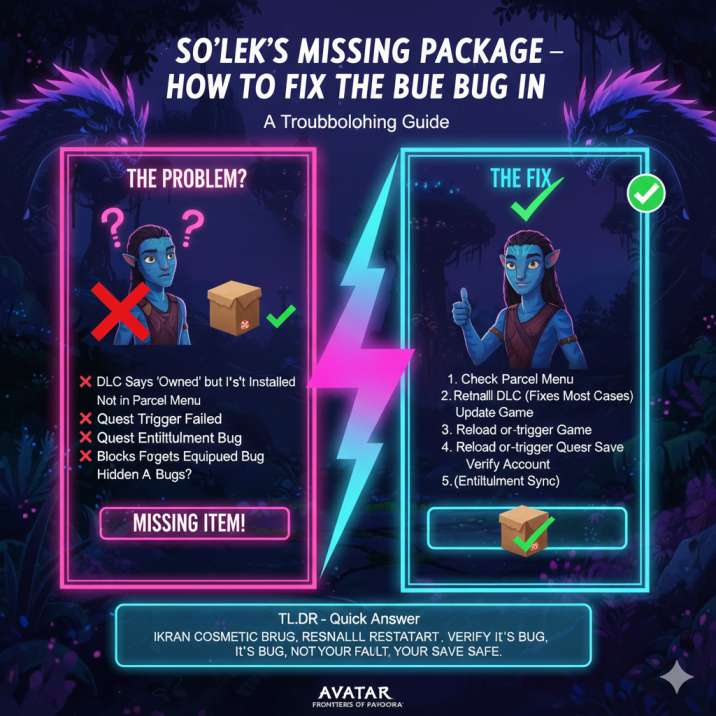
In most cases, So’lek’s missing package comes down to one of four things:
- The DLC isn’t actually installed (even if it says “Owned”)
- The item is sitting in a different menu, like the parcel or customization screens
- A quest trigger failed to update properly
- Or there’s an entitlement sync bug on Ubisoft’s end
Most players fix this by reinstalling the DLC or checking the parcel menu. If the package still refuses to show up, Ubisoft Support can manually restore it.
Now let’s get you unstuck and back into the game.
Read also: Avatar Frontiers of Pandora Flickering : Solved
What Is “Solek’s Missing Package,” Exactly?
When players talk about So’lek’s missing package, they’re usually running into one of two problems:
- A quest item that simply never appears
- A DLC reward or cosmetic linked to So’lek that refuses to unlock
In both cases, the game acts like the item exists and should be there — but it never shows up in your inventory or menus. That can block quest progress or make it feel like something seriously broke.
Good news, though: your save file isn’t broken.
Why Solek’s Package Goes Missing
This bug shows up for a few very specific reasons — and unfortunately, they’re all pretty common.
1. The DLC Says “Owned” but Isn’t Installed
This is easily the most common cause.
The store might show the DLC as owned, but the actual files never finished installing on your system. When that happens, the game has nothing to pull from.
No files = no package.
2. The Item Is in the Parcel Menu (Not Your Inventory)
Some rewards don’t go straight into your inventory.
They show up in:
The Parcel / Package icon
Ikran customization menus
Cosmetic override sections
A lot of players miss this completely.
The reason this causes so much confusion is that the game doesn’t clearly tell you where the item was delivered.
There’s no obvious notification, no pop-up pointing you toward the parcel icon, and no hint that the reward might live in a separate menu entirely. If you’re only checking your main inventory or quest log, it can easily feel like the package never existed at all.
Before assuming the quest is broken, it’s worth slowing down and checking every relevant menu carefully, especially if you’ve just completed a quest or installed new content.
3. The Quest Trigger Didn’t Fire Properly
If a quest step relies on:
A cutscene
Fast travel
A dialogue trigger
…it can fail silently.
The game thinks it gave you the package.
You never actually got it.
This usually happens when something interrupts the flow of the quest, like skipping a cutscene, fast traveling too quickly, or loading into an area before the game finishes updating the quest state. From the player’s perspective, everything looks normal — until the item you’re supposed to receive simply isn’t there. The quest doesn’t always flag this as an error, which makes it especially frustrating. In these cases, the fix is often about forcing the game to re-check that quest step rather than hunting for an item that never spawned.
4. Ubisoft Entitlement Sync Bug
Sometimes the game just doesn’t recognize that your account owns the content.
This is a backend issue, not a gameplay one — and it’s happened before with DLC and cosmetics.
When this happens, everything can look correct on the store side. The DLC may show as purchased, downloaded, and enabled, but the game itself never receives the signal that unlocks the item.
Because this process happens on Ubisoft’s servers, there’s nothing you can directly fix inside the game menus. Restarting the game or reinstalling content can help force a refresh, but in stubborn cases, the entitlement simply needs to be revalidated on the backend. It’s frustrating, but it’s also one of the more common causes of missing rewards.
Read also: Your Ikran Costume Keeps Resetting in Avatar: Frontiers of Pandora? Solved
How to Fix So’lek’s Missing Package (Step-by-Step)
Try these in order. Most players don’t need to go all the way to the end.
The idea here is to start with the quickest, least intrusive fixes before moving on to anything more involved. In many cases, the package is already in the game and just hasn’t been claimed or displayed properly.
Jumping straight to reinstalling content or contacting support can be unnecessary if a simple menu check solves it. Take a few minutes to work through each step carefully, and don’t skip ahead unless you’re sure a step doesn’t apply to your situation.
This approach saves time and helps you pinpoint what actually caused the issue in the first place.
✅ Step 1: Check the Parcel & Customization Menus
Before doing anything drastic, open:
Inventory → Parcel / Package icon
Ikran → Customization → Paint / Overrides
Cosmetic menus tied to So’lek content
If it’s there, claim it and you’re done.
This step sounds simple, but it’s surprisingly easy to miss because the game doesn’t clearly tell you where certain rewards are delivered. If you’ve just completed a quest or installed DLC, the item may quietly sit in one of these menus without any notification. Take your time and double-check each section, especially the parcel icon, since that’s where many players eventually find the missing package. Checking here first can save you a lot of unnecessary troubleshooting later.
✅ Step 2: Reinstall the DLC (This Fixes a LOT of Cases)
Even if it says “Owned”:
Console
Go to Manage Game Content
Delete the DLC
Re-download it
PC
Verify game files
Make sure the DLC is checked as installed
Then fully restart the game (and your system, if possible).
This step fixes a surprising number of cases because it forces the game to properly register the DLC files again. Sometimes the download completes incorrectly, or the game fails to link the installed content to your save. Restarting after reinstalling is important, as it helps refresh the game’s connection to Ubisoft’s servers. It might feel a bit overkill, but for many players, this is the exact moment the missing package finally appears.
✅ Step 3: Update the Game
Make sure you’re on the latest version.
Several patches have improved quest progression and item delivery, and outdated versions are more likely to bug out.
If you haven’t checked for updates in a while, it’s worth doing even if the game seems to be running fine. Some fixes only apply once you fully close and relaunch the game after an update, so don’t just install the patch and keep playing from rest mode.
A fresh launch ensures all changes are properly applied. Staying on the latest version also reduces the chance of running into other known bugs tied to older builds.
✅ Step 4: Reload or Re-trigger the Quest
Try:
Loading an earlier save
Fast traveling away and back
Re-entering So’lek’s area
Restarting the dialogue chain
This often forces the game to re-check the missing item.
Quest-based issues like this usually come down to the game missing a single trigger at the wrong moment. Reloading or re-entering the area gives the system another chance to run that check and deliver the package properly. If you have multiple save slots, it’s a good idea to load one from just before the quest step completed. While it might feel repetitive, this method has helped many players resolve the issue without needing to reinstall anything or contact support.
✅ Step 5: Check the Correct Account
Make sure you’re logged into:
The same Ubisoft / console account that purchased the DLC
Content doesn’t transfer between profiles.
This is easy to overlook if you share a console, switch profiles often, or use a secondary account for progression. Even if the DLC is installed on the system, the game will only unlock the package for the account that actually bought it. If you’re logged into a different profile, the content simply won’t appear, which can look exactly like a bug. Double-checking this now can save you from unnecessary troubleshooting later.
Still Missing? Here’s the Final Fix
If nothing above worked, this is almost certainly an entitlement sync issue.
That means Ubisoft’s servers haven’t properly attached the package to your account.
What to Tell Ubisoft Support
When you contact them, include:
Your platform and store
Ubisoft account ID
Proof of purchase
A screenshot showing the package missing
Simple message you can paste:
“So’lek’s package is missing and may be affected by an entitlement sync issue. Please verify and restore the DLC reward to my account.”
They can manually fix it.
This isn’t something you can fully resolve on your own because it happens on the backend, not in the game itself. While it’s frustrating to reach this step, the upside is that support teams are familiar with this issue and usually know exactly what to look for. Providing all the details upfront helps speed things along and avoids unnecessary back-and-forth.
Is This a Known Bug?
Yes.
Players have reported:
Missing So’lek quest items
DLC rewards not appearing
Cosmetics not unlocking
Especially after DLC installs or updates.
These reports have popped up consistently across community forums and player discussions, which helps confirm this isn’t an isolated issue or a one-off glitch. In many cases, the problem appears right after installing new content or updating the game, when the system is trying to sync new data with existing saves. While patches have reduced how often it happens, it hasn’t been completely eliminated. The important thing to know is that you’re not alone, and the issue is well-documented.
Will This Break Your Save?
No.
- Your progress is safe
- Your stats are unaffected
- This is a delivery issue, not corruption
Annoying? Absolutely.
Permanent? Nope.
Final Word
If So’lek’s package is missing, don’t panic.
Check the parcel menu.
Reinstall the DLC.
Reload the quest.
And if the game still refuses to cooperate, Ubisoft Support can sort it out.
Not the smoothest quest moment — but at least it’s fixable.
Issues like this can be frustrating, especially when the game doesn’t clearly explain what went wrong. The important thing is to tackle the problem step by step instead of assuming something is permanently broken. In most cases, the fix is simple and doesn’t require restarting your entire playthrough. Once the package shows up, you can jump right back into the quest without losing progress, making this more of a temporary annoyance than a real roadblock.
Read more article of avatar: